
Chatting with Agento
Ask questions and hand over quick jobs in a simple chat.
Chat is the quickest way to get help from Agento. It works like messaging a colleague who can open your apps. Ask a question, give it a small job, and it does the work right there in the conversation.
Starting a chat
- Click Chat in the menu on the left.
- Type your request in the box at the bottom, for example "List my five most recent emails from Sarah".
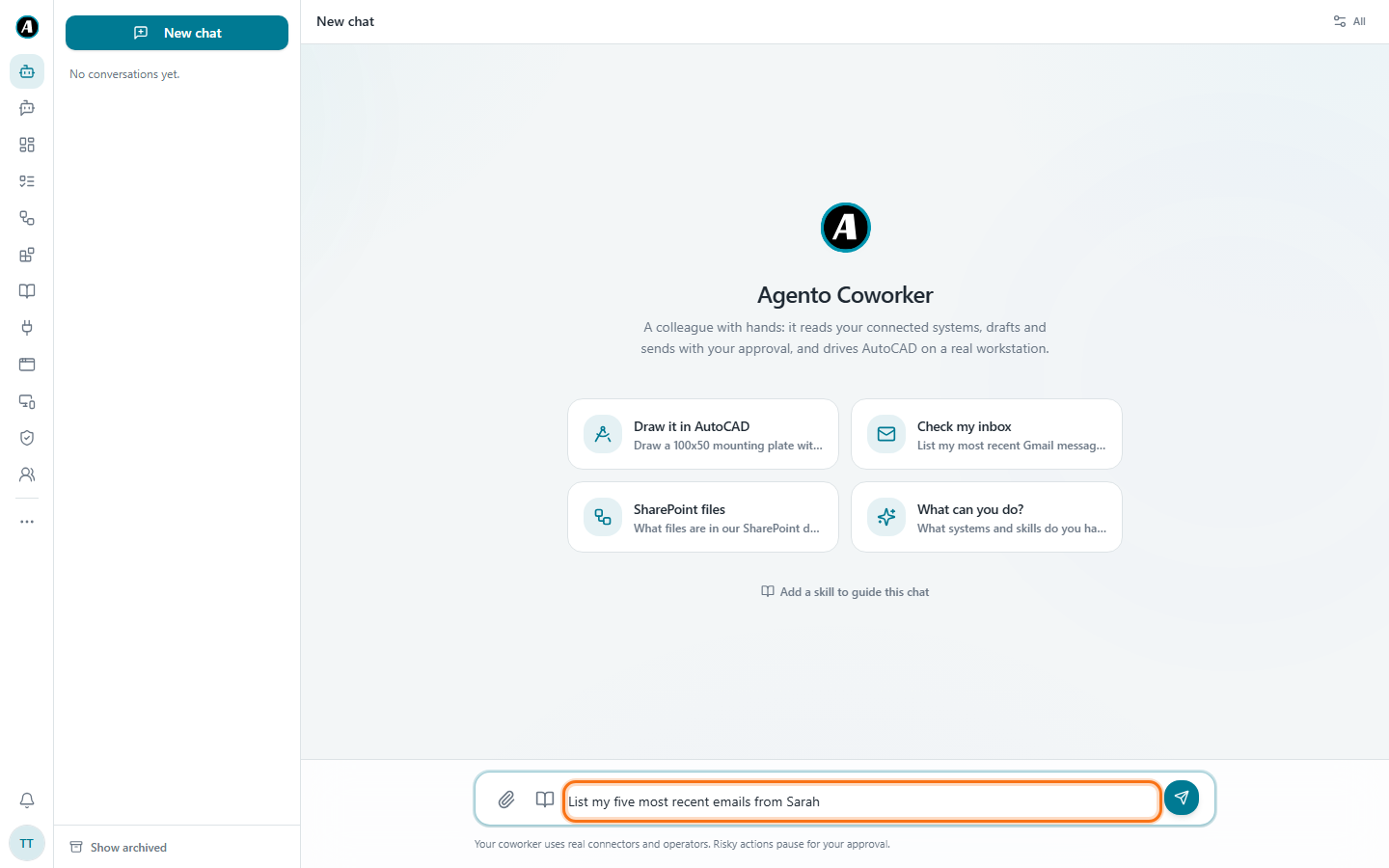
- Press Enter. Agento looks in your connected apps and answers.
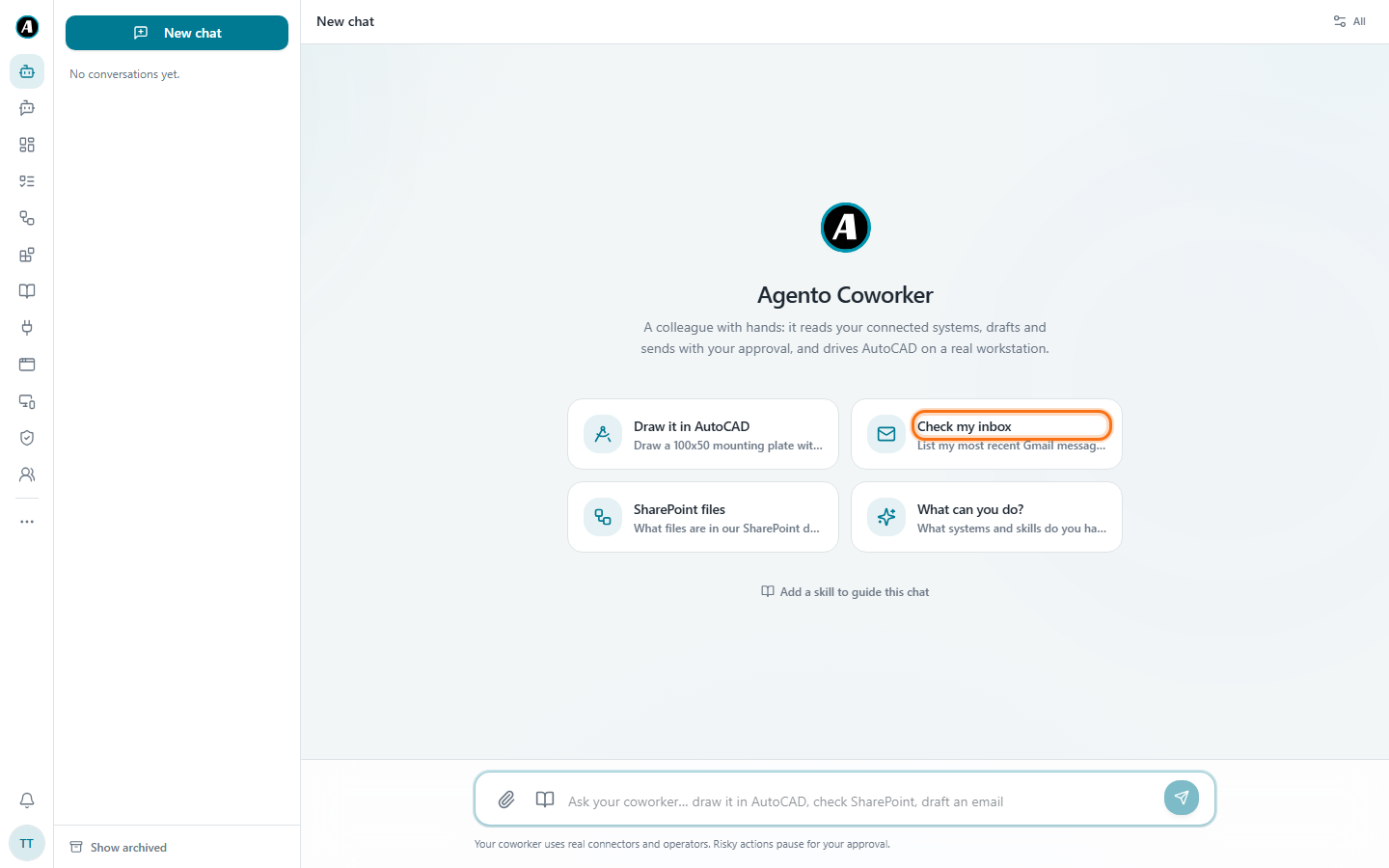
Not sure what to ask? Click one of the example cards in the middle, like Check my inbox or What can you do?. It fills in the request for you.
Things you can ask
- "What files are in our SharePoint sales folder?"
- "Summarise this PDF" (click the paperclip to attach a file)
- "Draft a polite reply to the last email from our supplier"
- "What meetings do I have tomorrow?"
When Agento wants to do something
Reading is quick and safe. But when Agento wants to change something, like sending an email or posting a message, it stops and shows you exactly what it's about to do. Nothing goes out until you say yes.
Useful extras
- Attach a file with the paperclip icon in the message box.
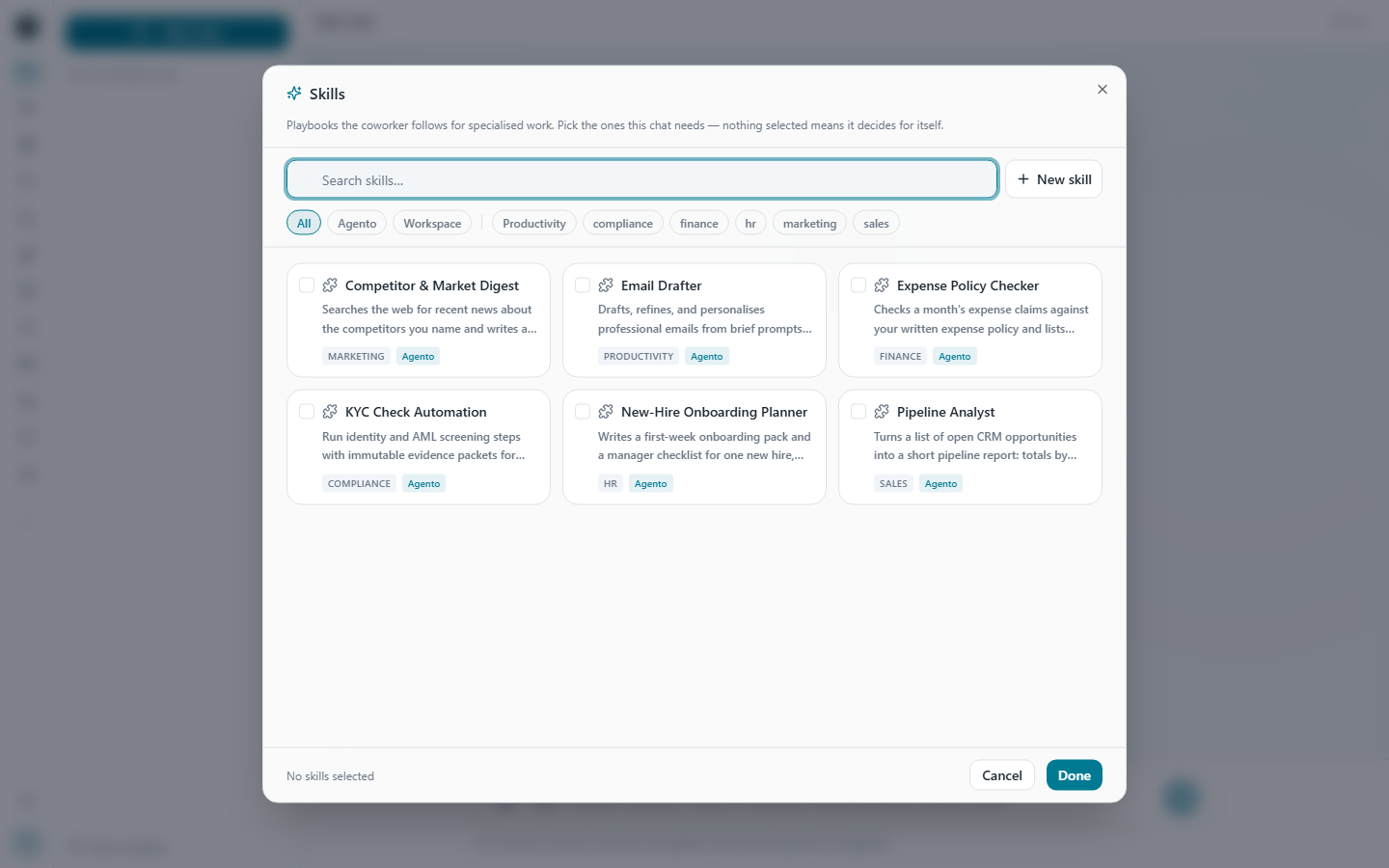
- Add a skill with the book icon, or Add a skill to guide this chat under the example cards. A skill gives Agento expert instructions for one kind of job, so its answers follow your team's way of working. Tick the skills you want and click Done.
- Start fresh with New chat at the top left. Your old chats stay in the list on the left.
- Tidy up by archiving chats you're done with. Click Show archived at the bottom to see them again.
Examples
Catching up after a day off
You type: "What important emails did I get yesterday? Just the ones that need a reply."
Agento reads your Gmail, skips the newsletters, and lists three emails with who sent them and what they want. Then you type "draft a reply to the second one saying I'll call tomorrow". It shows you the draft. Nothing is sent until you click Approve.
Understanding a long document
You click the paperclip, attach a 30-page supplier contract and type: "What are the payment terms and the notice period? Quote the exact lines."
You get two short answers, each with the words from the contract, so you can check them yourself.
Finding a file you can't remember the name of
You type: "Find the price list we sent to Northwind last month in SharePoint."
Agento searches SharePoint and shows you the files that match, with links.
Good to know
- Agento can only use the apps you've connected. If it needs one you haven't connected, it tells you.
- Chat is great for one-off jobs. If you find yourself asking for the same thing every week, turn it into a workflow so it runs by itself.