
Getting started
Finding your way around
A quick tour of the home page and the menu on the left.
After you sign in, you land on your home page. The thin menu on the left takes you everywhere else. Hover over any icon to see its name.
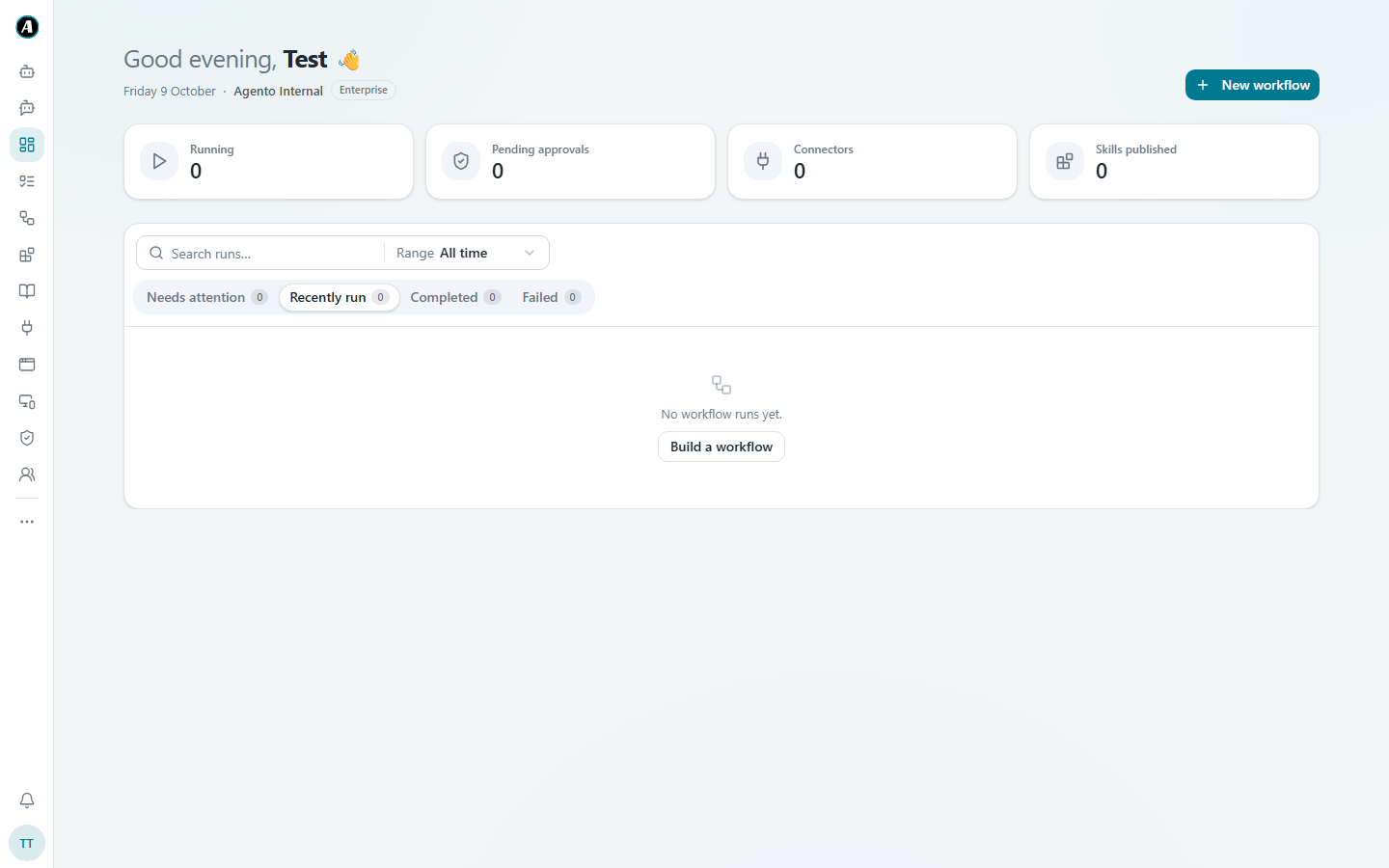
Your home page
- The boxes at the top count what's Running right now, what's waiting for your approval, how many apps are connected, and how many skills you've published.
- Below that is a list of your runs. Use the tabs to see what Needs attention, what ran recently, what Completed and what Failed.
- The New workflow button in the top corner starts a new automation.
The menu on the left
From top to bottom, these are the main places you'll use:
- Chat to ask Agento questions and give it quick jobs.
- Agents for helpers with one job each.
- Dashboard to see what's going on.
- Tasks to see every run, live.
- Workflows for your saved automations.
- Skills for ready-made instructions you can reuse.
- Knowledge for documents Agento can answer questions from.
- Connectors to connect your apps.
- Operators and Machines for desktop apps like Excel and AutoCAD.
- Approvals for anything waiting for your yes.
- Teams to see your team (or every team, if you're an admin).
- The three dots open more pages, like the Evidence Center, the Audit Log and Settings.
At the bottom you'll find the bell for your notifications and your picture for your profile and sign out.
Examples: where do I go to...
- ...ask a quick question? Chat. "What meetings do I have tomorrow?"
- ...see if my 9am report ran? Tasks. It's near the top of the list, marked Completed if it worked.
- ...approve an email Agento wants to send? Approvals, or click the notification under the bell.
- ...connect Google Drive? Connectors, then Connect on Google Drive.
- ...change my photo or job title? Click your picture at the bottom, then Profile.
- ...find a workflow a teammate shared? Workflows, then the Team workflows tab.
Good to know
- You can switch between light and dark mode from the menu under your picture.
- If you get lost, click Dashboard in the menu to go back to your home page.