
Start when something happens in an app
Start a workflow when a new email, file or task arrives.
This is the trigger most people want: "when a new email from our client arrives, do this". The app tells Agento the moment something new happens, and your workflow starts for that one item.
Setting it up
- Open your workflow and click Trigger at the top.
- Under Apps, click the app you want to watch, for example Gmail. You can also click App events on the left to see only app triggers.
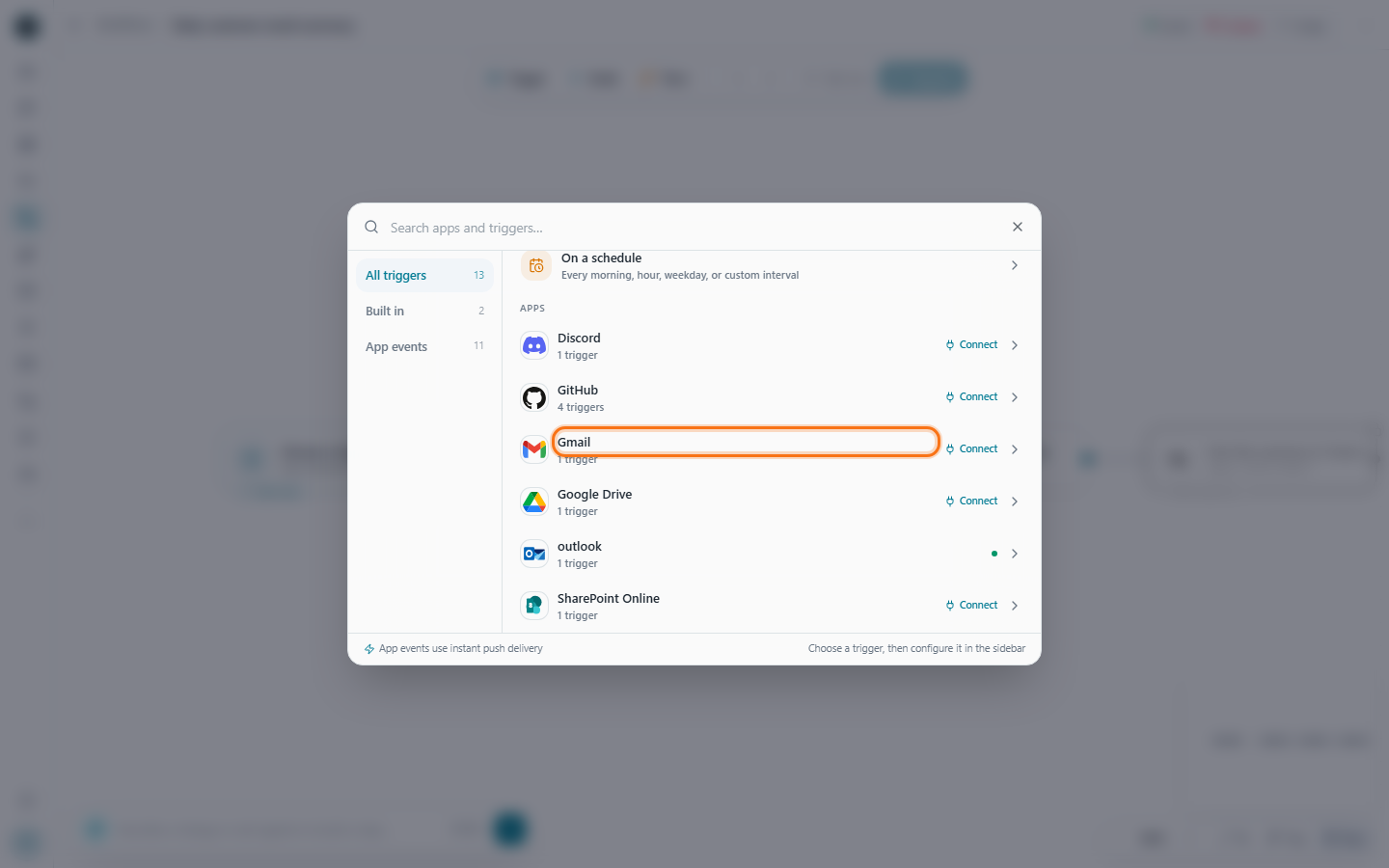
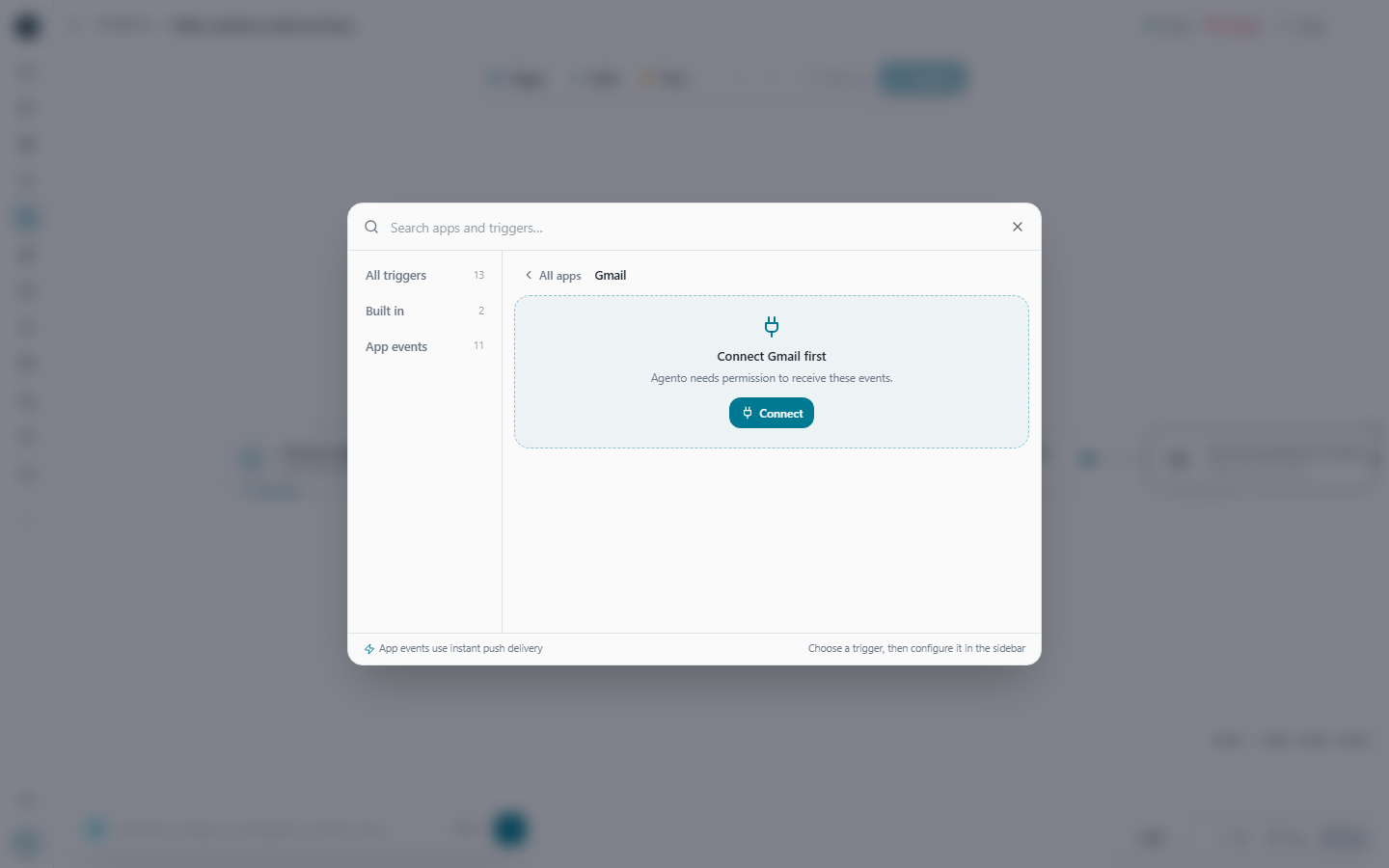
- If you haven't connected that app yet, Agento asks you to do it first. Click Connect, sign in, and you're brought back here.
- Pick what to watch, like new email in Gmail or new file in Google Drive.
- Fill in the details on the right. For example, which folder to watch, or only emails from a certain sender. Give it a name if you like.
- Click Turn on trigger.
Check it before you rely on it
Once the trigger is on, click Check now. Under Would fire on, Agento shows the items it found right now that match your settings. Click Test with this next to one of them to run your workflow on that real item straight away. If it works now, it'll work when the next one arrives.
Old items don't start anything
Switching on a trigger for an inbox with 500 old emails won't start 500 workflows. Only items that arrive after you switch it on start the workflow, and each one starts it exactly once.
Using what it found
The new item travels into your workflow. In any step, type @ and pick the trigger's new item. New files can go straight into an AI step to be read. For example: watch a folder, summarise each new document, email the summary.
Examples
Every new invoice email gets read
Watch: new email in Gmail, only emails with "invoice" in the subject.
Workflow: read the attached PDF, pull out the supplier, total and due date, and post them in the Finance channel in Teams.
What happens: a supplier emails an invoice at 2:14pm. A minute later the details are in Teams.
A new contract lands in SharePoint
Watch: new file in SharePoint, in the "Contracts" folder.
Workflow: use the "Document Risk Flagger" skill to find risky clauses, then email the legal team a short list.
Waiting for just one thing
You're waiting for a signed agreement from one customer. Watch Gmail for new email from their address, and tick Stop watching after the first match under Advanced. The workflow runs once when it arrives, then the trigger switches itself off.
Good to know
- Under Advanced you'll find Stop watching after the first match. Use it when you're waiting for one thing, like a signed contract.
- Watch only for a limited time stops the trigger by itself after a while.
- If something goes wrong, for example because an app's sign-in expired, the reason shows on the trigger. Fix it on the Connectors page and it works again.