
What triggers are
Make a workflow start by itself, on a schedule or when something happens.
Without a trigger, a workflow waits for you to press Run. A trigger takes you out of that moment: the workflow starts by itself when the time is right or when something happens.
The kinds of trigger
When I click Run means you start it yourself, whenever you need it. This is the default.
On a schedule is like an alarm clock. "Every weekday at 9am." "Every Monday morning." The time is what starts it.
App events start the workflow when something happens in one of your apps, like a new email in Gmail, a new file in Google Drive or SharePoint, or a new pull request in GitHub. The app tells Agento straight away, so the workflow starts within moments.
Adding a trigger
- Open your workflow in the builder.
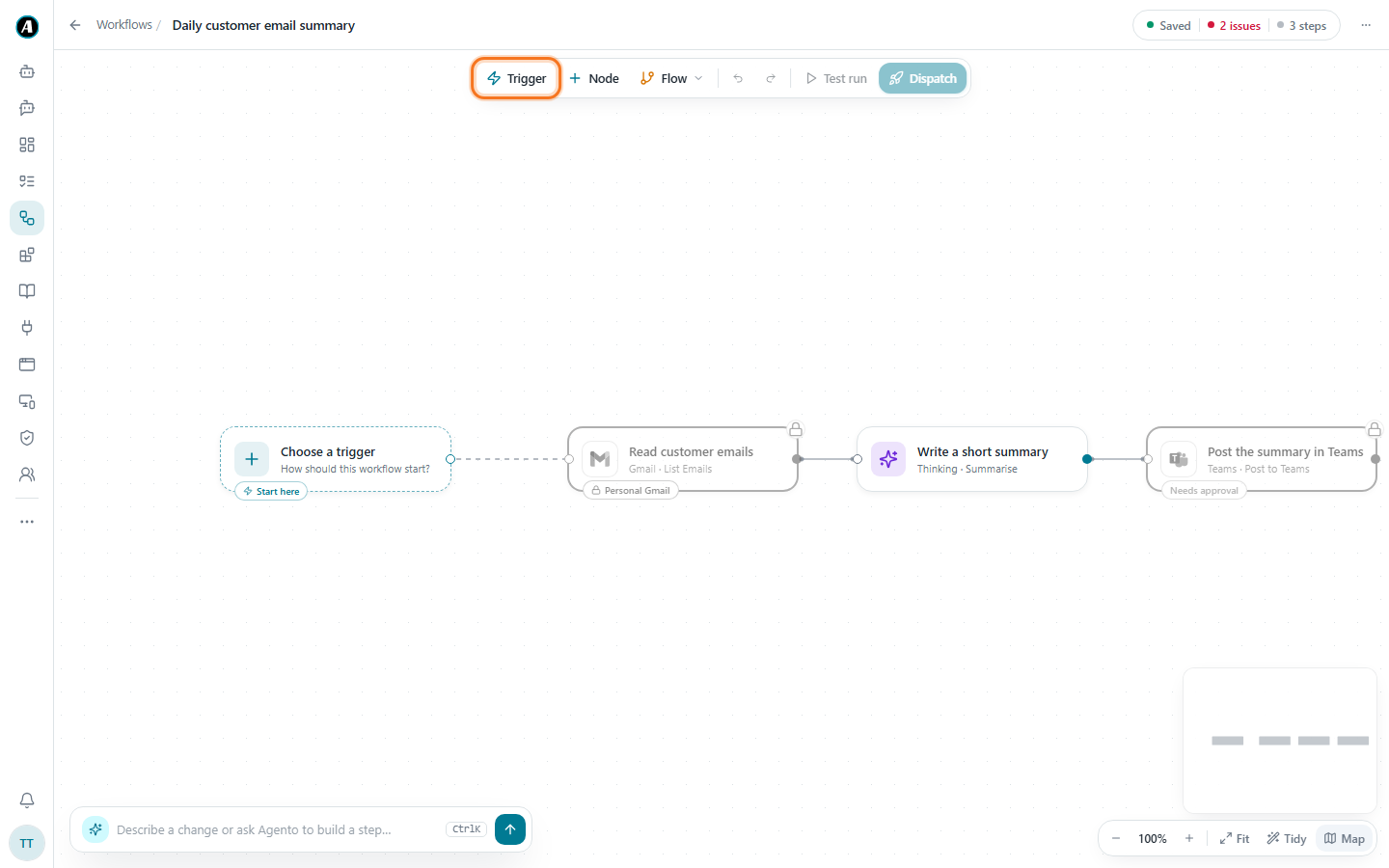
- Click Trigger in the toolbar at the top, or the Choose a trigger box at the start of your workflow.
- A window opens with every trigger you can use. Built in has When I click Run and On a schedule. Under Apps you'll find every app that can start a workflow, and how many triggers each one has.
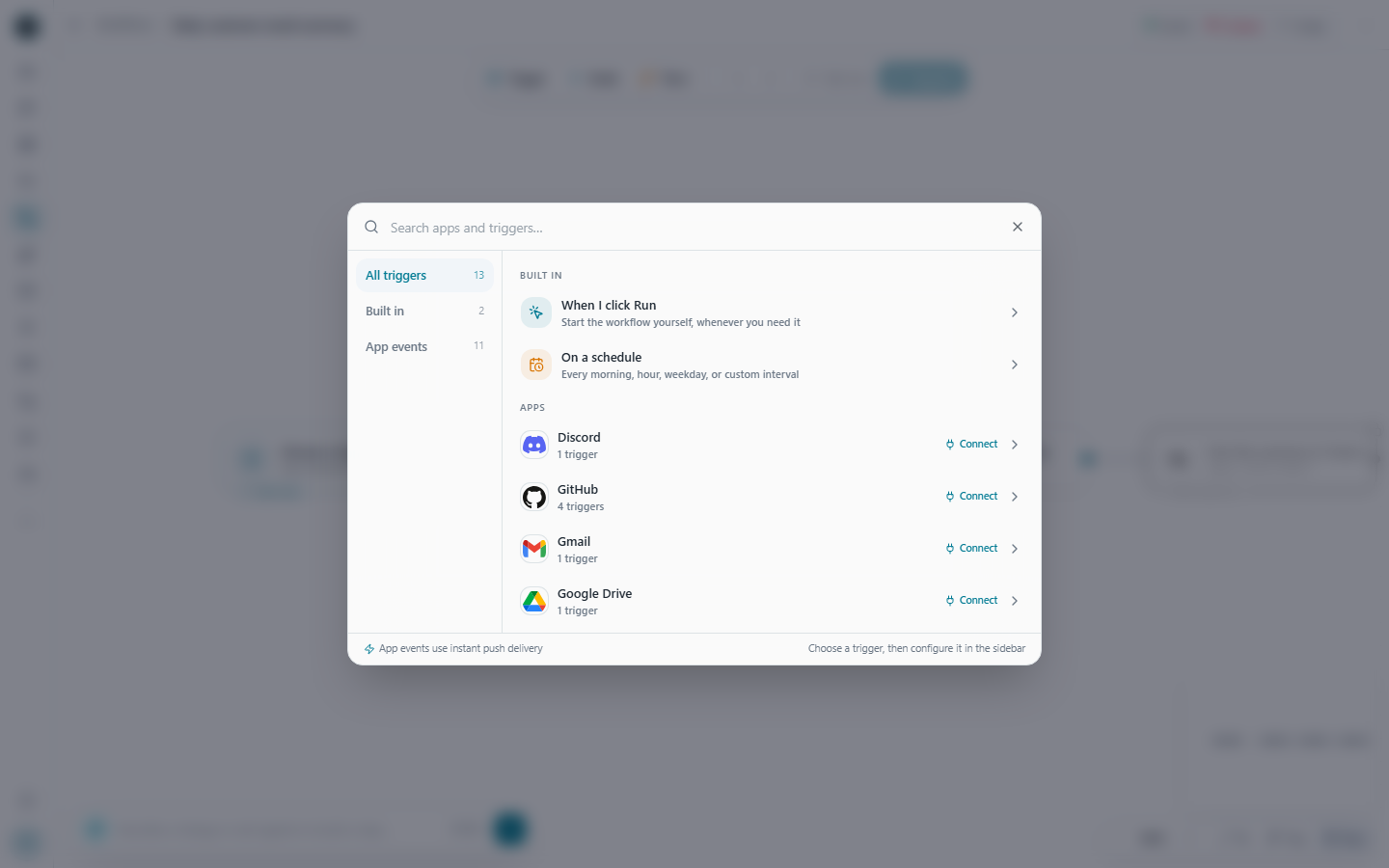
- Click the one you want. Its settings open in the panel on the right.
- Fill them in and click Turn on trigger.
The trigger now shows at the start of your workflow, so you can always see how it starts. The next two articles walk through a schedule and an app event step by step.
Does a waiting trigger cost anything?
No. While a trigger is waiting, nothing is running and no AI is used. You only use credits when the workflow actually runs.
Examples: which trigger should I pick?
- "I want a summary every weekday at 8:30am." Pick On a schedule.
- "When a customer emails us, I want a reply drafted." Pick Gmail under Apps and watch for new email.
- "When someone drops a new contract in our SharePoint folder, check it for risky clauses." Pick SharePoint Online and watch that folder.
- "I just want to run it myself when a new client signs." Leave it on When I click Run.
Good to know
- Use the search box at the top of the picker to find a trigger quickly. Type "email" or "file".
- A trigger can be paused and switched back on any time, and it keeps all its settings. Deleting it removes it for good, but your workflow stays.
- Every run a trigger starts shows up on the Tasks page. Nothing runs in secret.