
Triggers
Run a workflow on a schedule
Make a workflow run by itself every hour, every day, or every week.
A schedule runs your workflow at times you choose. Daily reports, weekly summaries, a check every hour. Set it once and forget about it.
Setting a schedule
- Open your workflow and click Trigger at the top.
- In the window that opens, click On a schedule.
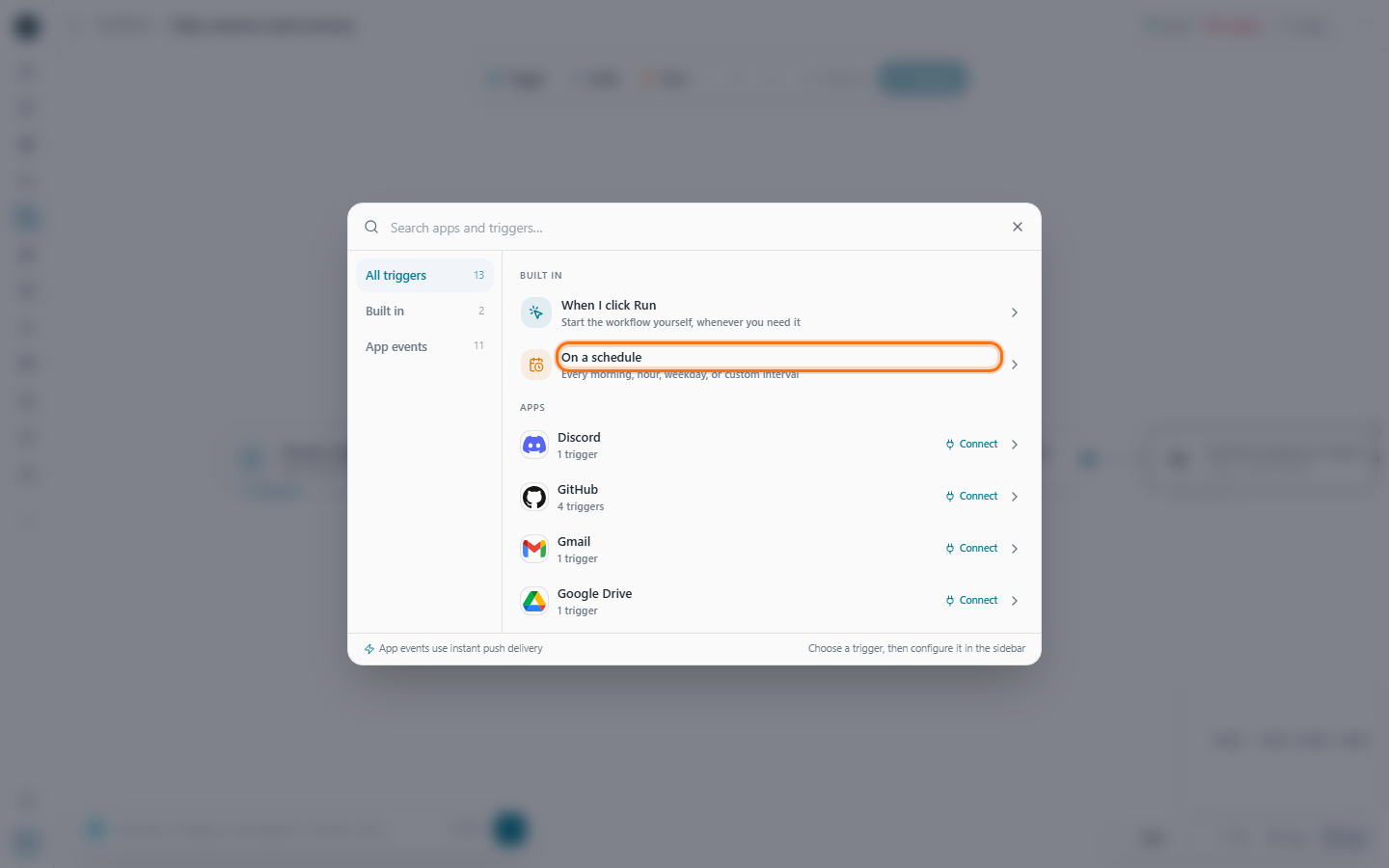
- The settings open on the right. Under How often?, choose how often it should run: every few minutes, every few hours, every day, on certain days of the week, or once a month.
- Under At what time?, choose the time of day.
- Under Which clock should it follow?, pick your time zone. Your own time zone is marked your time.
- Read the short sentence underneath. It says, in plain words, when it will run and when the first run is. For example: "Every day at 9:00 am. First run tomorrow at 9:00 am."
- Click Turn on trigger.
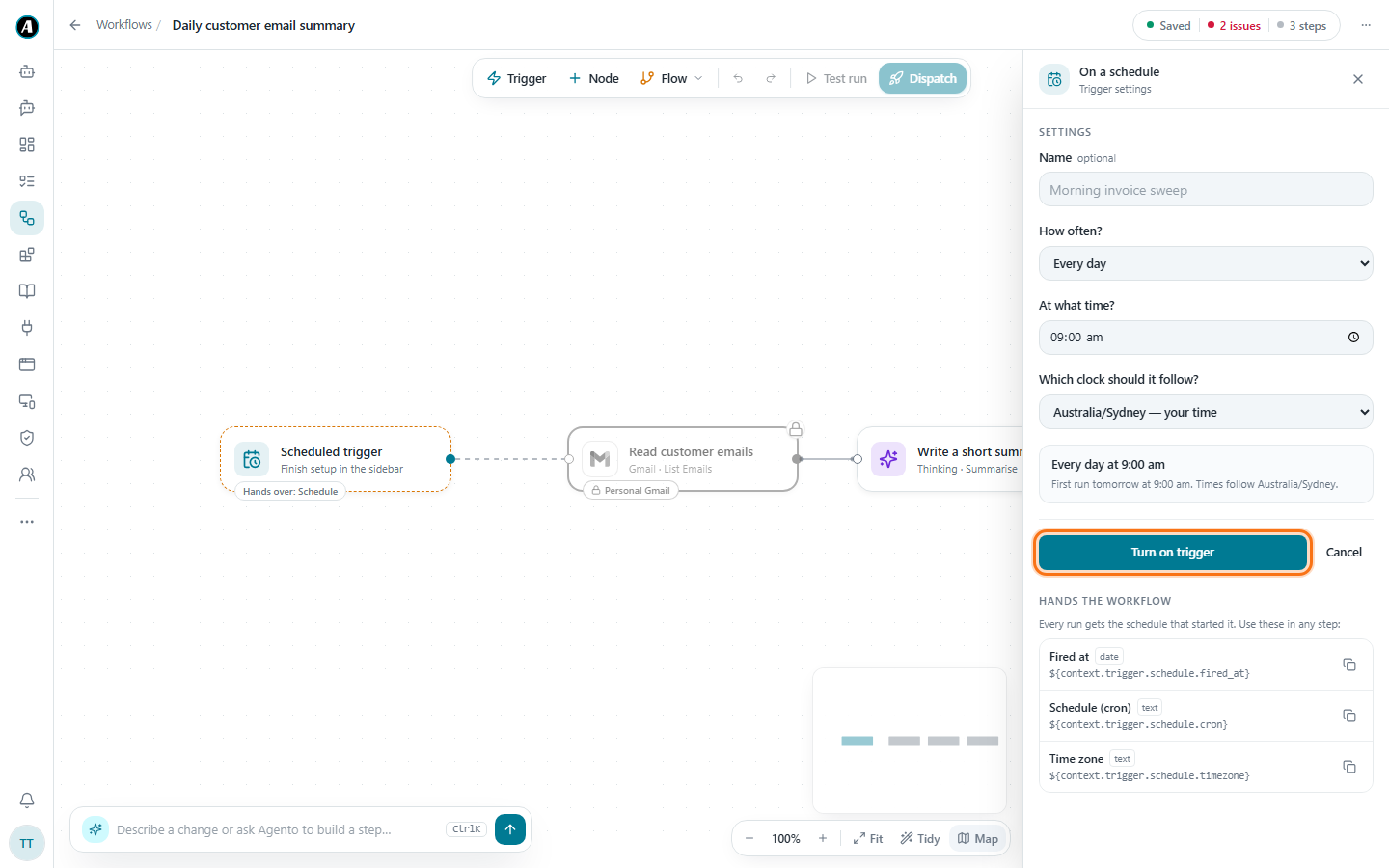
You can also give the schedule a Name at the top, like "Morning invoice sweep", so it's easy to spot later.
A real example
Every Monday at 8am, a workflow finds overdue tasks in Planner and posts a friendly reminder in the team's Teams channel. When the team arrives, the reminder is already there.
What happens when it's time
At each scheduled time, the workflow starts as if you had clicked Run. Same steps, same approvals, same record on the Tasks page. If the last run is somehow still going, the new one waits for the next turn instead of piling up.
More examples
- Every weekday at 8:30am: under How often? pick certain days of the week, choose Monday to Friday, and set At what time? to 8:30 am. Good for a morning briefing.
- Every hour: pick every few hours and choose 1. Good for keeping an eye on a shared inbox during the day.
- On the 1st of every month at 9am: pick once a month, the 1st, and 9:00 am. Good for a monthly report to the leadership team.
- For a team in another city: you're in Sydney but the team is in Perth. Under Which clock should it follow? pick Australia/Perth, so "9am" means 9am for them.
Good to know
- Your schedule keeps working when your laptop is off. It lives on our servers, not in your browser.
- Pick the right clock. "9am" in Sydney is not "9am" in London.
- Want to make big changes to the workflow? Pause the schedule first, then switch it back on when you're happy.