
Your first login
Accept your invitation and sign in for the first time.
Most people join Agento because someone on their team invited them. The invitation email is your key in.
Signing in
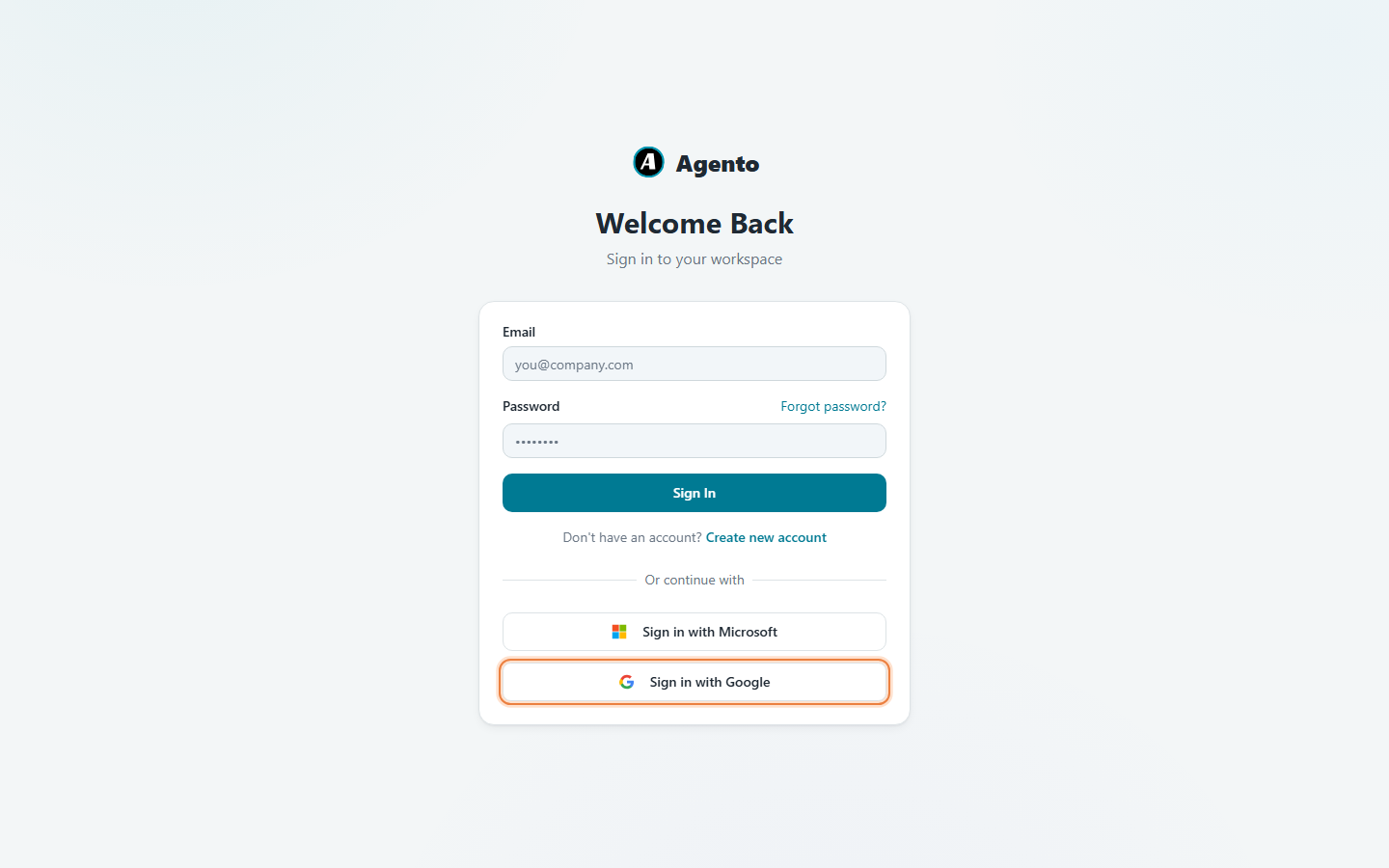
- Open the invitation email and click Accept invitation. You land on the Agento sign-in page.
- Click Sign in with Microsoft or Sign in with Google. Pick the same work account the invitation was sent to.
- Say yes on the Google or Microsoft screen. Agento never sees your password. Google or Microsoft just confirms that it's really you.
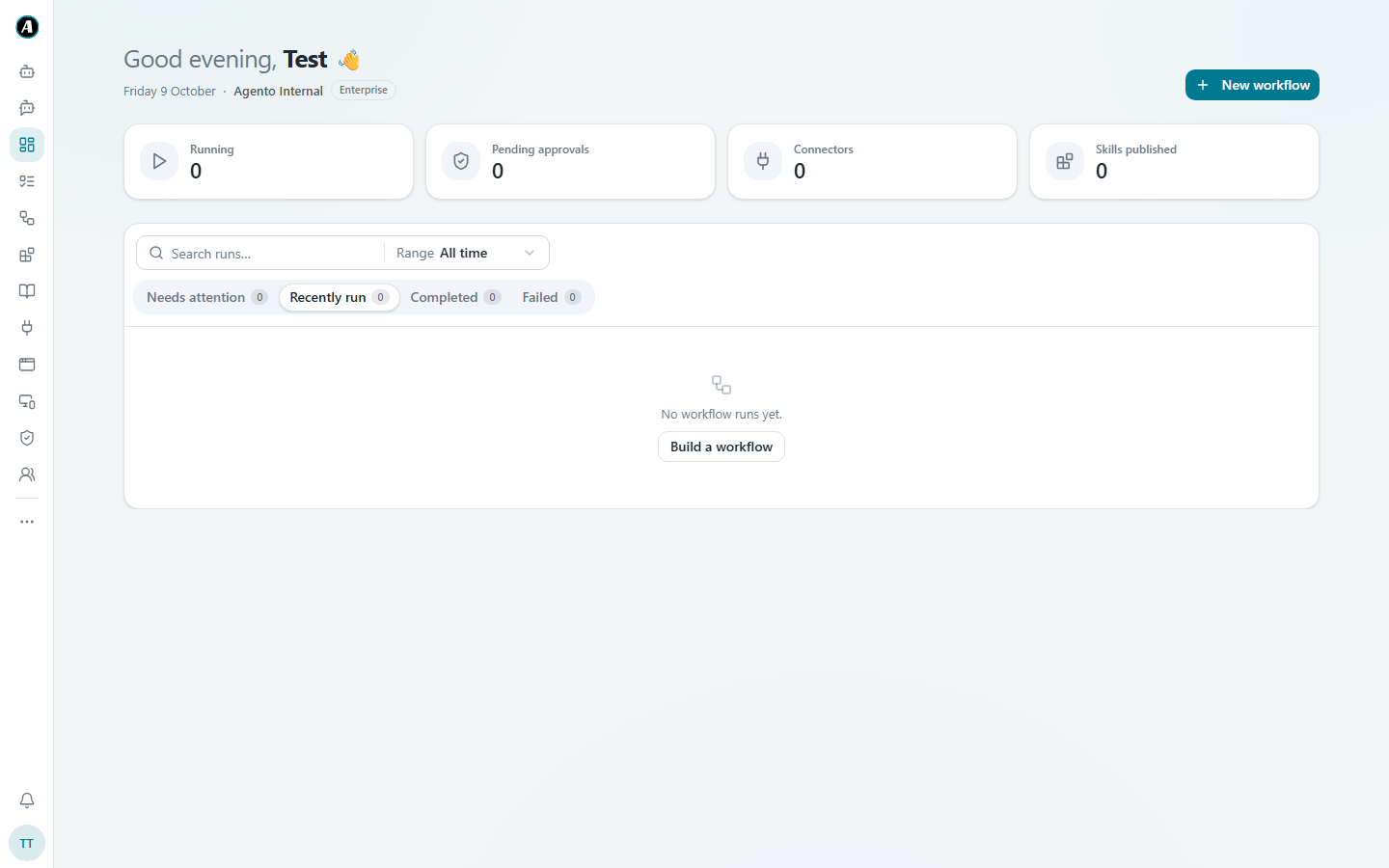
- You land on your home page. That's it, you're in.
Signing in with an email and password
If your workspace uses passwords instead, type your email and password in the boxes at the top and click Sign In. Forgot it? Click Forgot password? and we'll email you a link to set a new one.
If something goes wrong
- "User not found" usually means the invitation went to a different email address than the one you picked. Ask your admin which address they invited.
- The invitation link has expired. Ask your admin to send a new one. It only takes them a few seconds.
- You don't have an invitation yet. Ask your workspace admin, or click Create new account on the sign-in page.
Examples
"I clicked the link but it says User not found"
The invite went to jo@company.com, but Jo clicked Sign in with Google while a personal Gmail account was open. Agento looked for that personal address and didn't find it. The fix: pick the work account in the Google window (or sign out of the personal one) and try again.
"My work uses Microsoft, not Google"
Then click Sign in with Microsoft. Use the same email you use for Outlook and Teams at work. If you're already signed in to Microsoft today, it often lets you straight in without asking for anything.
Good to know
- You stay signed in for a while. If you ever land back on the login page, just sign in again. Nothing you made is lost.
- What you can see depends on your role. If a page or button seems to be missing, your admin may not have given you access to it yet.