
Build a workflow with AI
Describe the job in your own words and let Agento build the steps.
A workflow is a job that Agento can do again and again, made of a few steps. The easiest way to make one is to describe what you want and let Agento build it for you.
How to do it
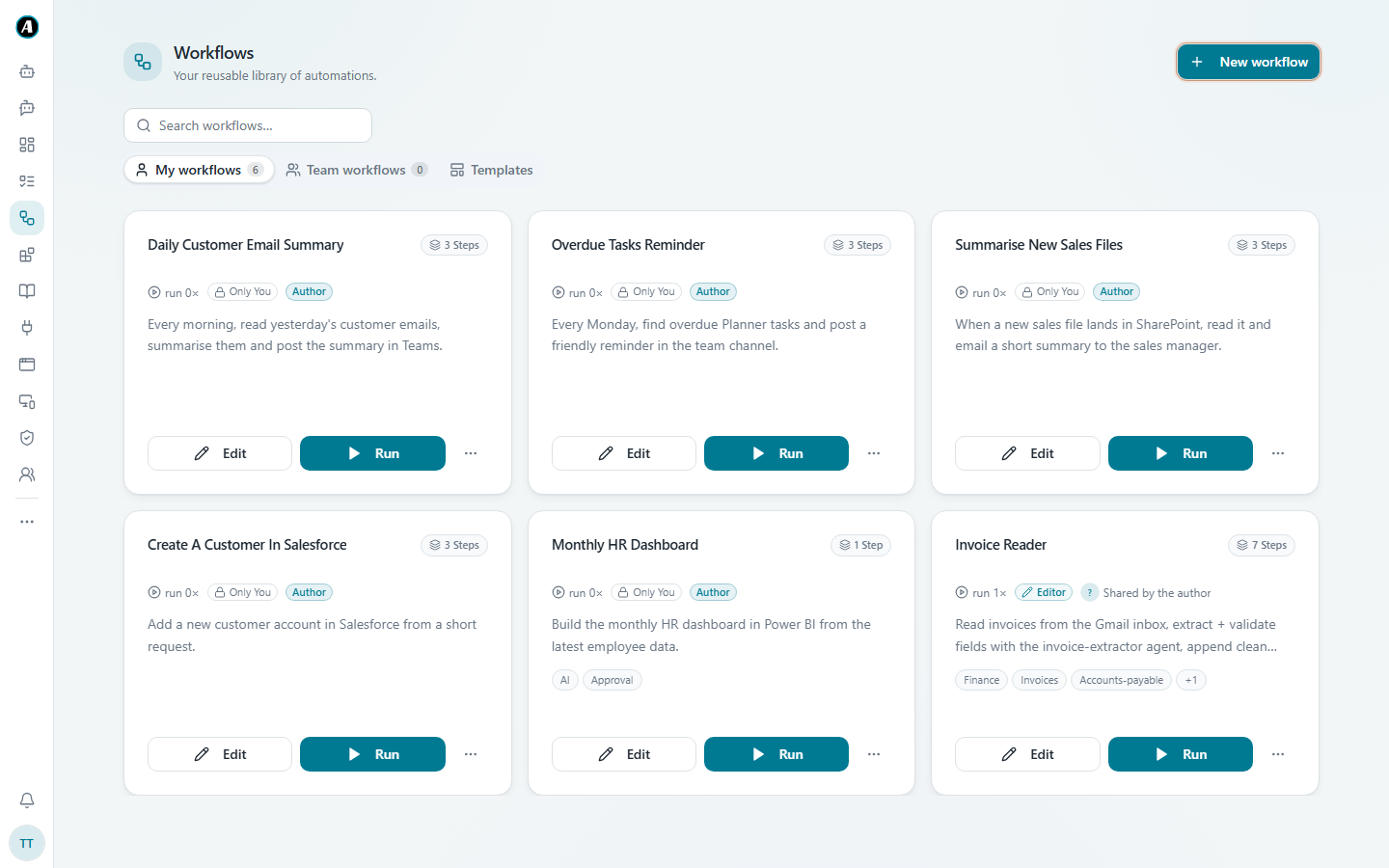
- Click Workflows in the menu, then New workflow at the top right.
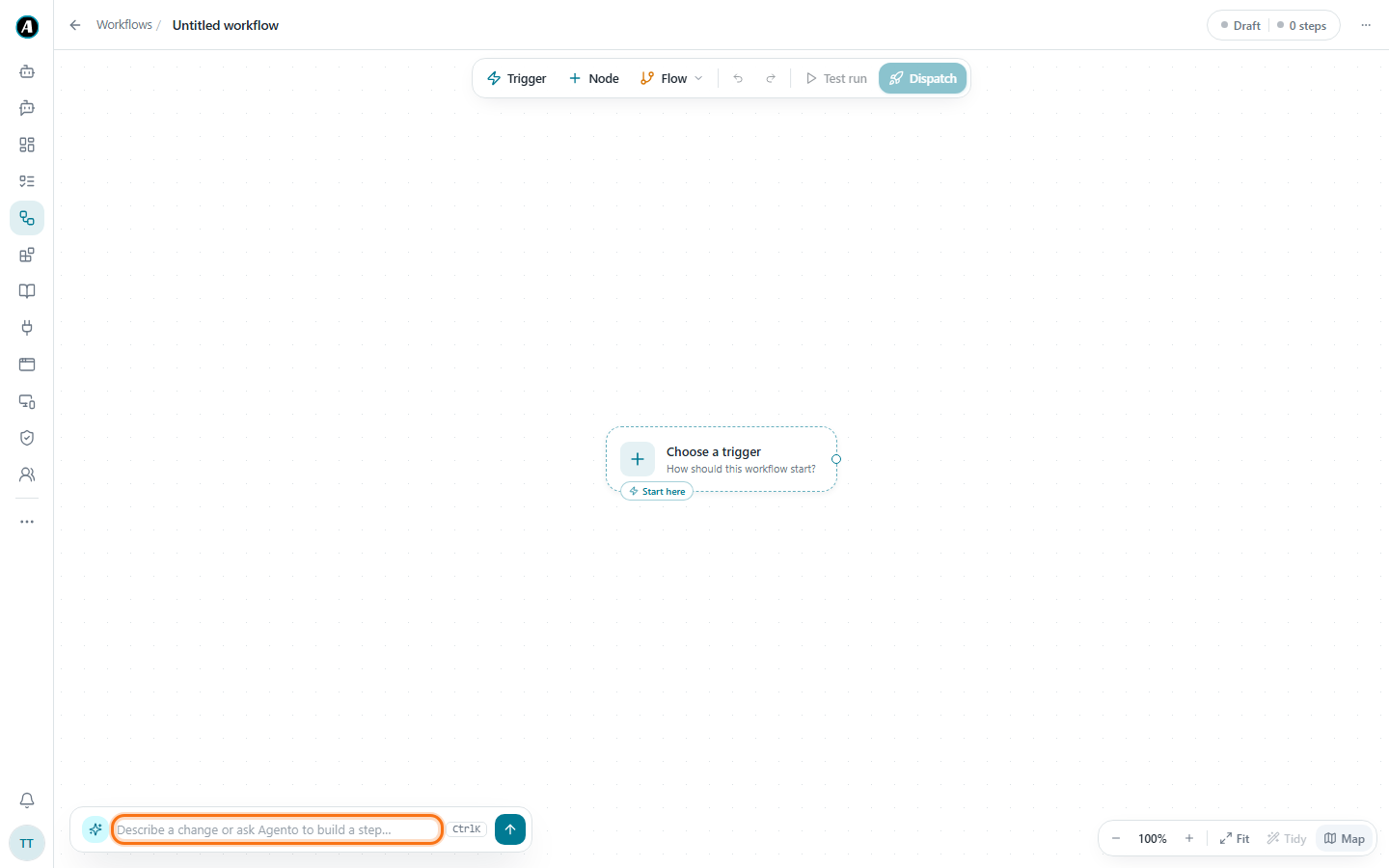
- Click the box at the bottom left that says Describe a change or ask Agento to build a step.
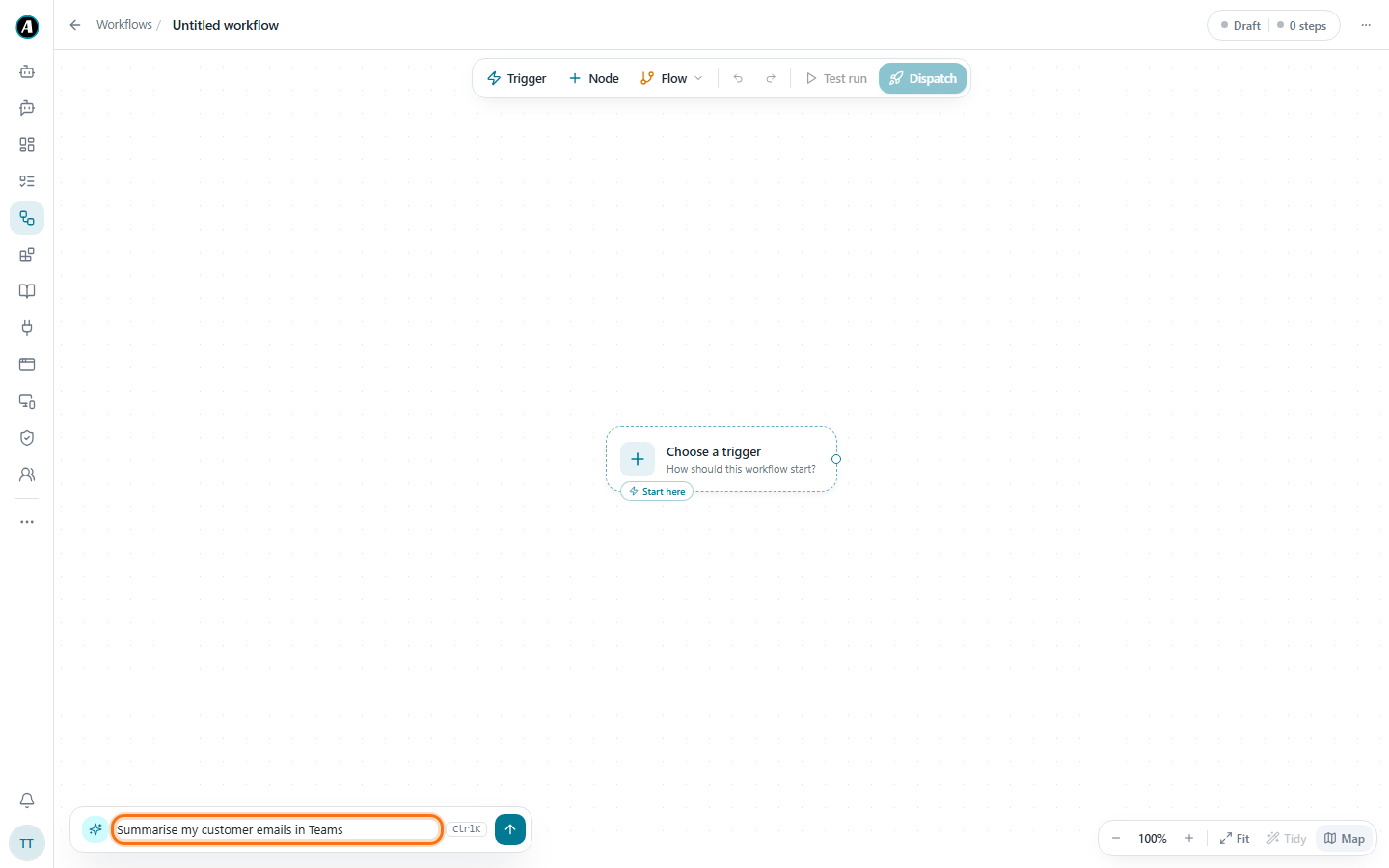
- Describe the job, the way you'd explain it to a colleague, and press Enter. For example: "Summarise my customer emails in Teams".
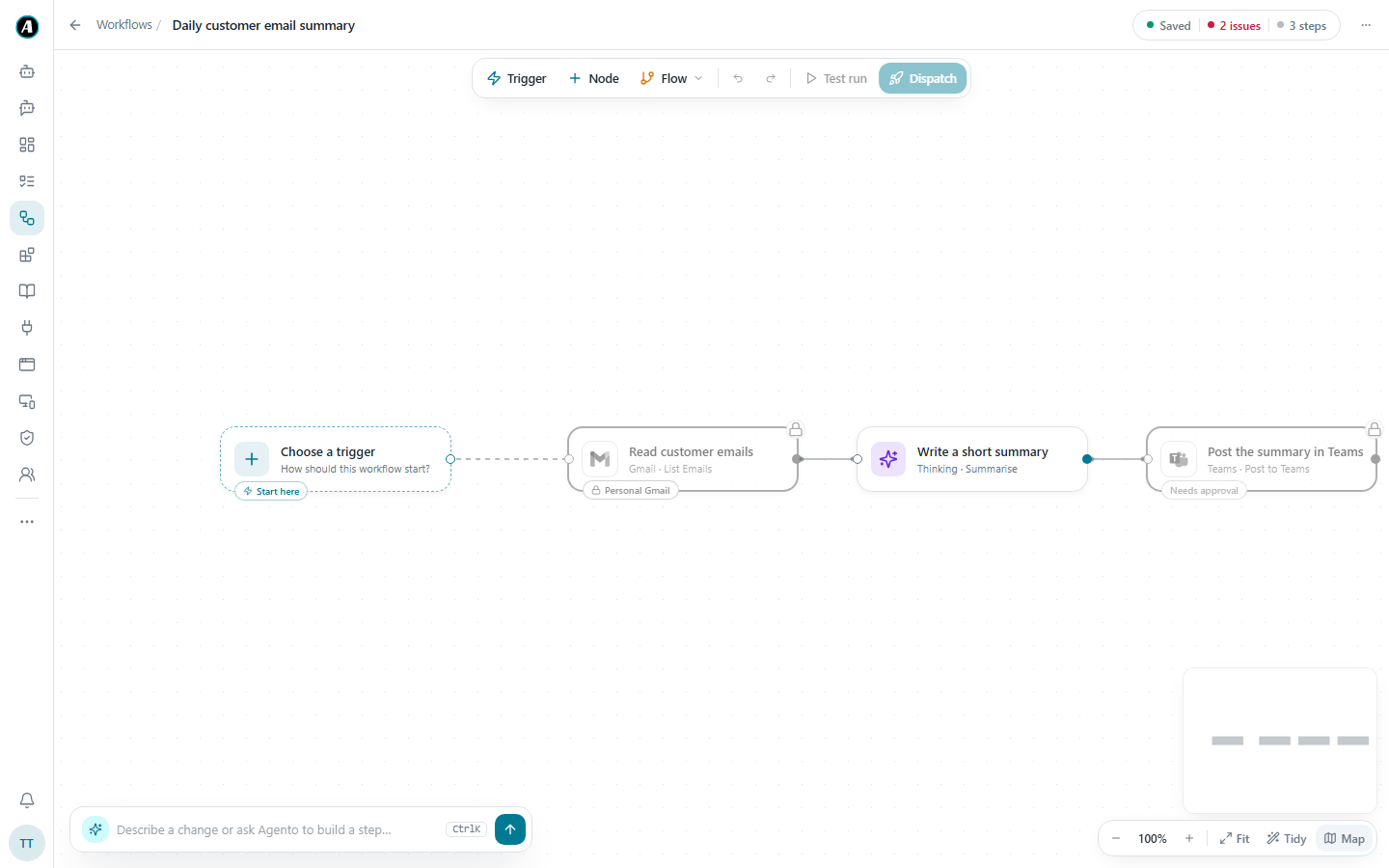
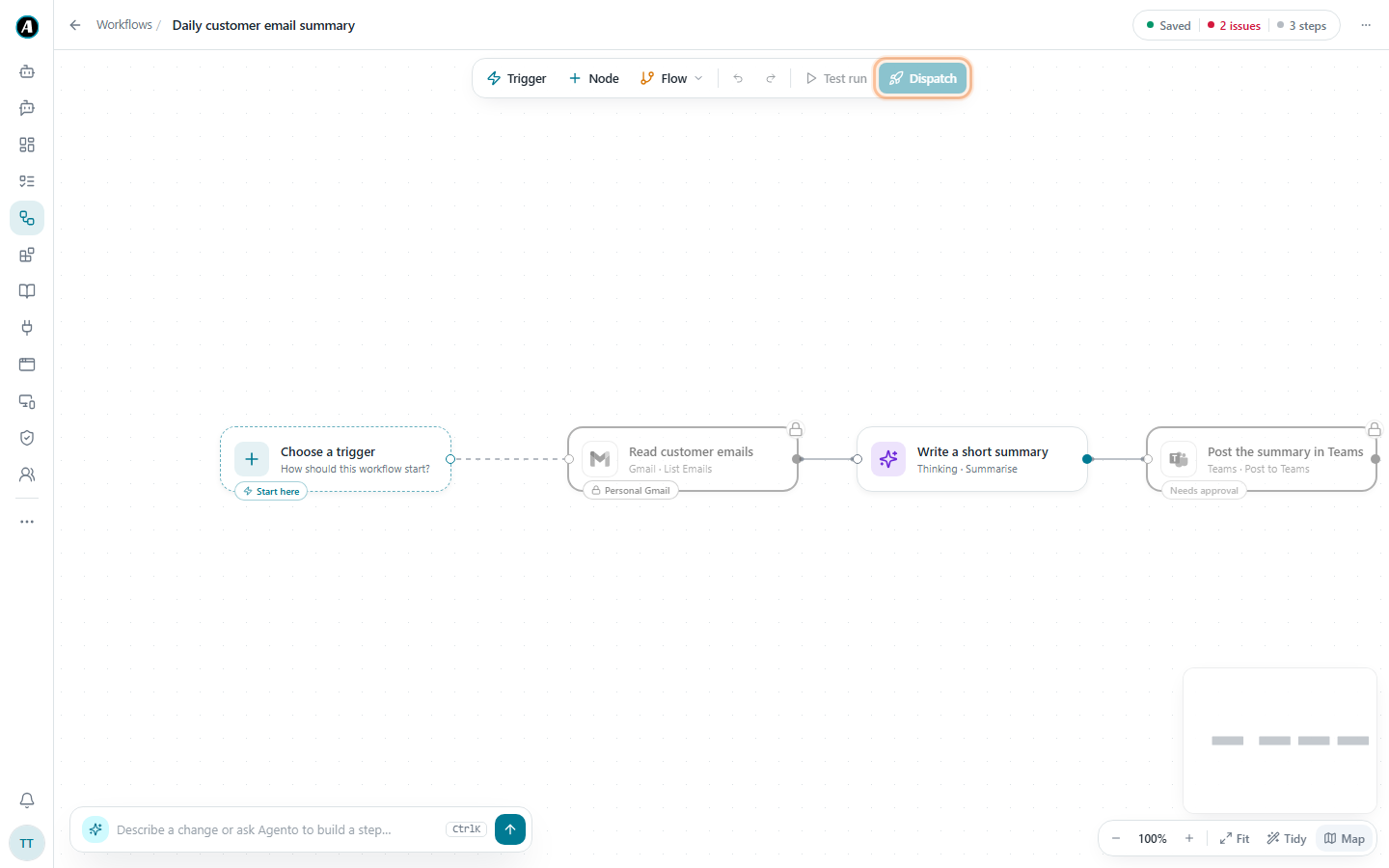
- The steps appear on the screen as boxes joined by lines, from left to right.
- Click any box to see what that step will do. Its settings open on the right.
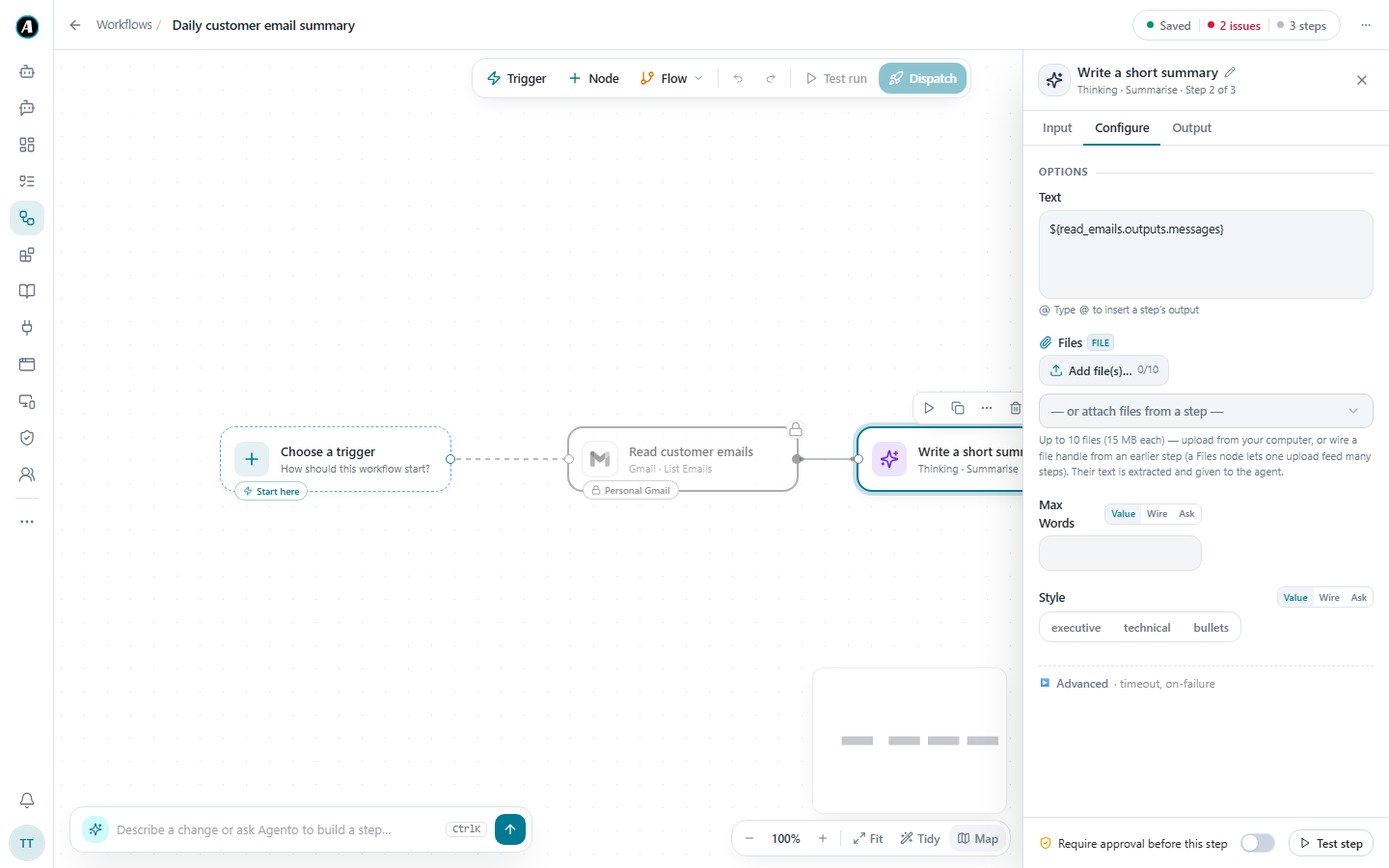
- Fix any issues (see below), then click Dispatch to save and run it.
When it asks you a question
If your request is missing something, Agento asks before it builds. "Which folder?" "Who should get the email?" Just answer in the same box. It remembers your answers, so you never have to repeat yourself.
Changing the result
Not quite right? Just say so in the box:
- "Don't send an email, just show me the summary"
- "Use the Finance folder instead"
- "Add a step that posts the summary in Teams"
Agento updates the workflow and keeps everything else you already told it.
Fixing issues
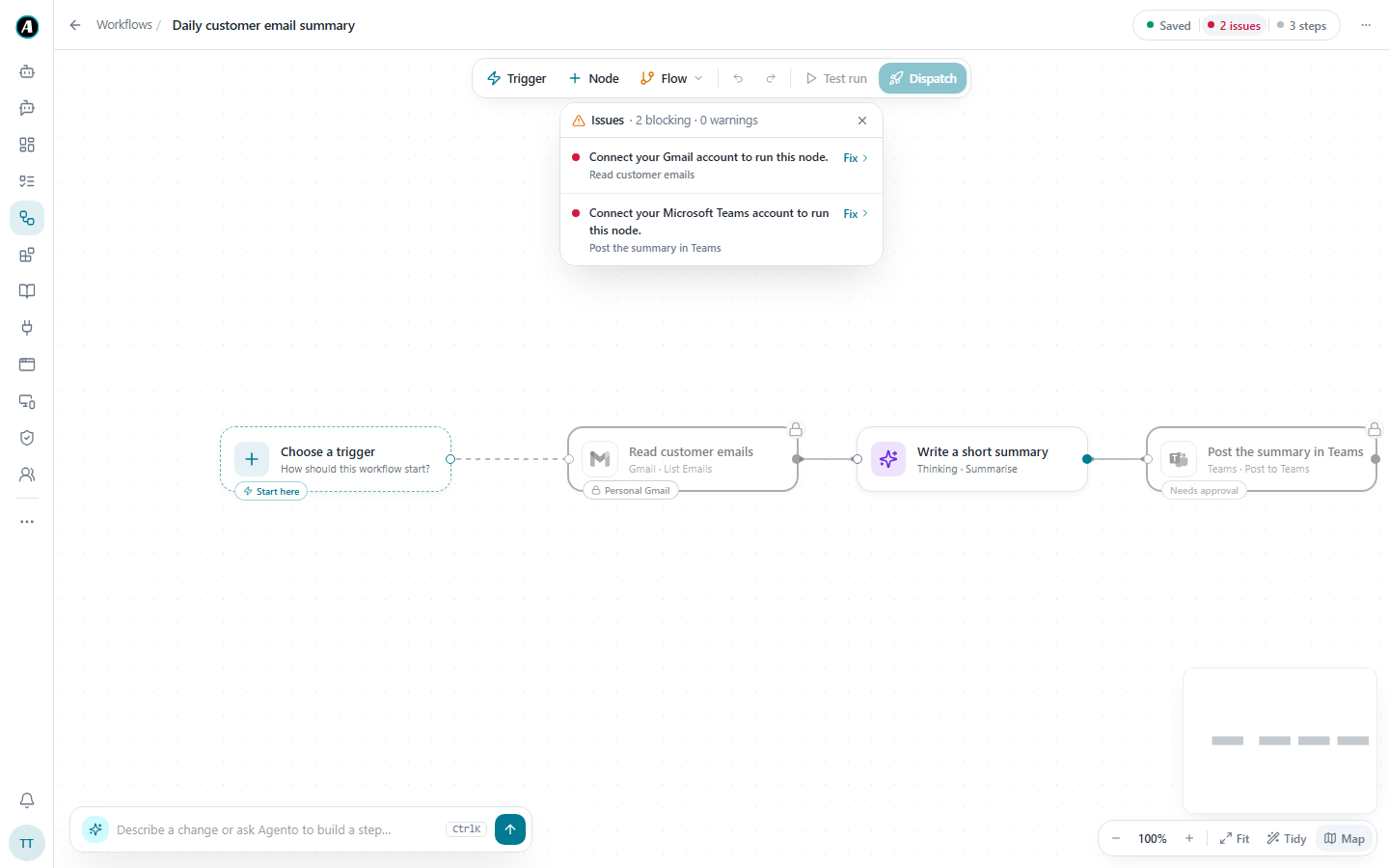
The red issues count at the top right means something must be sorted before the workflow can run, usually an app you haven't connected yet. Click it to see the list. Each issue says what's wrong in plain words and has a Fix button that takes you straight there.
Starting from a template
On the Workflows page, open the Templates tab to start from a ready-made example instead of a blank page. Change it to fit your team.
Examples
A shop owner who answers the same questions every day
What they typed: "Every morning, read yesterday's customer emails and post a short summary in Teams. Mention anyone who sounds unhappy."
What Agento built: three steps. Read customer emails (Gmail), Write a short summary (AI) and Post the summary in Teams, with approval switched on.
What they changed: "Post it in the Support channel, not General." Agento updated only the last step.
An office manager who gets supplier invoices
What they typed: "When a new invoice arrives in my Gmail, read the PDF and email the total and due date to accounts@company.com."
What Agento asked first: "Which emails count as invoices?" They answered "anything with invoice in the subject", and then it built the steps.
A team lead on a Monday morning
What they typed: "Every Monday, find overdue tasks in Planner and post a friendly reminder in the team channel."
Result: a reminder like "Three tasks are overdue: the budget draft (Alex, due Friday)..." posted for the whole team, once the team lead approves it.
Good to know
- Agento only uses apps that exist in your workspace. If a step needs an app you haven't connected, you'll see a Connect button on that step.
- When the workflow looks right, click Dispatch to save it and run it.
- Steps that send or post something ask for your approval first, so you can test safely.