
Connecting your apps
What connectors are, how to connect one, and what to do when one stops working.
A connector is your permission for Agento to use one of your apps, like Gmail or Salesforce. You give it once, using the app's own sign-in screen. After that, your chats, workflows and agents can all use that app.
Connecting an app
- Click Connectors in the menu on the left.
- Find your app. Use Search connectors or the Category filter if the list is long.
- Click Connect.
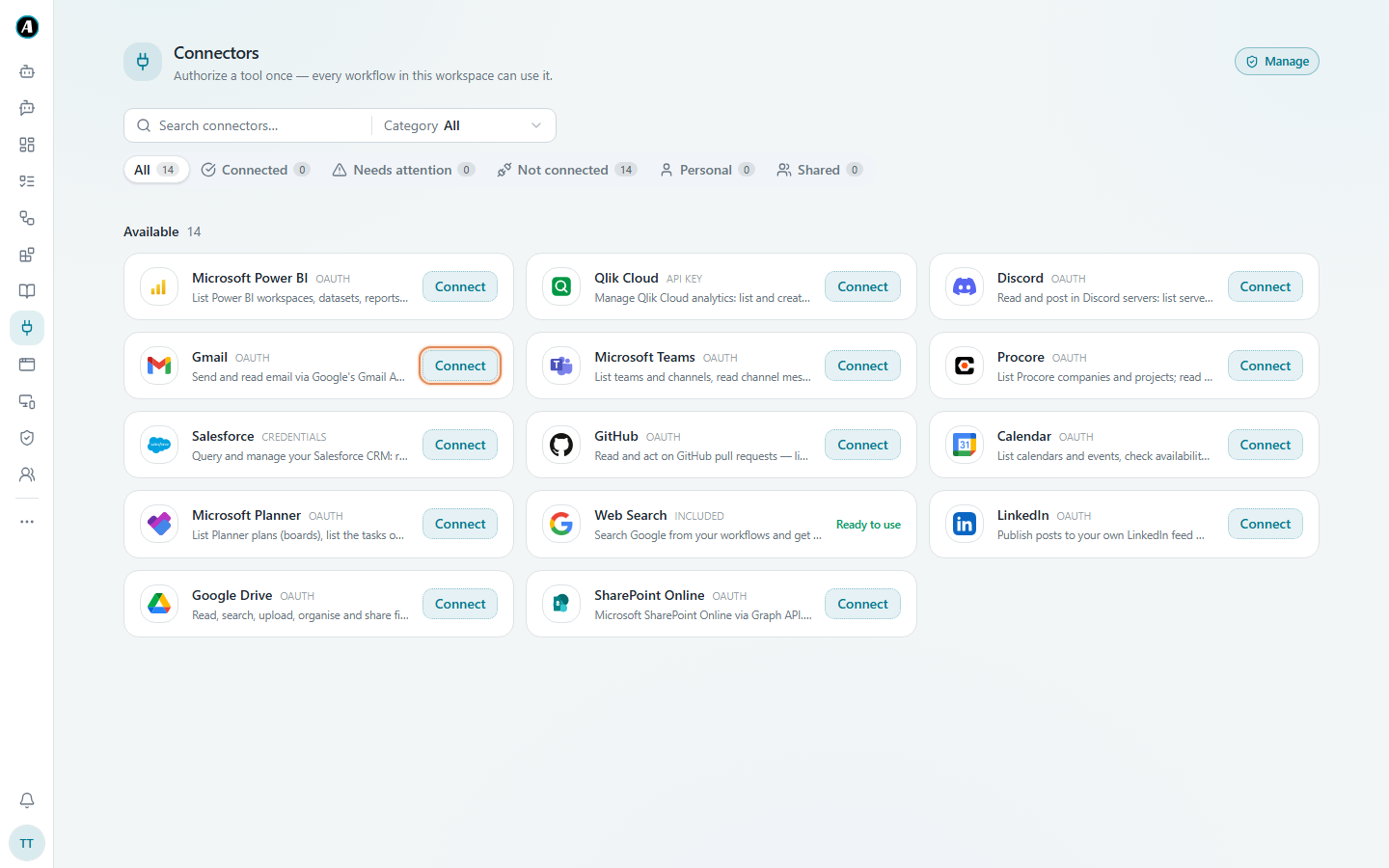
- Sign in on the window that opens and click Allow. The window closes by itself.
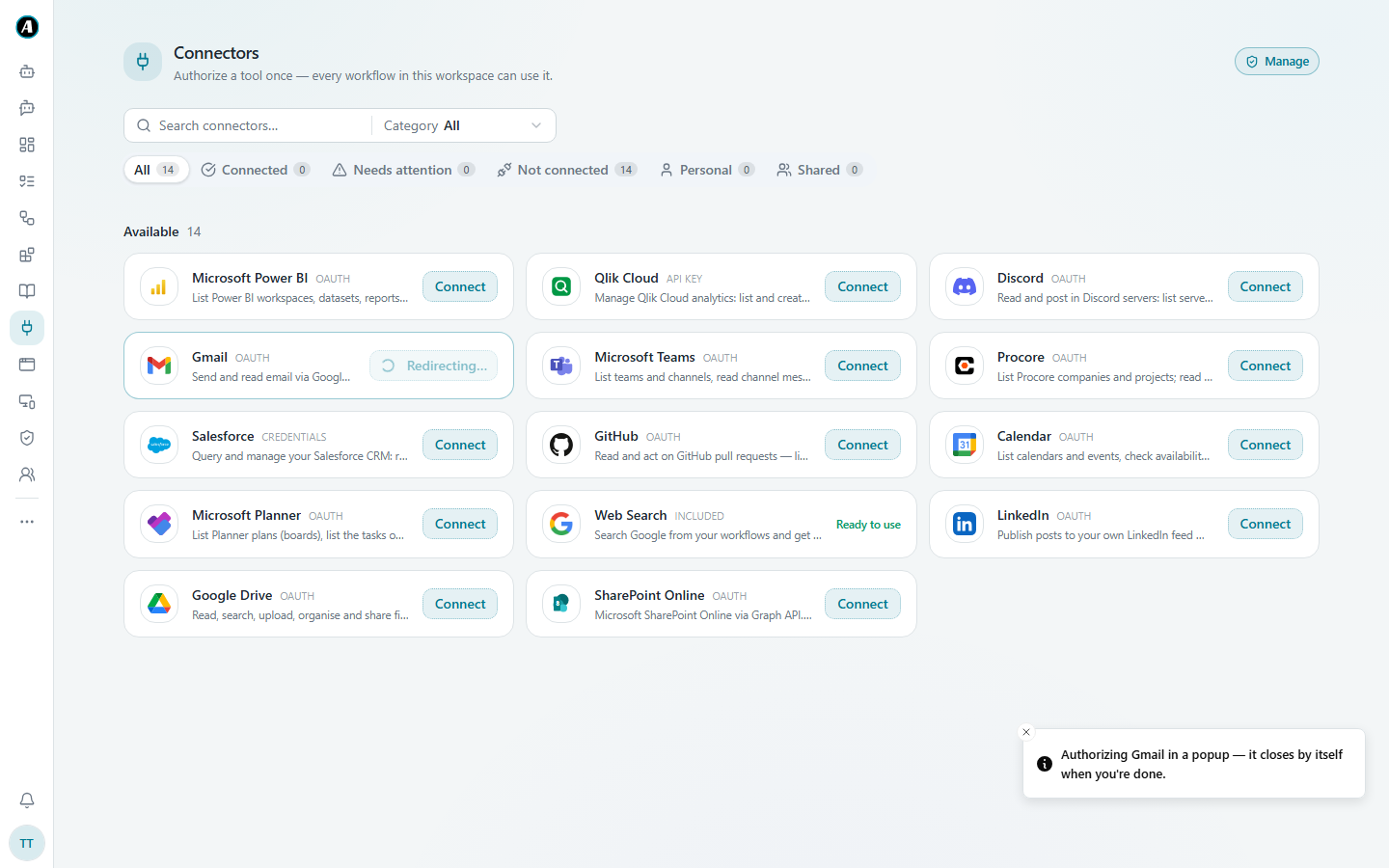
- The app moves to the Connected tab. Done.
A few apps (like Salesforce) ask for a key instead of a sign-in window. Your admin usually sets those up.
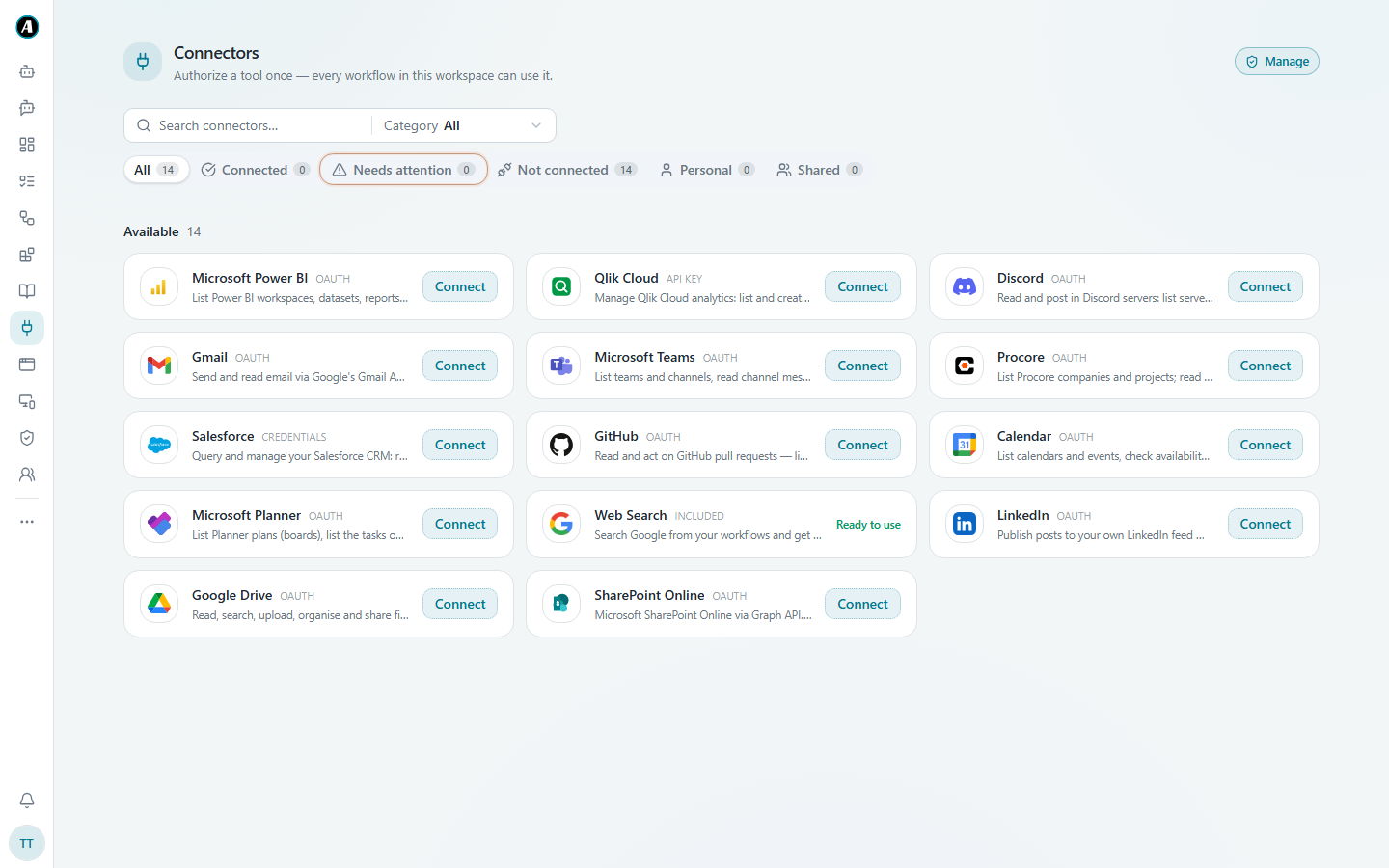
The tabs at the top
- Connected shows apps that are ready to use.
- Needs attention shows apps whose sign-in has expired. Click Connect to fix them.
- Not connected shows apps you haven't connected yet.
- Personal shows apps connected with your own account.
- Shared shows apps your admin connected for the whole team.
Personal or shared?
Most apps are personal: each person connects their own account, and Agento acts as that person. When your workflow sends an email, it comes from your mailbox. Some apps are shared: one account, set up by an admin, that the whole team uses.
When a connection stops working
App sign-ins don't last forever. When one expires, workflows that use it fail with "Not authenticated", and the app shows under Needs attention. The fix takes thirty seconds: click Connect again and sign in. Everything that was failing starts working again, including triggers.
Examples
Personal: your own Gmail
You connect your own Gmail. When a workflow sends an email, it comes from your address and lands in your Sent folder, as if you had sent it yourself. Your teammate's workflows can't use your Gmail. They connect their own.
Shared: the team's support inbox
Your admin connects the shared support@ mailbox once, as a Shared connector. Now everyone on the support team can build workflows that read that inbox, without anyone sharing a password.
"My workflow stopped working on Monday"
On Monday the Gmail step fails with "Not authenticated". Open Connectors and look at Needs attention. Gmail is there. Click Connect, sign in, and run the workflow again. It works.
Good to know
- Disconnecting an app stops Agento's access straight away.
- If an app is greyed out, your admin has switched it off for your workspace.
- Missing an app your team needs? Tell your admin. New connectors are added regularly.