
Your profile and teams
Update your details, and see how people are grouped into teams.
Your profile
Click your picture at the bottom of the menu, then Profile.
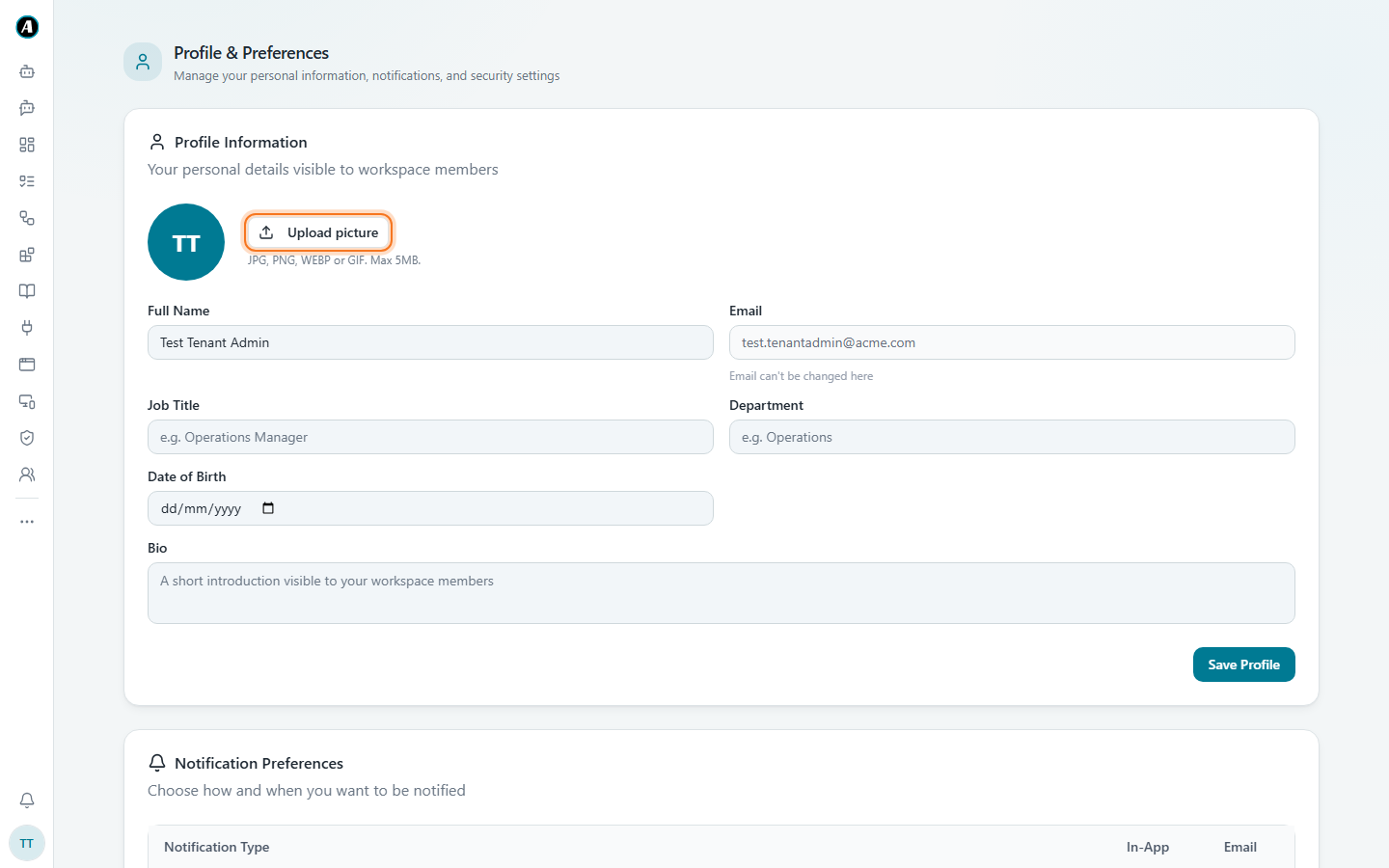
- Click Upload picture to add a photo.
- Fill in your Job Title, Department and a short Bio. Your teammates can see these.
- Click Save Profile.
Further down the same page, Notification Preferences let you choose which alerts you get in the app and by email.
Your email address can't be changed here. Ask your admin if it needs to change.
Teams
People in a workspace are grouped into teams, like Finance or Sales. Your team decides some of what you see, like team runs and team approvals.
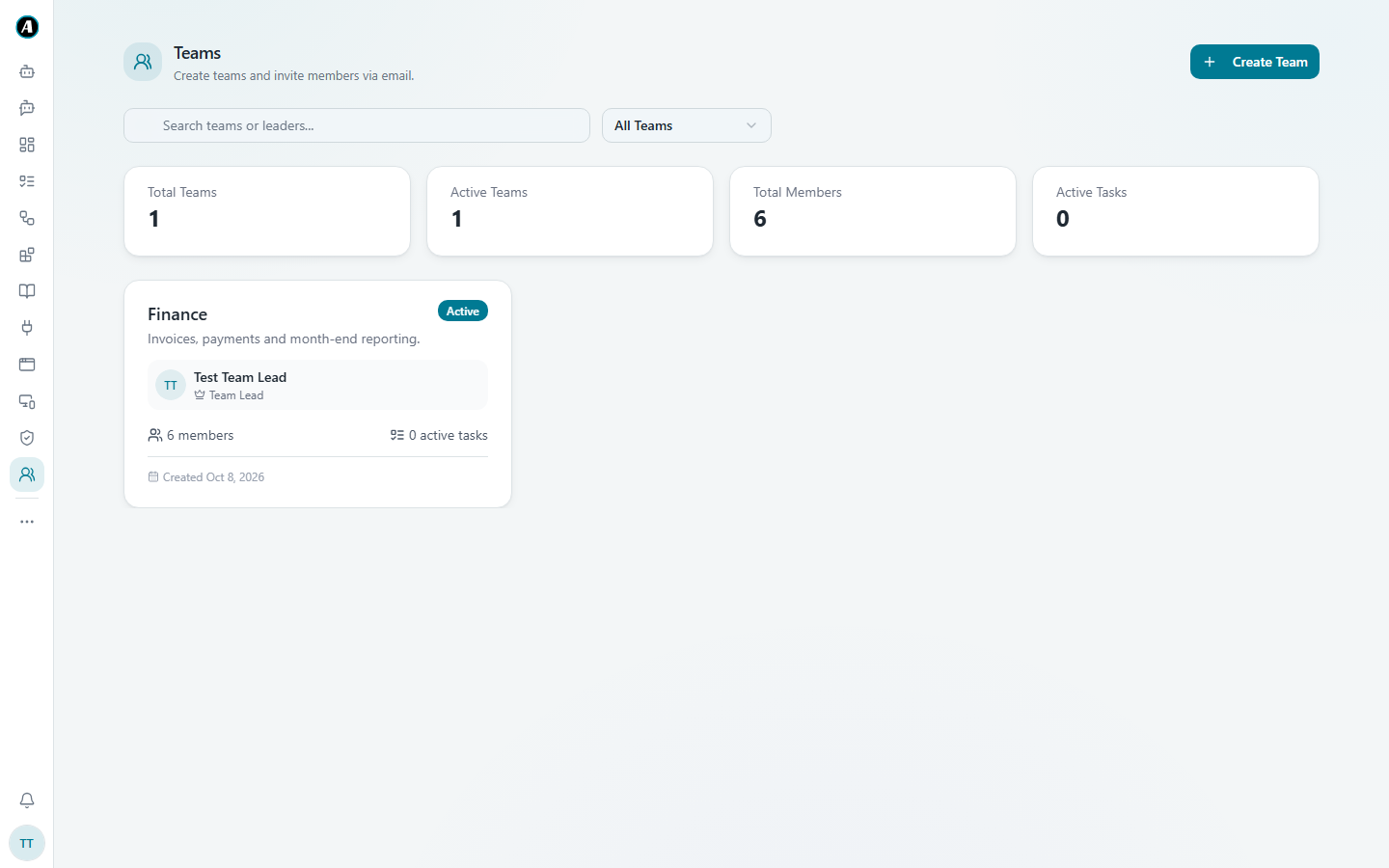
- Team leads can see their team under My Team, and help manage it.
- Admins can see All Teams, click Create Team, and invite members by email.
Creating a team (admins)
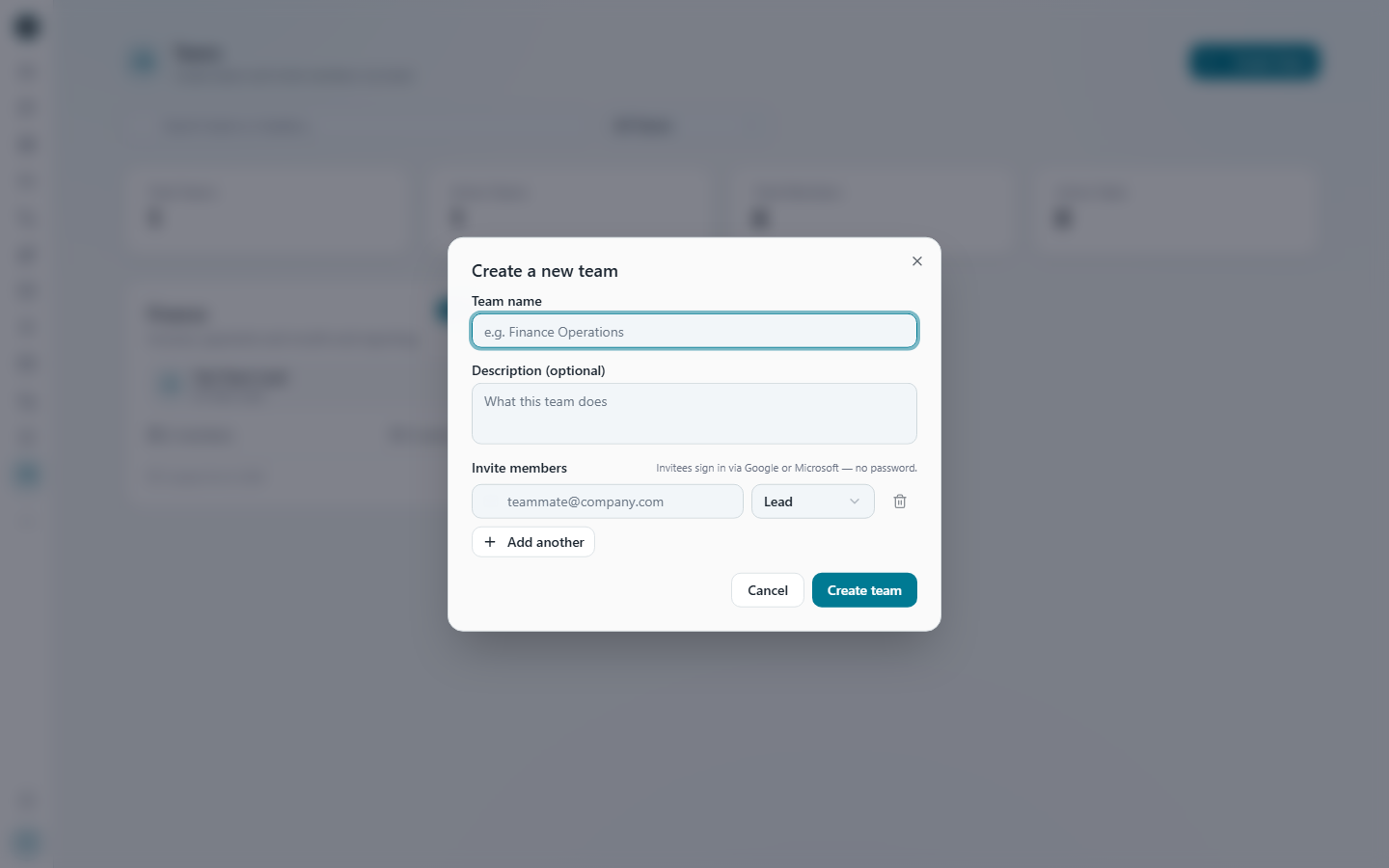
- On the Teams page, click Create Team.
- Type a Team name, like "Finance Operations", and a short description if you like.
- Under Invite members, type each person's email and pick their role, like Lead or Member. Click Add another for more people.
- Click Create team. Invitees sign in with Google or Microsoft, no password needed.
Inviting people (admins)
New people join by invitation. Admins invite them by email from the Teams page or from Settings, then Members. The person accepts by signing in with the same email address. Until they accept, you can resend or cancel the invitation.
Example
A new hire, Priya, joins the finance team. The admin opens Teams, clicks the Finance team, invites priya@company.com as a Member, and Priya gets an email. Priya signs in with Microsoft, and straight away sees the Finance team's shared workflows and team approvals.
Good to know
- Moving to a different team changes what you see, not what you own. Workflows you saved stay yours.
- If a teammate sees a page or button that you don't, it's almost always because of your role, not a problem with Agento.