
Approvals
Important steps stop and show you exactly what they'll do before they do it.
Some things should never happen without a person checking first: sending an email, posting in a shared channel, changing a record. Approvals are Agento's pause button. The workflow stops, shows you exactly what it wants to do, and waits for your yes.
How it works
- A step is set to Require approval before this step. Steps built by AI that send or post something turn this on by themselves. You can switch it on for any step at the bottom of its settings panel.
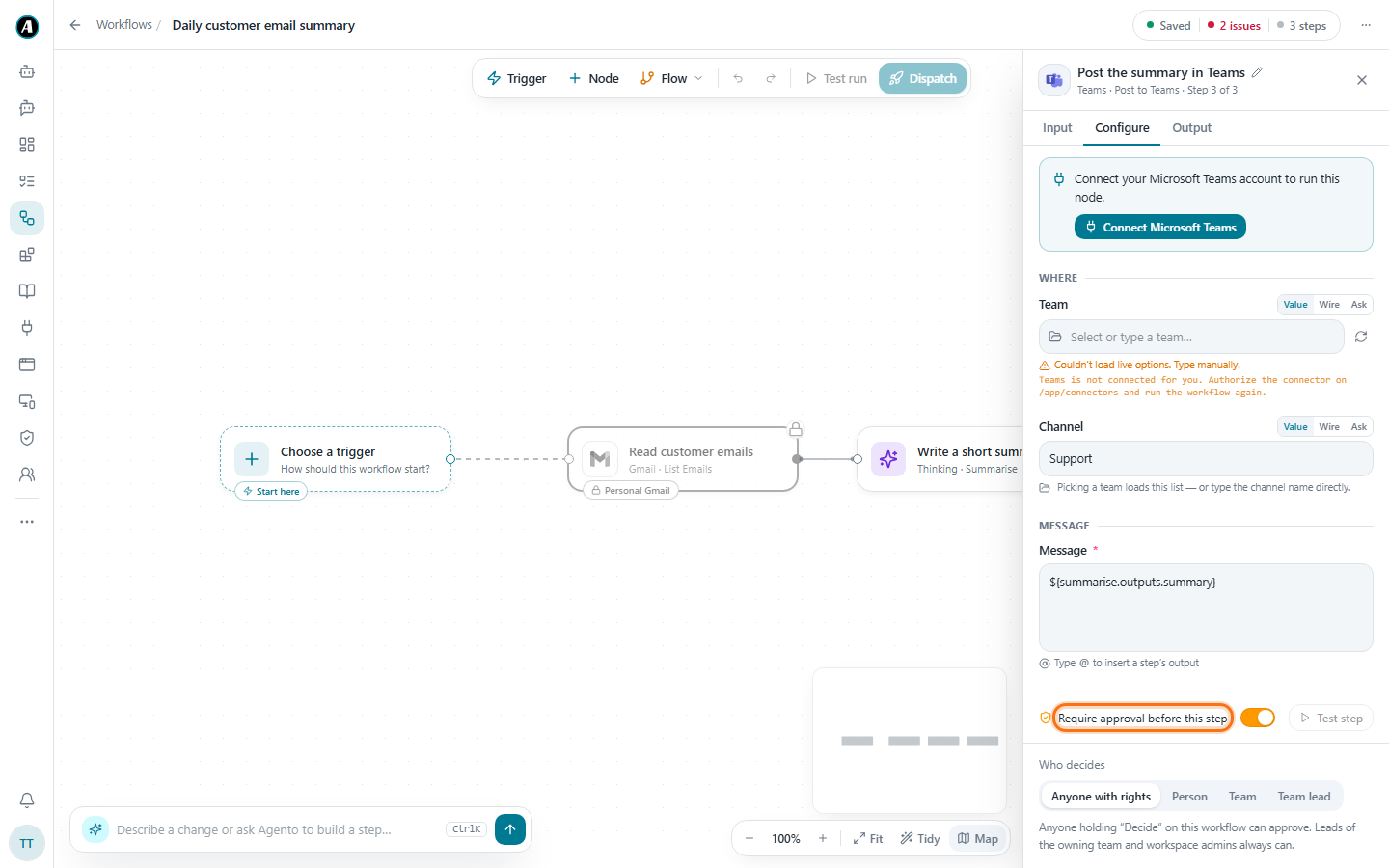
- When a run reaches that step, it pauses.
- You see a preview of the real thing. For an email: who it goes to, the subject and the full message. Not a description, the actual email.
- Click Approve to let it go, or Reject to skip that step. Your choice is saved.
Where to find things waiting for you
Click Approvals in the menu. It shows everything waiting for a decision.
- Assigned to me is what's waiting for you.
- Team is what's waiting for anyone on your team.
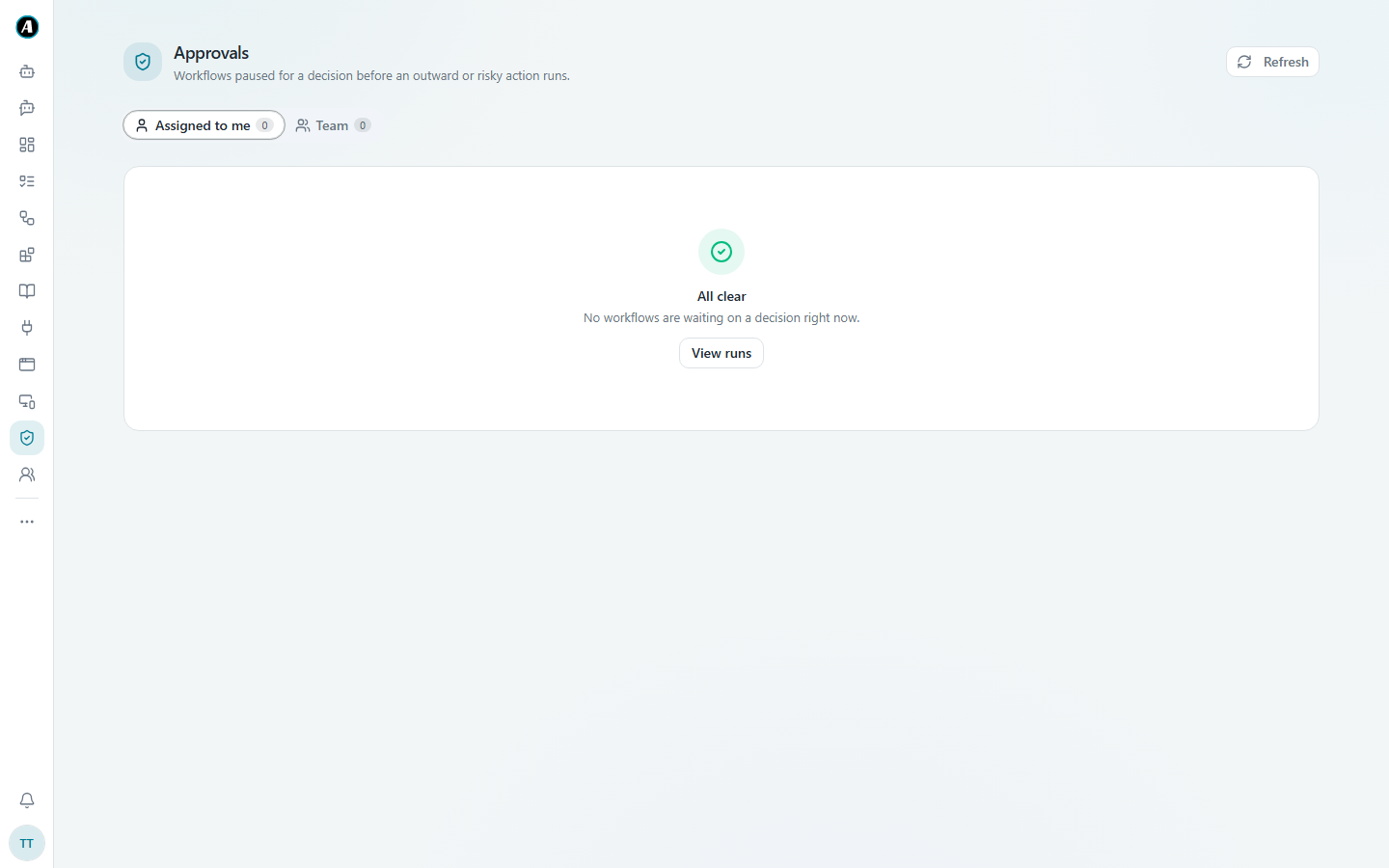
You also get a notification (the bell at the bottom of the menu) when something needs your approval.
Examples
Checking an email before it goes to a customer
A workflow drafts a reply to a customer complaint. It pauses and shows you the exact email: who it's going to, the subject "Sorry about your order", and the full text. You notice it promises a refund you can't give. You click Reject, change the AI step's instructions to say "never promise refunds", and run it again.
Letting the team lead decide
Posts in the company-wide channel should be checked by the team lead. On that step, under Who decides, pick Team lead. Now the lead gets the approval instead of you.
Approving when you're away from your desk
You get an email from Agento saying a run needs your approval. Click the link, read what it wants to do, and click Approve.
Good to know
- A paused run waits patiently. If a workflow fires at 3am, it'll be calmly waiting for you at 9.
- You decide each time. If the same workflow runs five times, you approve five times.
- Everything is recorded: who approved, what they saw and when.
- Rejecting doesn't break the workflow. The step is skipped and the rest carries on.