
Managing connectors for your team (admins)
Decide how each app connects and who in your workspace may use it.
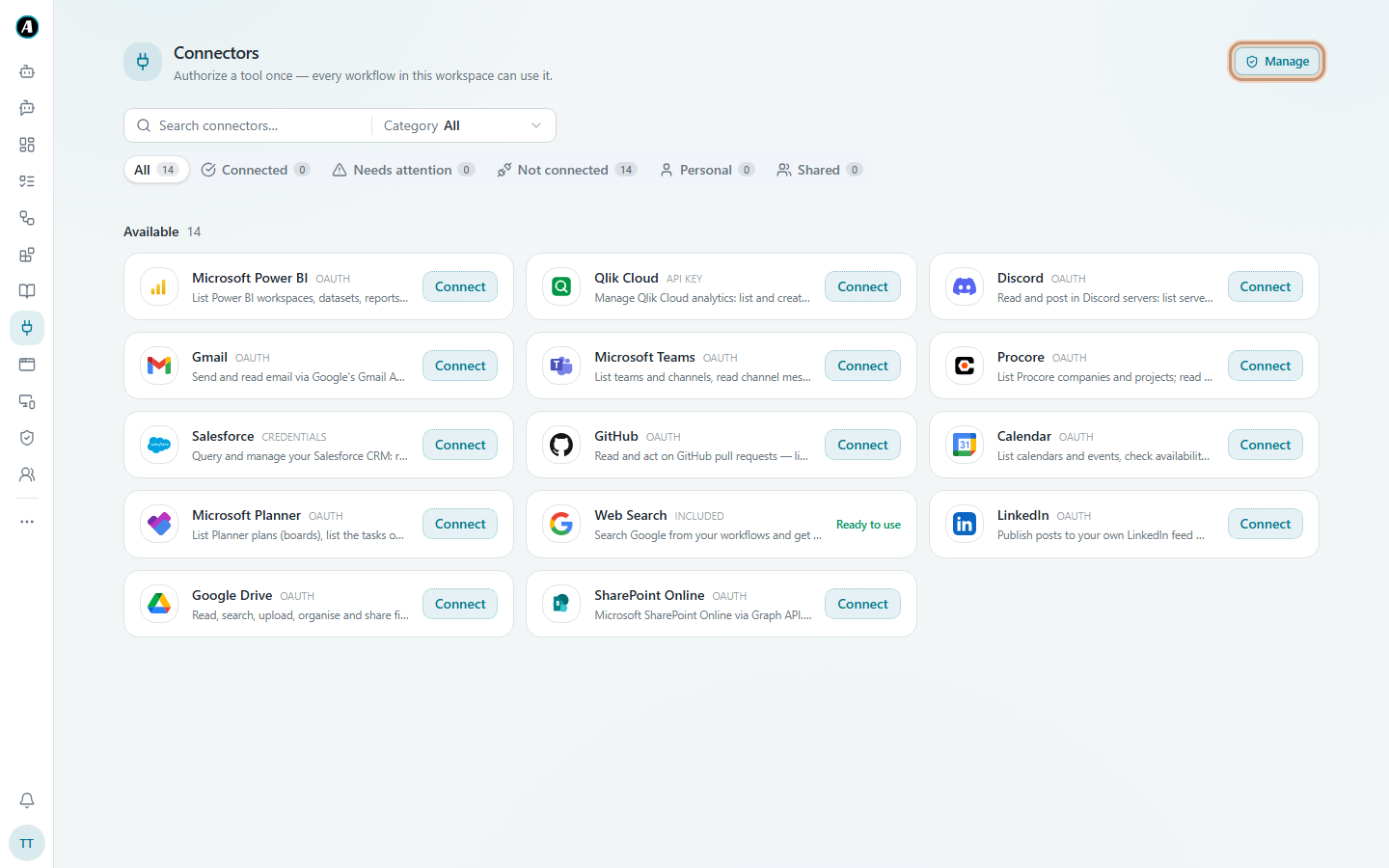
If you're a workspace admin, you decide how each app connects and who can use it. You'll find this under Connectors, then Manage at the top right.
Two settings for every app
How it connects:
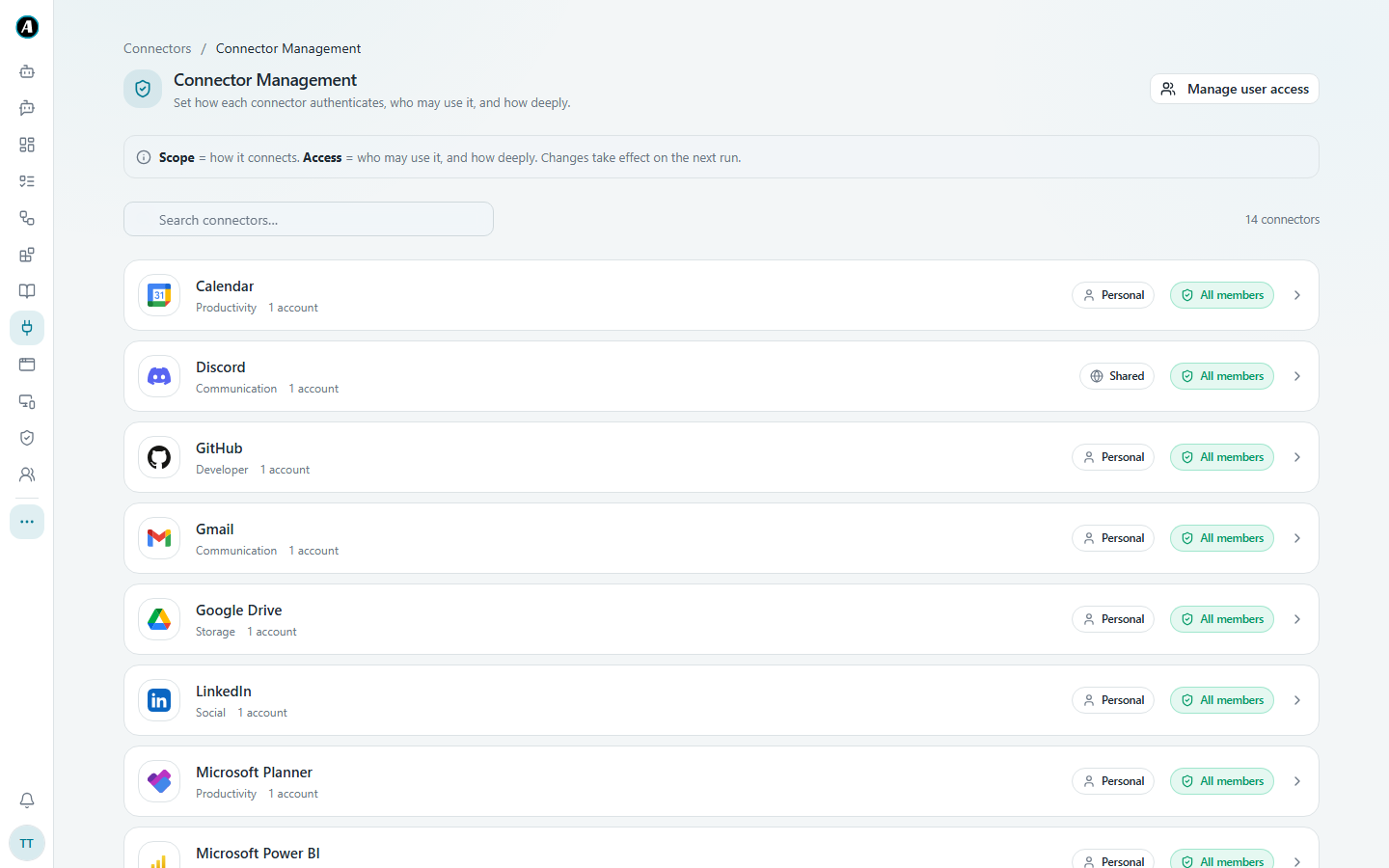
- Personal means each person connects their own account. Agento acts as that person. This is the right choice for email and calendars.
- Shared means one account, connected once by an admin, that everyone uses. Handy for a team inbox or a company Salesforce account.
Who may use it: All members, or only certain people. You can also limit how deeply people can use it, for example read only.
Changing the settings
- Open Connectors and click Manage at the top right.
- You see every app with how it connects and who may use it. Click the app you want to change.
- On the Access tab, switch the app on or off for the workspace, pick Personal or Shared, choose who can use it (All members, Only listed or Nobody) and how much they can do (Read-only, Read + write or Full).
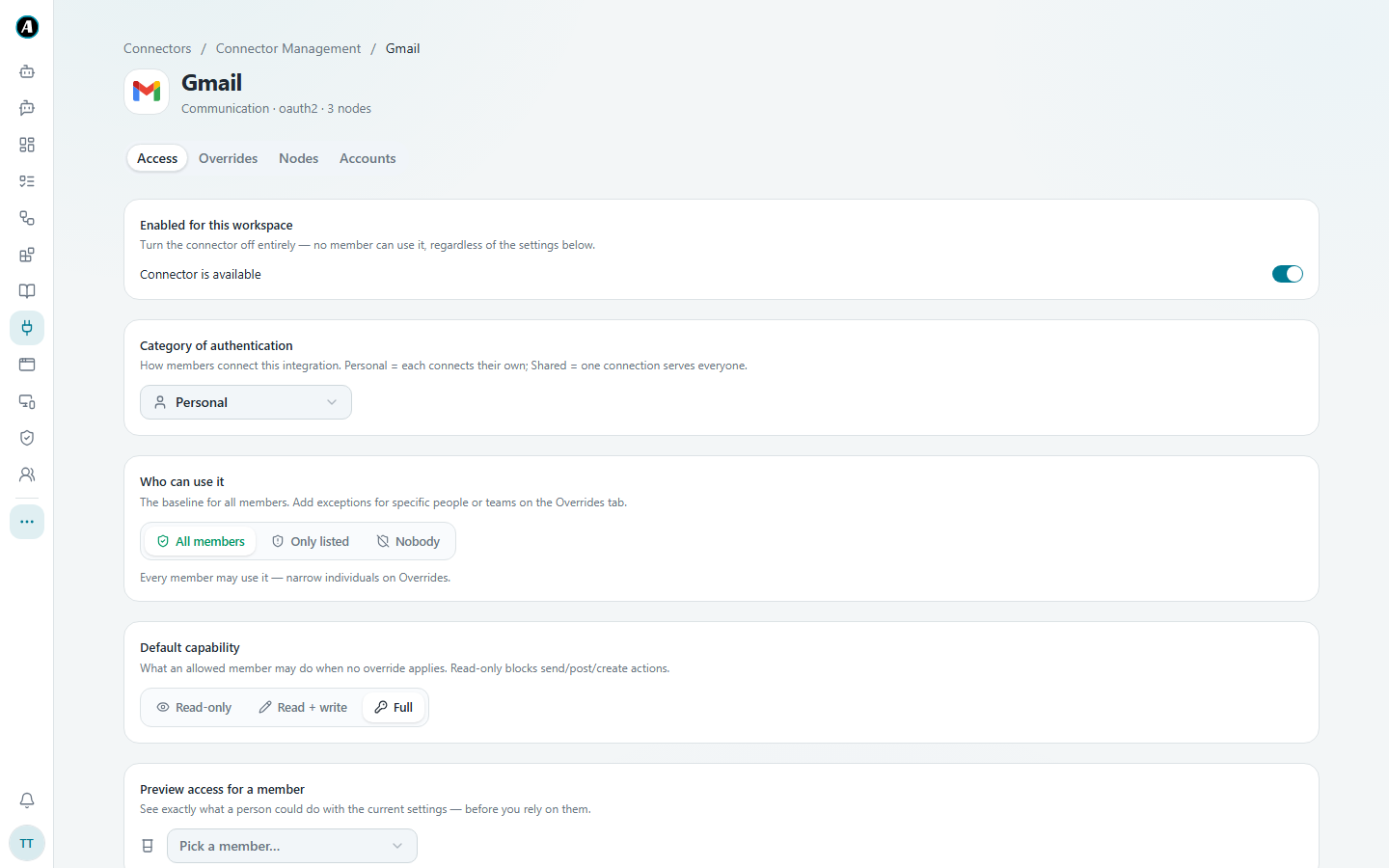
- Use Preview access for a member at the bottom to check what one person could do with your settings, before you rely on them.
- Use the Overrides tab to make exceptions for certain people or teams.
Managing people
Click Manage user access to see who has access to which apps, and change it for one person at a time.
Examples
Only the finance team may use Salesforce
Open Manage, click Salesforce, and under Who can use it pick Only listed. Then use the Overrides tab to add the Finance team. Everyone else won't see Salesforce in their workflows.
Everyone may read SharePoint, but not change it
Click SharePoint Online and set Default capability to Read-only. People can still find and read files, but steps that upload or delete files are blocked.
Switching off an app for a while
You're moving to a new GitHub account. Turn off Enabled for this workspace for GitHub. Workflows that use it stop straight away, and start again when you turn it back on.
Good to know
- Switching an app off stops it straight away, including in workflows that were built before.
- Every change you make here is recorded in the Audit Log: what changed, who changed it and when.