
Build or change a workflow yourself
Add, move and set up each step yourself on the workflow canvas.
The workflow canvas is a big page where each step is a box, and lines show the order they run in. You can build a whole workflow here yourself, or fix one small thing in a workflow the AI built.
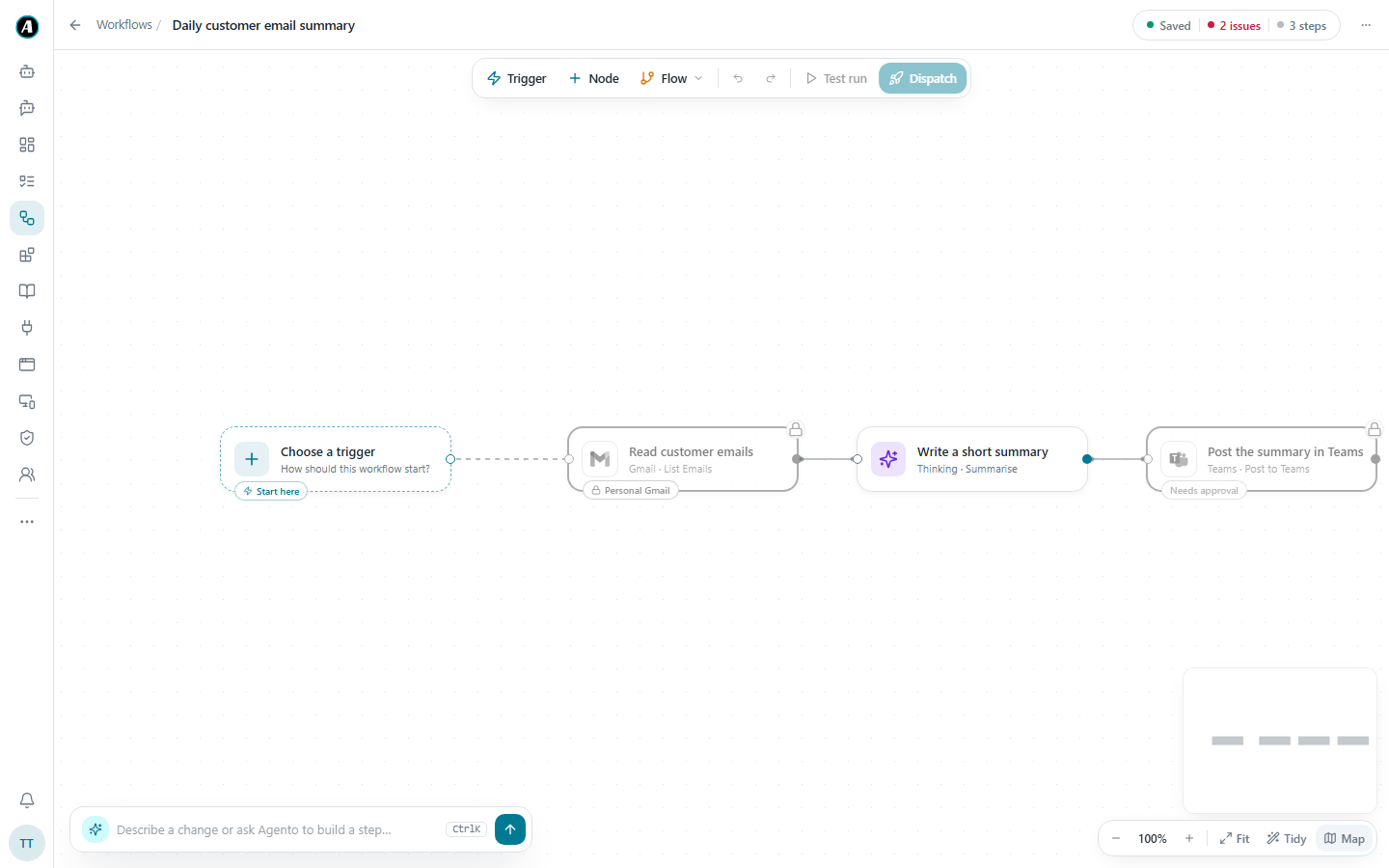
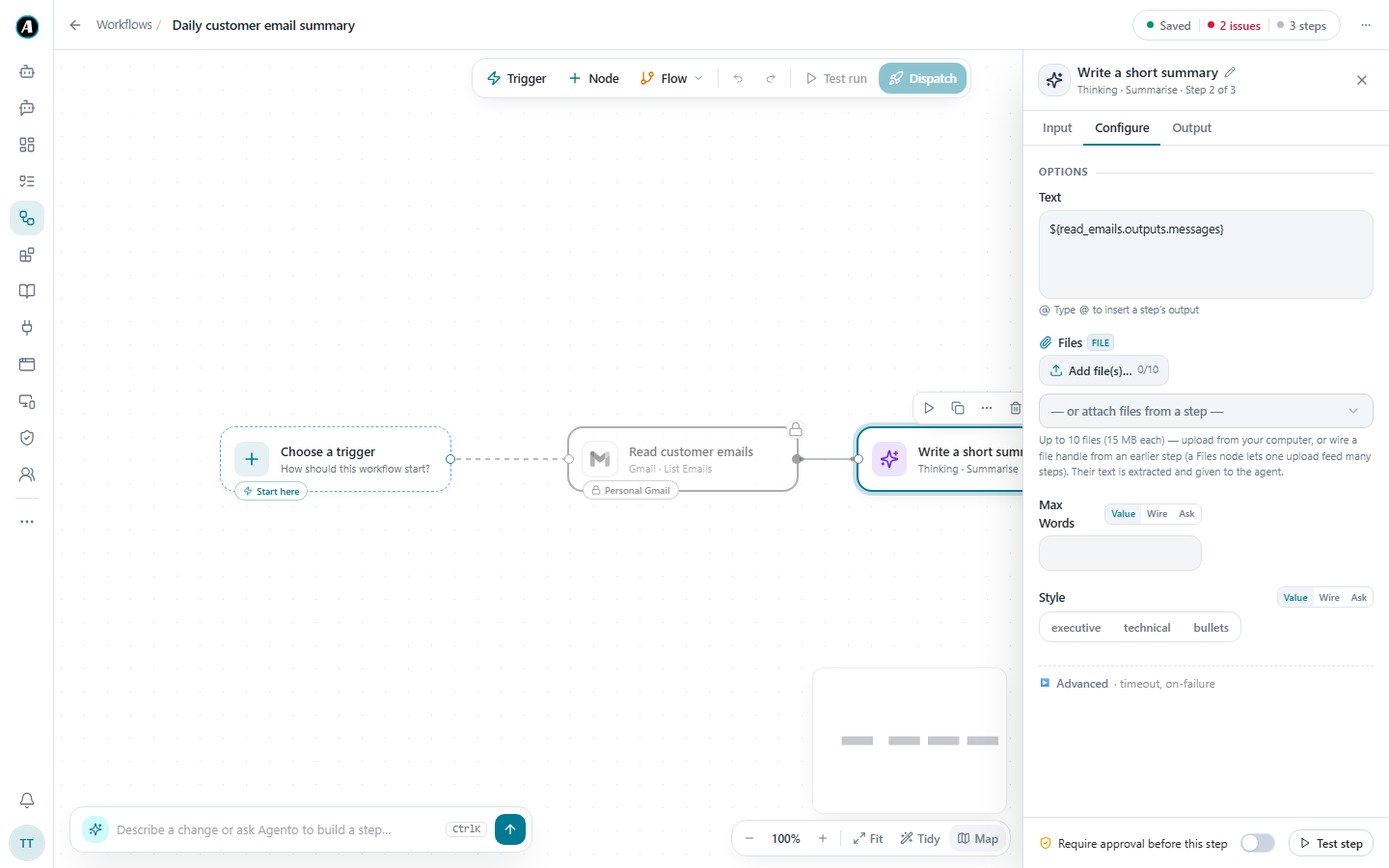
The toolbar at the top
- Trigger decides how the workflow starts: by itself on a schedule, when something new arrives, or only when you press run.
- Node adds a new step. Pick an app, then pick what it should do, like "Send email" or "List files".
- Flow controls the order of steps (more on this below).
- Test run tries the workflow without saving it.
- Dispatch saves the workflow and runs it.
Adding a step
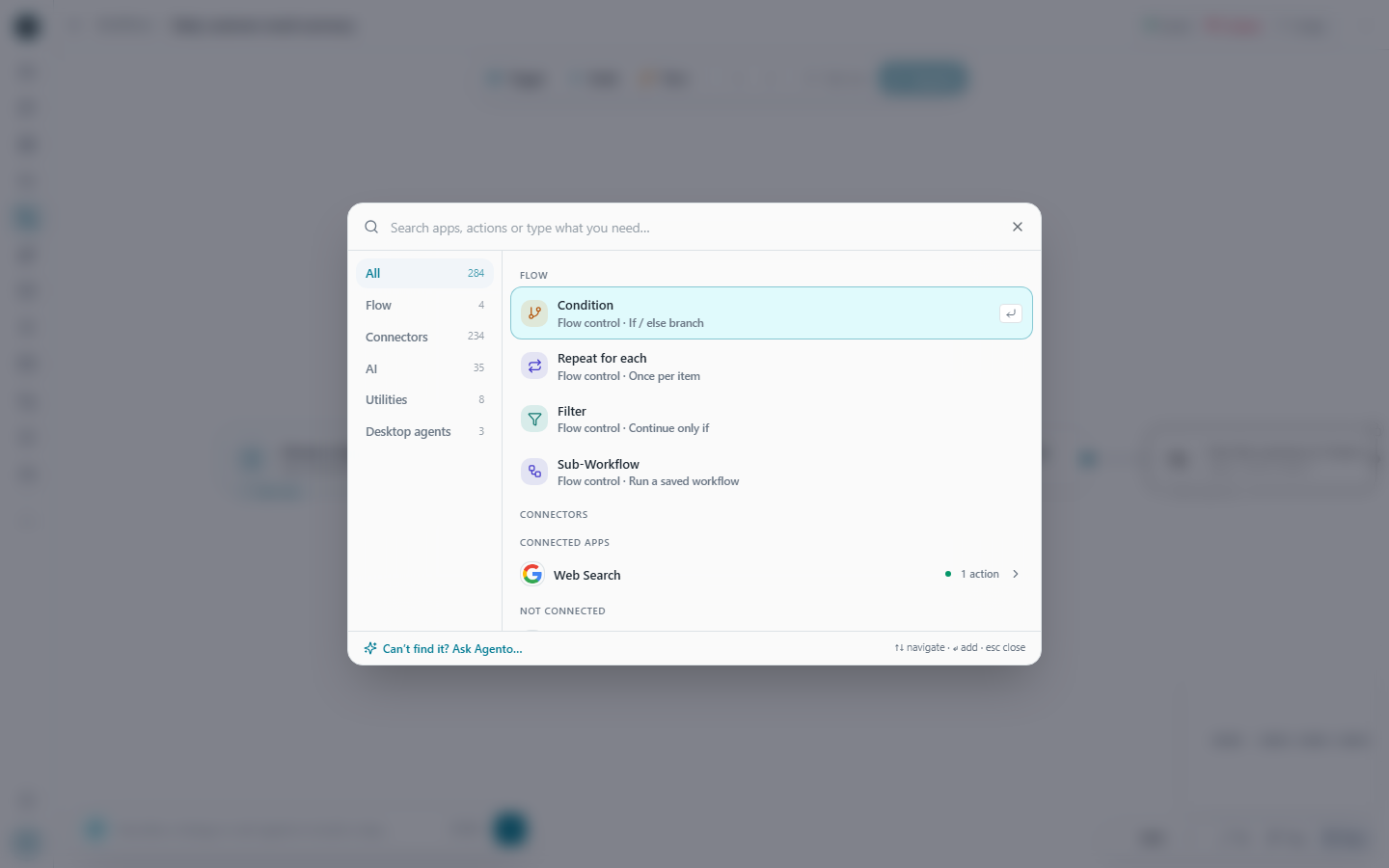
- Click Node in the toolbar. A search window opens.
- On the left you can browse by group: Flow, Connectors, AI, Utilities and Desktop agents. Or just type what you need.
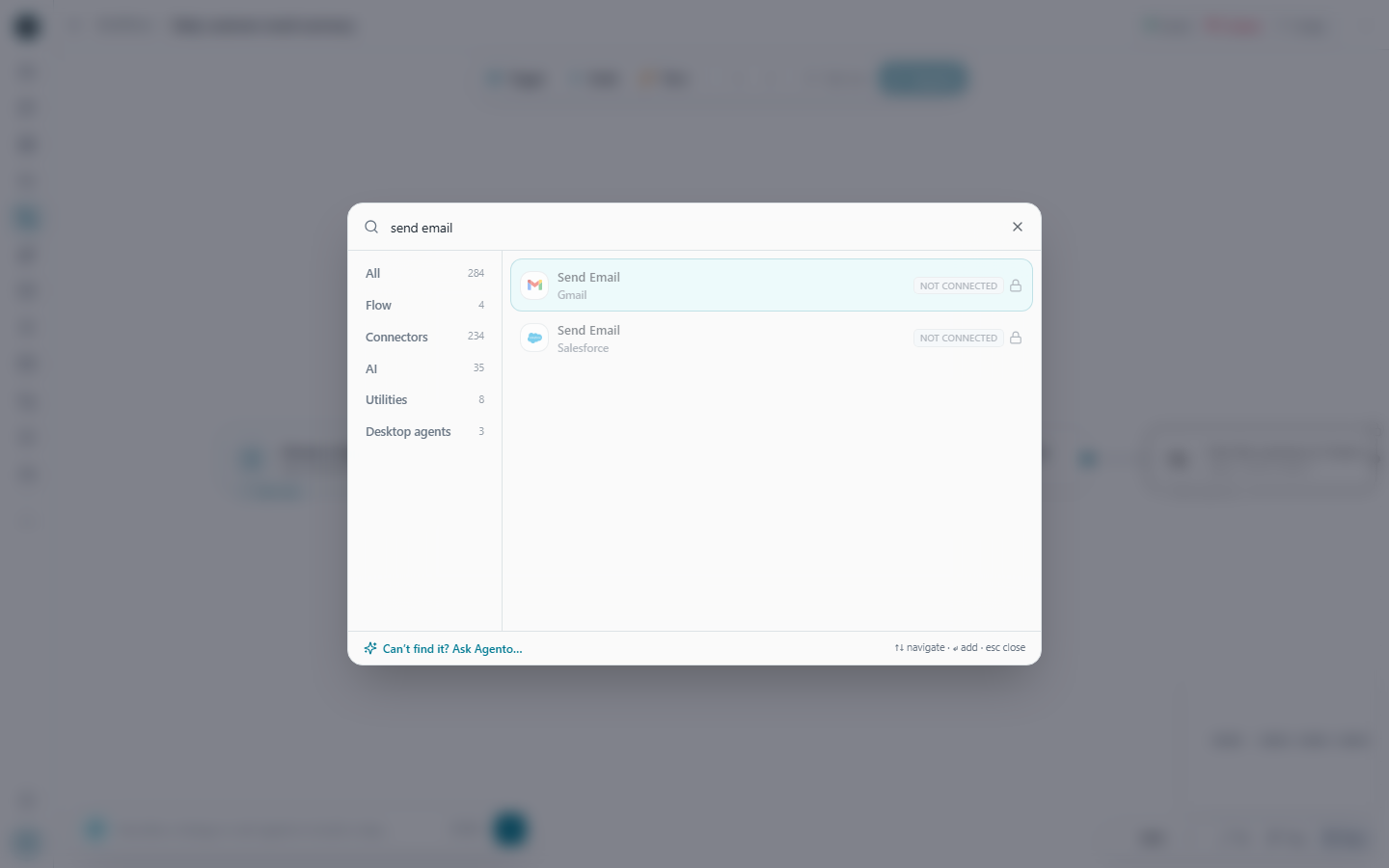
- Type a few words, like "send email". Matching actions from all your apps appear. Click one to add it.
- Can't find what you need? Click Can't find it? Ask Agento... at the bottom and describe it instead.
Choices under Flow
Click Flow in the toolbar to open this menu.
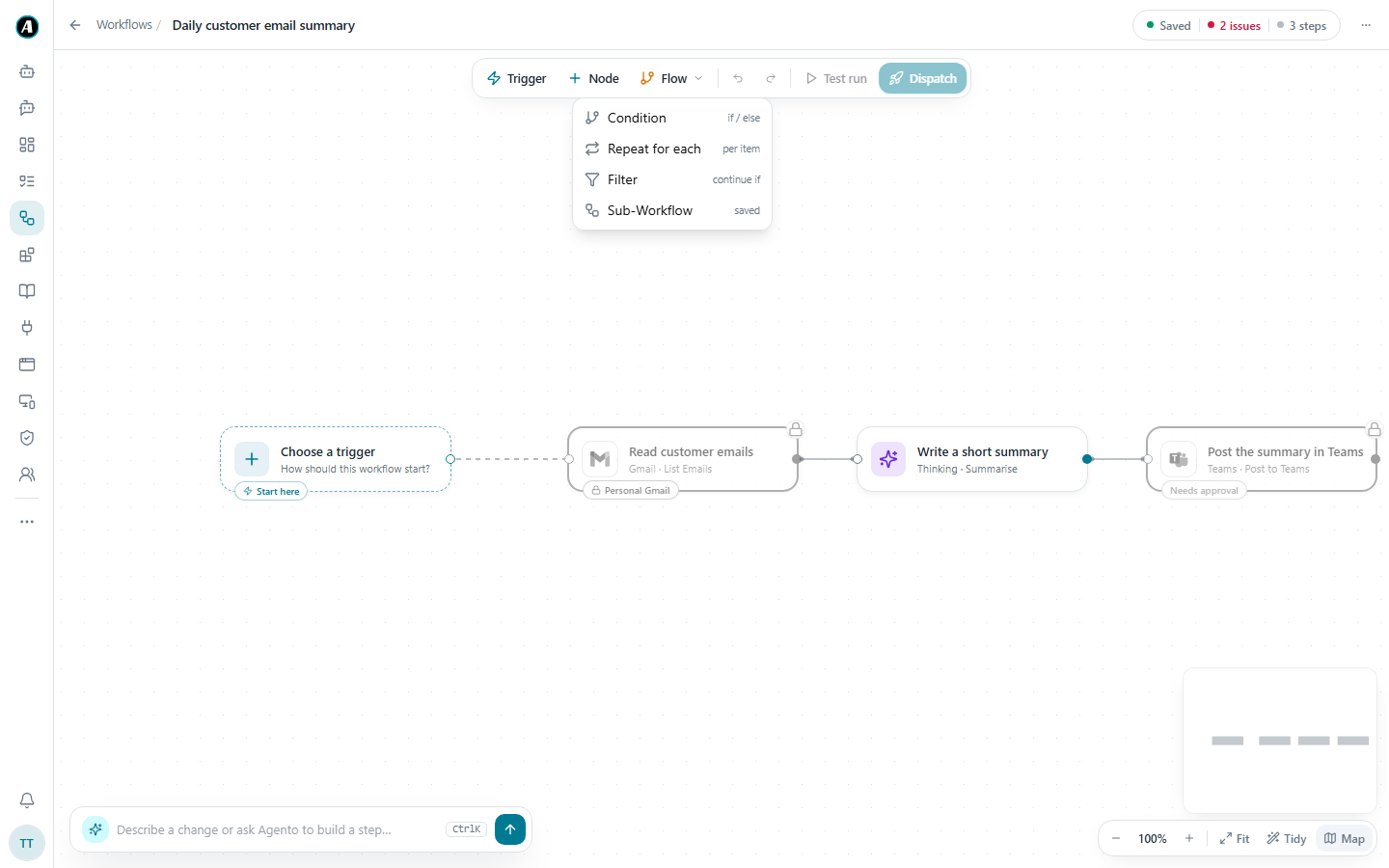
- Condition takes a different path depending on a rule, like "only continue if the file is a PDF".
- Repeat for each does the same steps for every item in a list, like every new email.
- Filter keeps only the items you care about.
- Sub-Workflow runs another saved workflow as a single step.
Setting up a step
- Click a step on the canvas. A panel opens on the right.
- Fill in the boxes on the Configure tab, like which folder to look in or who to email.
- Use the Input and Output tabs after a run to see what the step received and what it produced.
- Click Test step at the bottom to try just this one step.
Using what an earlier step found
In any text box, type @ and a list pops up with everything earlier steps produced, like "List files, file names" or "Summary, text". Pick one and Agento fills in the real value each time the workflow runs.
Asking for a value each time
Next to many boxes you'll see Value, Wire and Ask:
- Value means you type it once and it stays the same.
- Wire means it comes from an earlier step.
- Ask means Agento asks the person running the workflow to fill it in each time. Great for things that change, like a customer name.
Examples
Adding one extra step to a workflow the AI built
Your daily summary works, but you also want it emailed to your manager.
- Click Node and type "send email".
- Pick Send Email for Gmail. It appears on the canvas.
- Drag a line from Write a short summary to the new step.
- Click the new step. In To, type your manager's address. In the message box, type
@and pick the summary from the list. - Click Dispatch.
Only continue when there's something to report
You don't want a Teams post on quiet days. Click Flow, then Condition, and put it between the summary step and the Teams step. Set the rule to "only continue if there are emails". On quiet days the workflow stops before posting.
Doing the same thing for every file
A folder has ten new invoices. Add Repeat for each from the Flow menu and put the "read the invoice" step inside it. Agento reads all ten, one after the other, and you get one result per invoice.
Asking for a value each time with Ask
You have a "send a welcome pack" workflow. Set the To box to Ask. Each time someone runs it, Agento asks who should get the welcome pack before it starts.
Good to know
- Turn on Require approval before this step at the bottom of a step's panel to make it pause for your yes every time. Use it for anything that sends, posts or deletes.
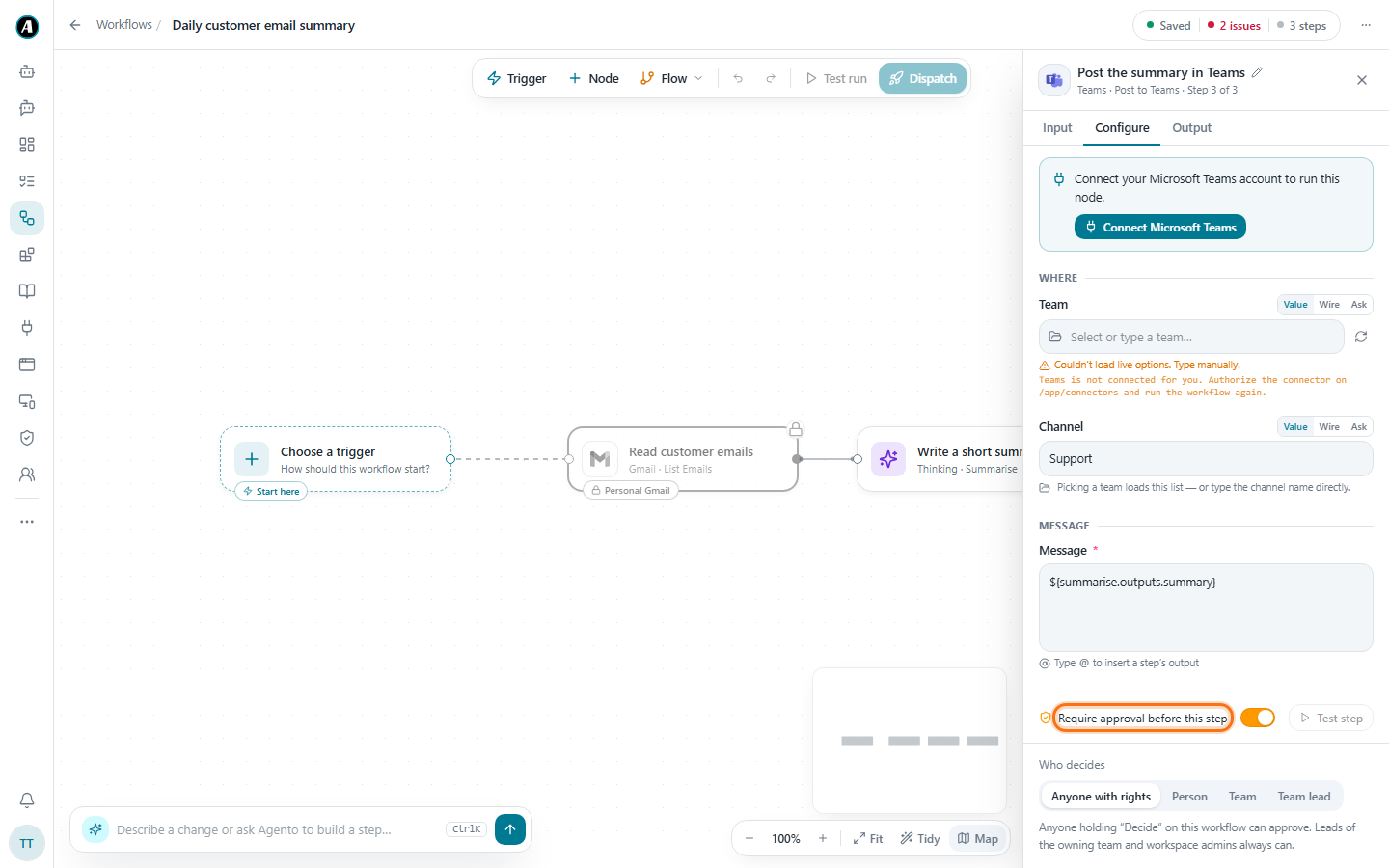
- The status at the top right shows Saved, the number of steps, and any issues. Click the issues to jump straight to the step that needs fixing.
- Tidy at the bottom right lines up the boxes neatly. Fit zooms to show the whole workflow.