
Getting started
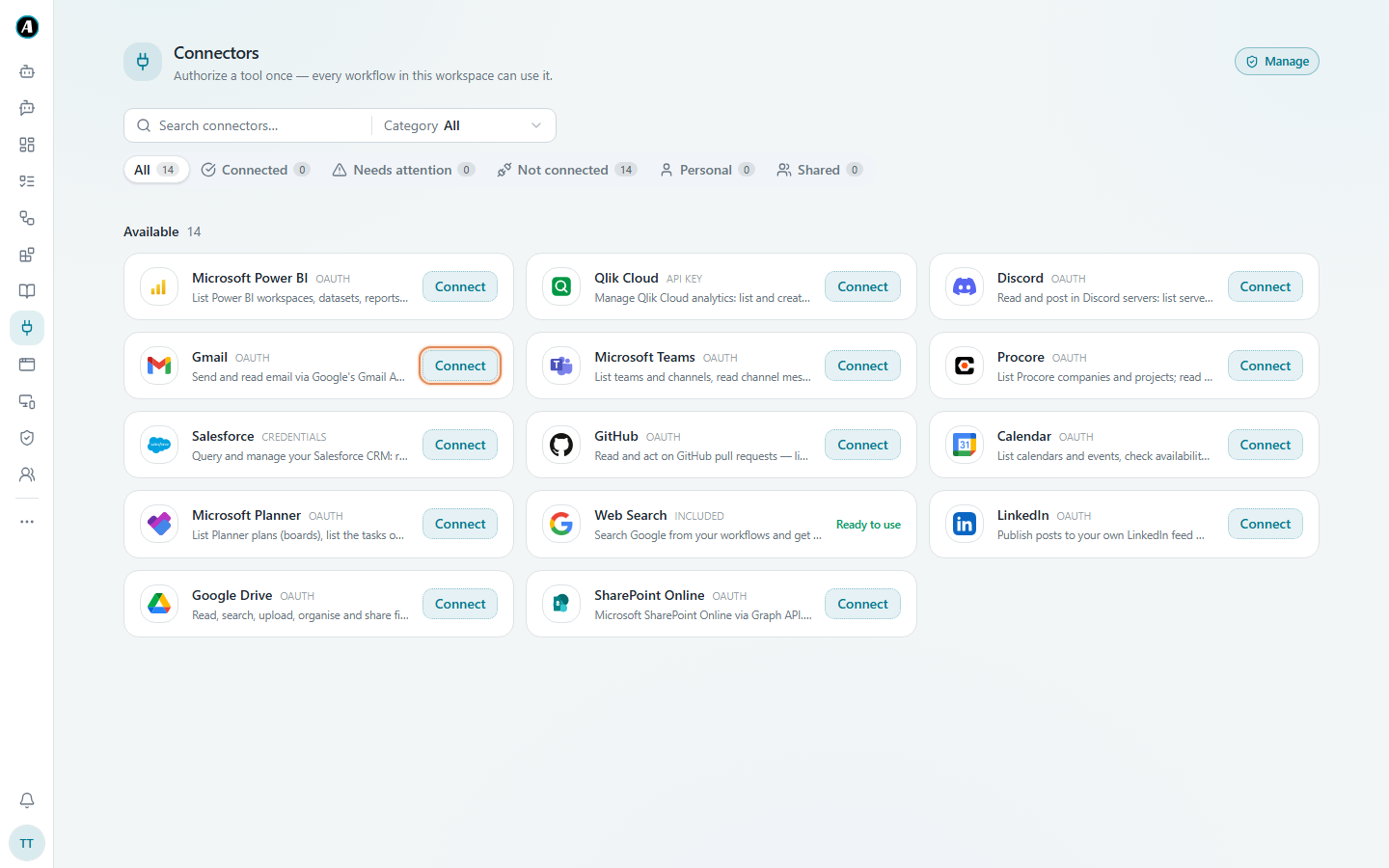
Connect your first app
Give Agento permission to use one of your apps, like Gmail or Google Drive.
Before Agento can read your email or look at your files, it needs your permission. You give that permission once per app, using the app's normal sign-in screen. We call a connected app a connector.
How to connect an app
- Click Connectors in the menu on the left (the plug icon).
- Find the app you want, for example Gmail, and click Connect next to it.
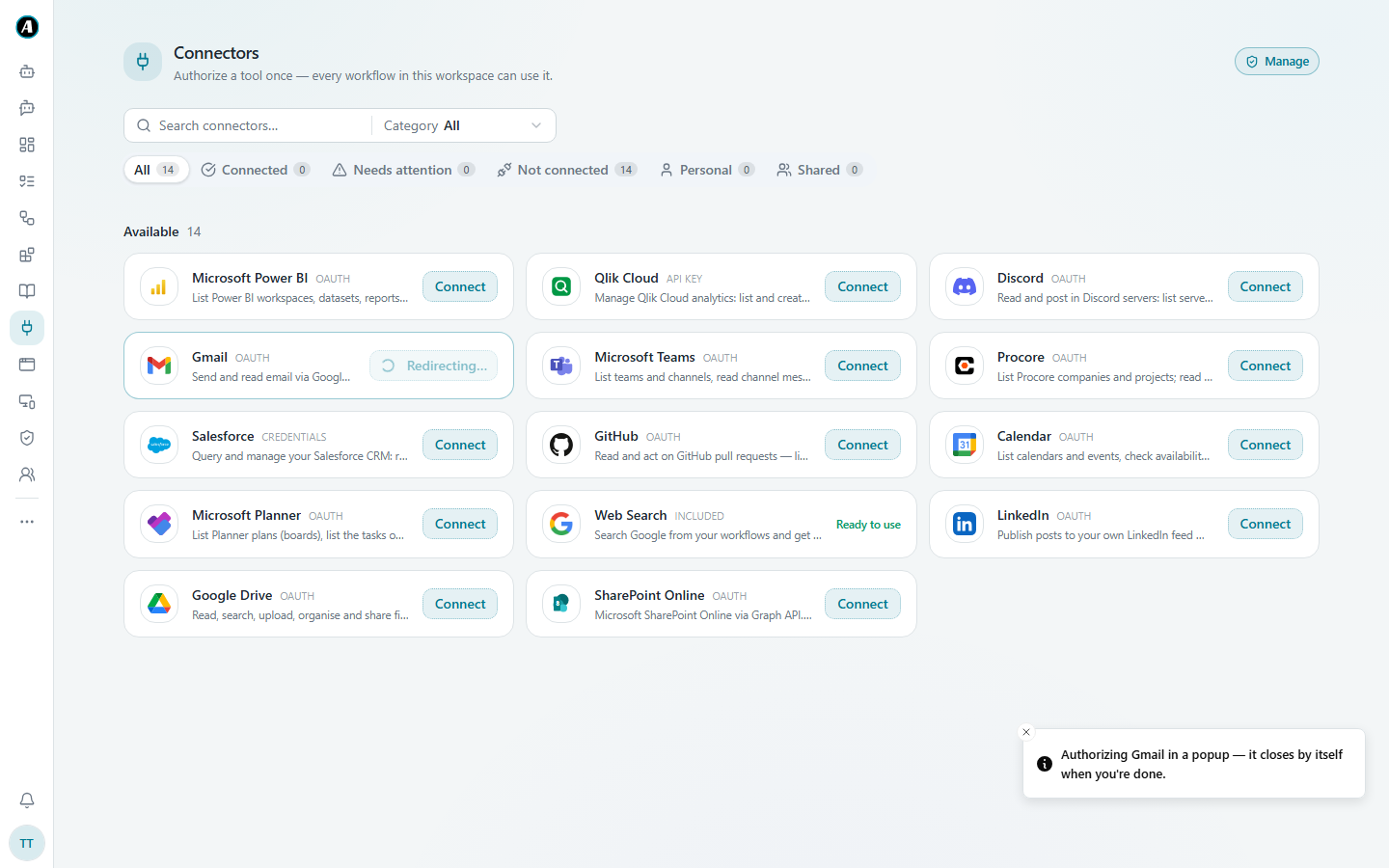
- A small window opens from Google, Microsoft or the app itself. While it's open, the button says Redirecting... and a note tells you the window closes by itself.
- Sign in and click Allow. The window closes by itself.
- Back in Agento, the app now shows under the Connected tab.
That's it. Do the same for each app you want to use. It takes about a minute each, and you only do it once.
Examples
Connecting Gmail
- Open Connectors, find Gmail and click Connect.
- Google asks which account to use. Pick your work account.
- Google lists what Agento wants to do, like "read and send email". Click Allow.
- Back in Agento, Gmail now sits in the Connected tab.
Now go to Chat and type "show me my last five unread emails". It works.
Connecting Teams for a workflow that posts updates
You want a daily summary posted in your team's Teams channel. Click Connect on Microsoft Teams and sign in with your work Microsoft account. When the workflow posts, the message shows your name, because it's your connection.
Good to know
- Nothing happens when you click Connect? Your browser may be blocking pop-up windows. Allow pop-ups for Agento and try again.
- Each person connects their own accounts. When a workflow sends email with your Gmail, it sends as you, not as your teammate.
- Some apps are already ready. Web Search says Ready to use and needs no sign-in at all.
- Connections can expire. Every now and then an app asks you to sign in again. If a workflow says "not authenticated", come back here and click Connect again. Everything starts working straight away.