
Desktop apps and machines
Let Agento work in apps installed on a Windows computer, like Excel and AutoCAD.
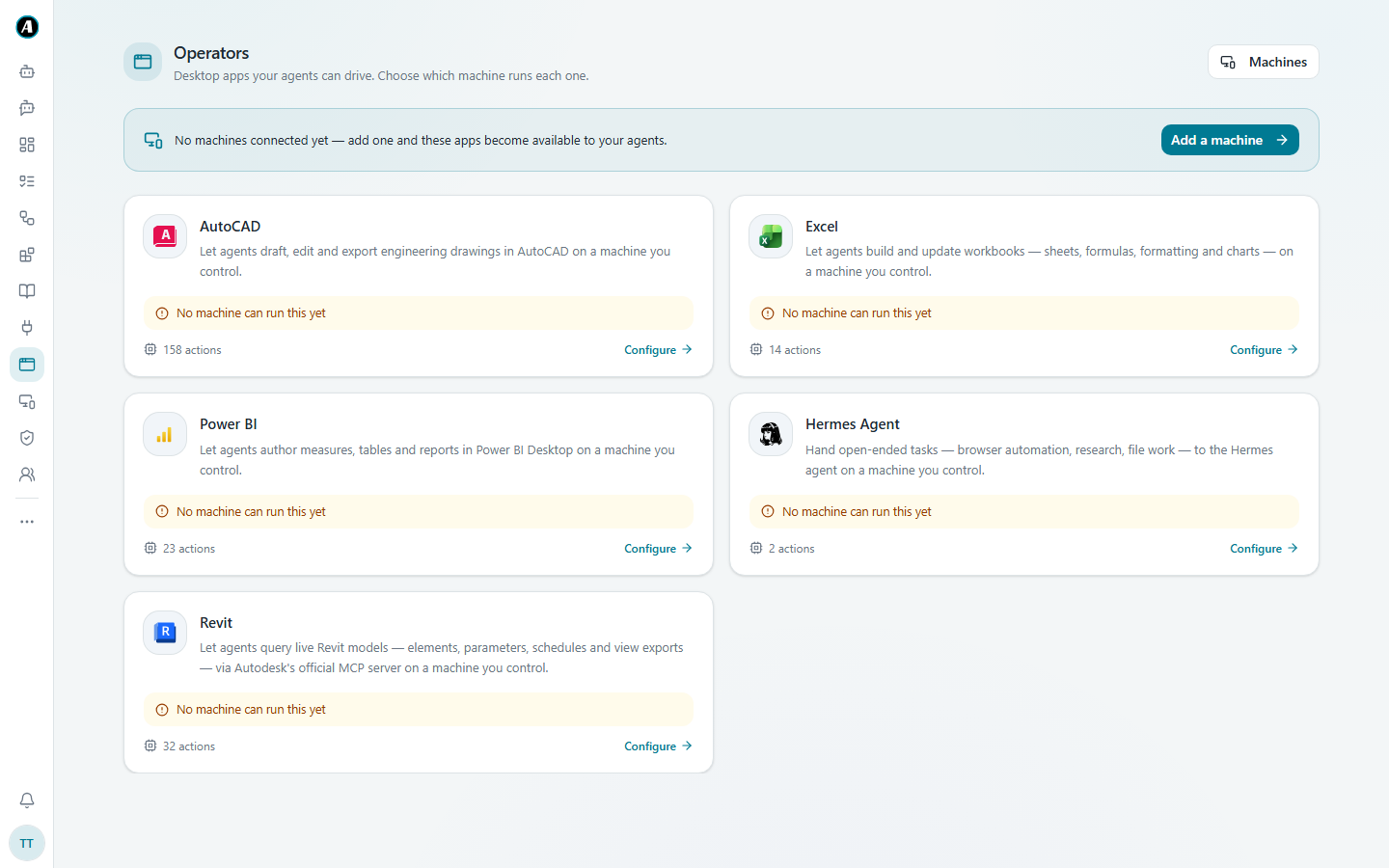
Some work happens in apps installed on a computer, not on the web: Excel, AutoCAD, Power BI Desktop, Revit. Agento can work in those apps too, on a Windows computer that you choose. We call those apps Operators, and the computers Machines.
What it can do
- Excel: build and update workbooks, with sheets, formulas, formatting and charts.
- AutoCAD: draw, edit and export engineering drawings.
- Power BI: write measures and tables, and build reports in Power BI Desktop.
- Revit: look up elements, settings and schedules in a building model, and export views.
- Hermes Agent: open-ended jobs on that computer, like browsing websites, research and working with files.
Step 1: Add a machine
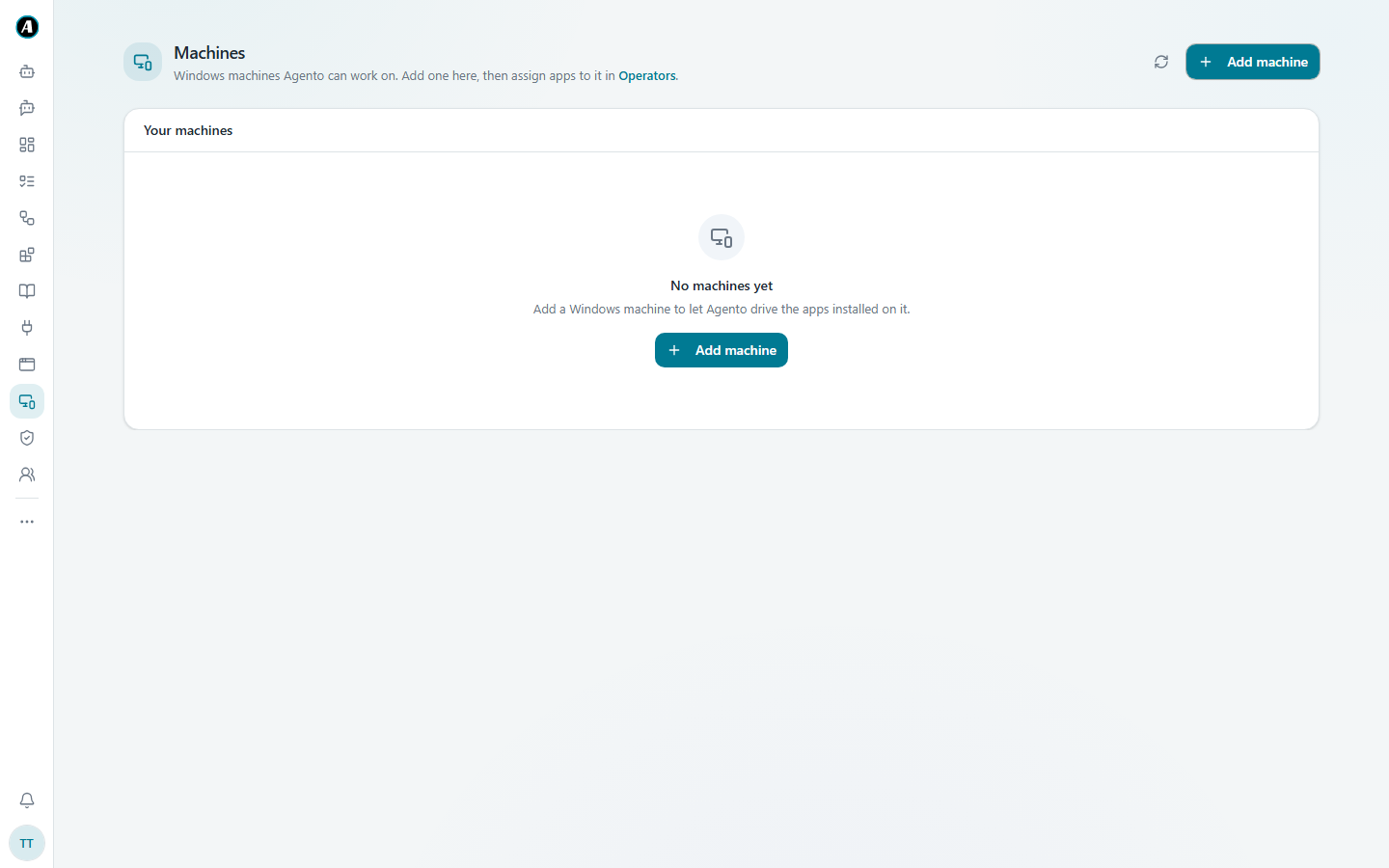
- Click Machines in the menu (or Add a machine on the Operators page).
- Click Add machine.
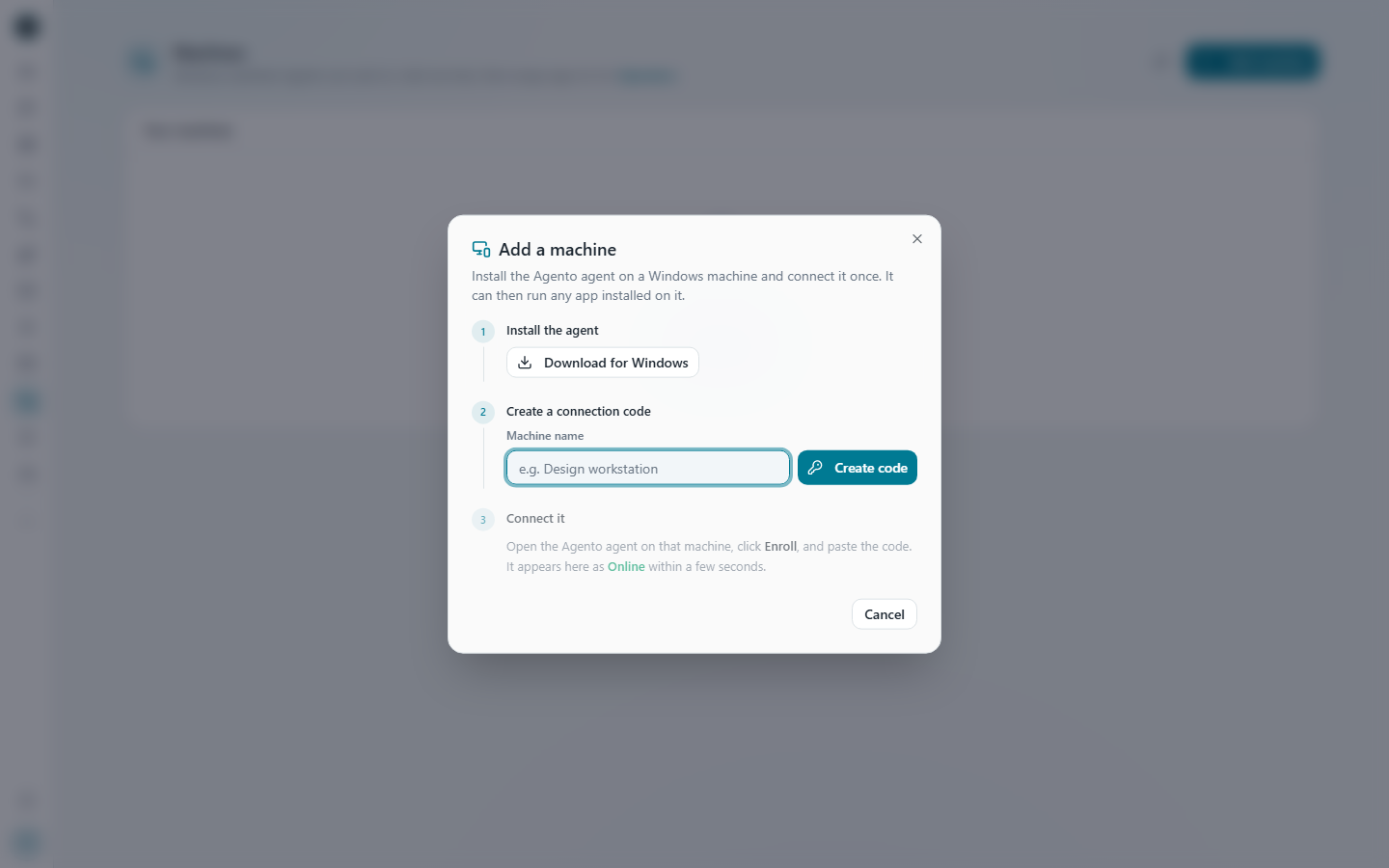
- A short guide opens. On the Windows computer, click Download for Windows and install the Agento agent.
- Back in Agento, type a Machine name, like "Design workstation", and click Create code.
- On the Windows computer, open the Agento agent, click Enroll and paste the code.
- Within a few seconds the computer shows up in Your machines as Online.
Step 2: Choose which apps it runs
- Go back to Operators.
- Click Configure on the app you want, like Excel.
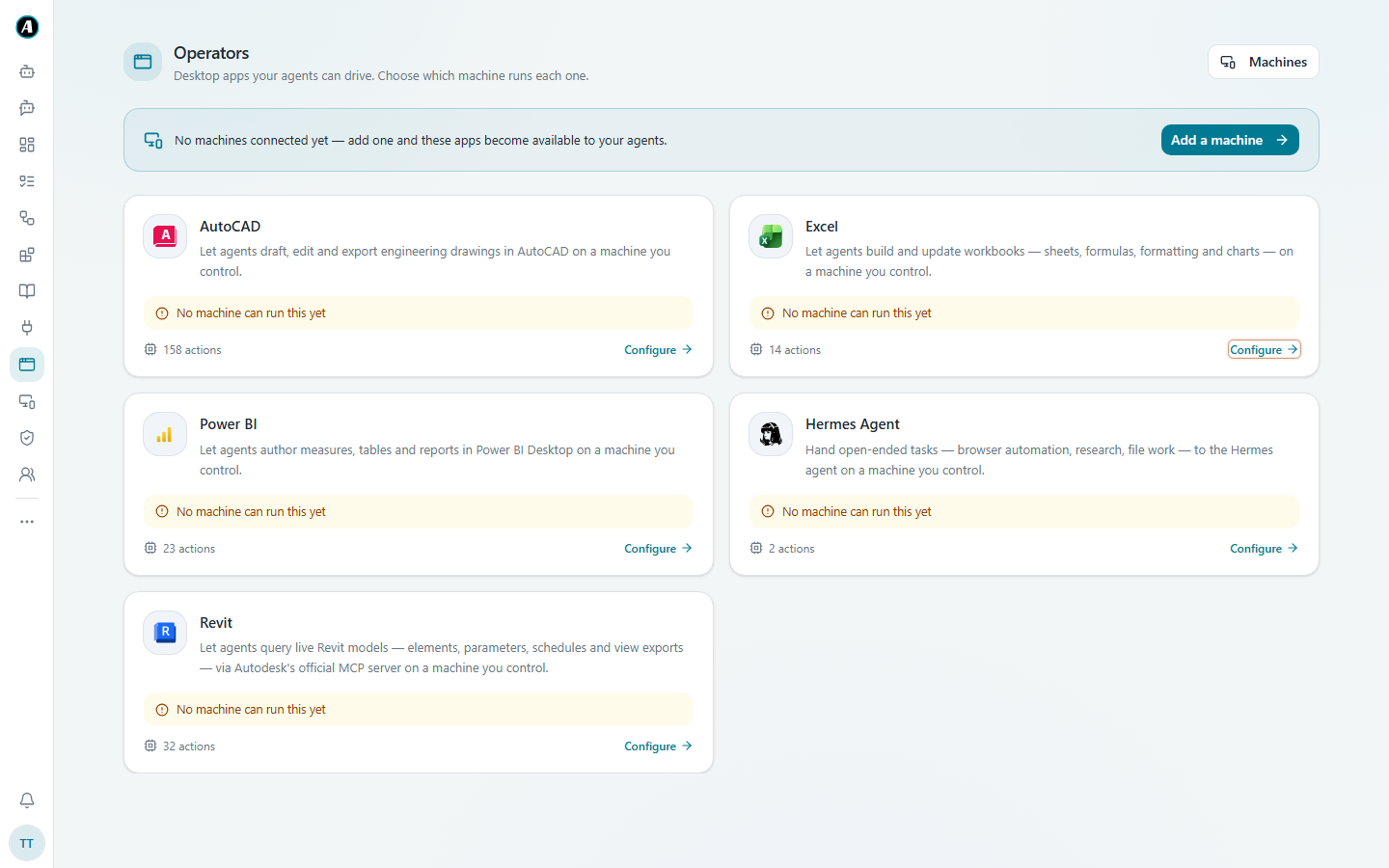
- Under Run on, pick the machine that has that app installed. Only machines that report the app are listed. Open What Excel can do to see every action it supports.
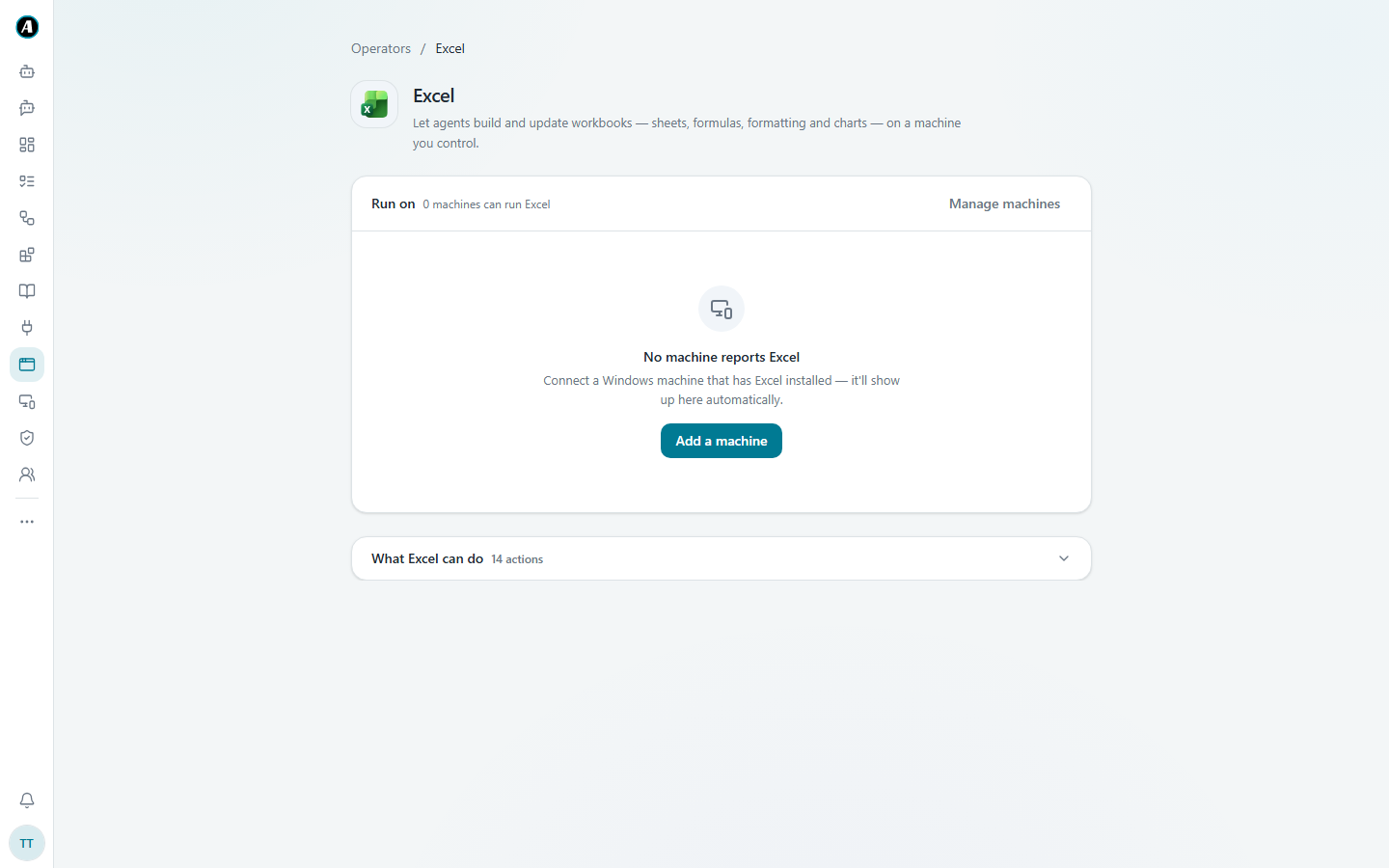
The yellow "No machine can run this yet" note disappears once a machine is chosen.
Step 3: Use it
Ask for it in Chat ("Draw a 100 by 50 mounting plate in AutoCAD"), or add the desktop app as a step in a workflow. You can watch the app work on the computer.
Examples
Excel: a tidy monthly report
In Chat, type: "Open the sales export on the Finance PC, make a new sheet with total sales per region, add a bar chart and save it as Monthly Sales.xlsx."
You can watch Excel do it on that computer. The finished file is saved where you asked.
AutoCAD: a quick drawing
Type: "Draw a 100 by 50 mounting plate with four 6mm holes, 10mm in from each corner, in AutoCAD on the design workstation."
Power BI: a new measure
Type: "In the open Sales report in Power BI Desktop, add a measure for total sales this year compared to last year." Agento writes it and shows you before saving.
Good to know
- The app must be installed on that machine, and the machine must be switched on with the Agento Agent running.
- Important changes still ask for your approval first.
- For a full walk-through with Power BI, see Power BI Desktop, building reports with the agent.