
Running a workflow
Start a workflow, watch it work, and understand what each status means.
There are three ways a workflow starts: you click Run on it, you click Dispatch in the builder, or a trigger starts it by itself. Whichever way it starts, it works exactly the same.
Starting a workflow
From your library
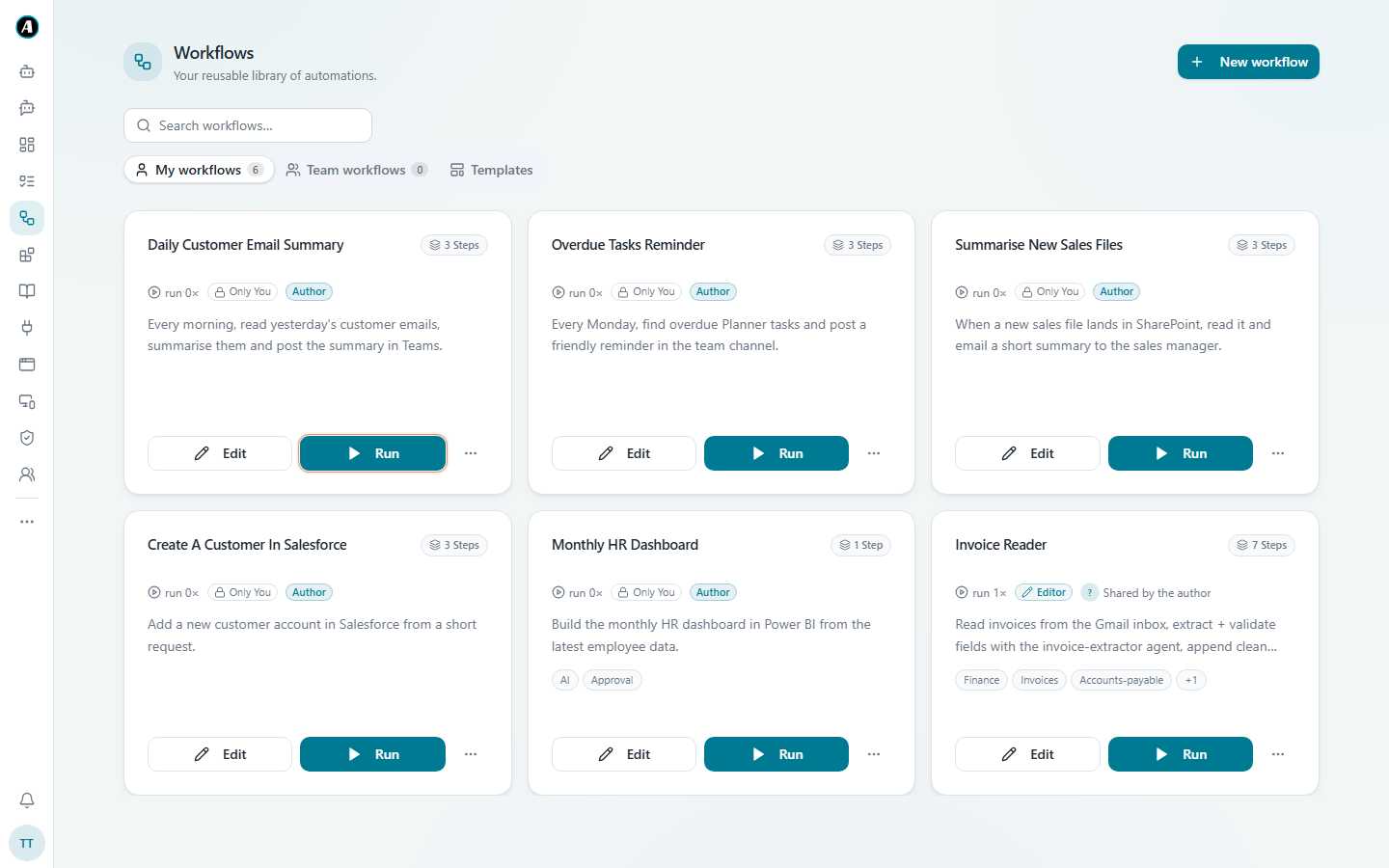
Open Workflows and click Run on any card.
From the workflow's page
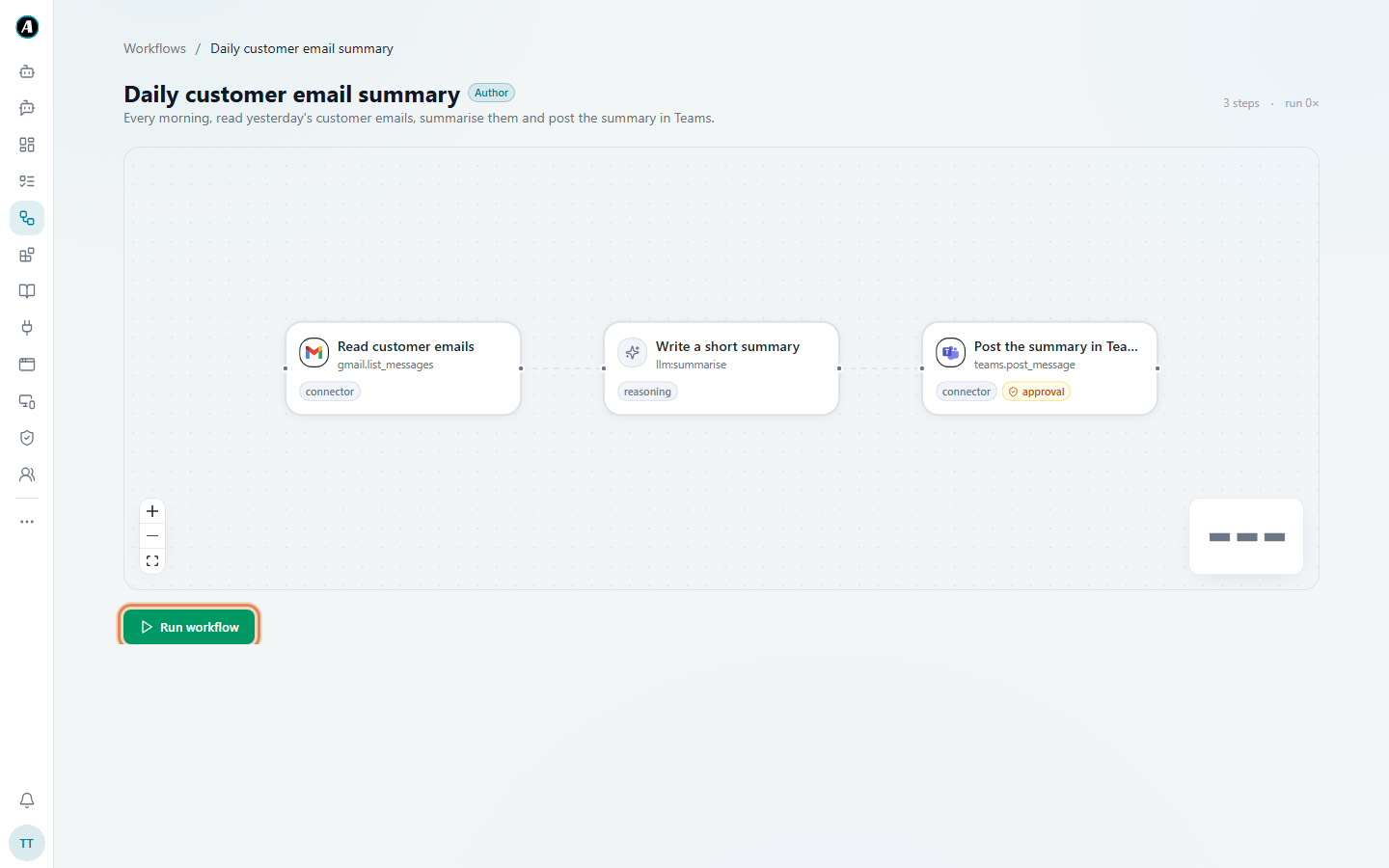
Click a workflow's name to open its page. You see its steps and a Run workflow button at the bottom.
From the builder
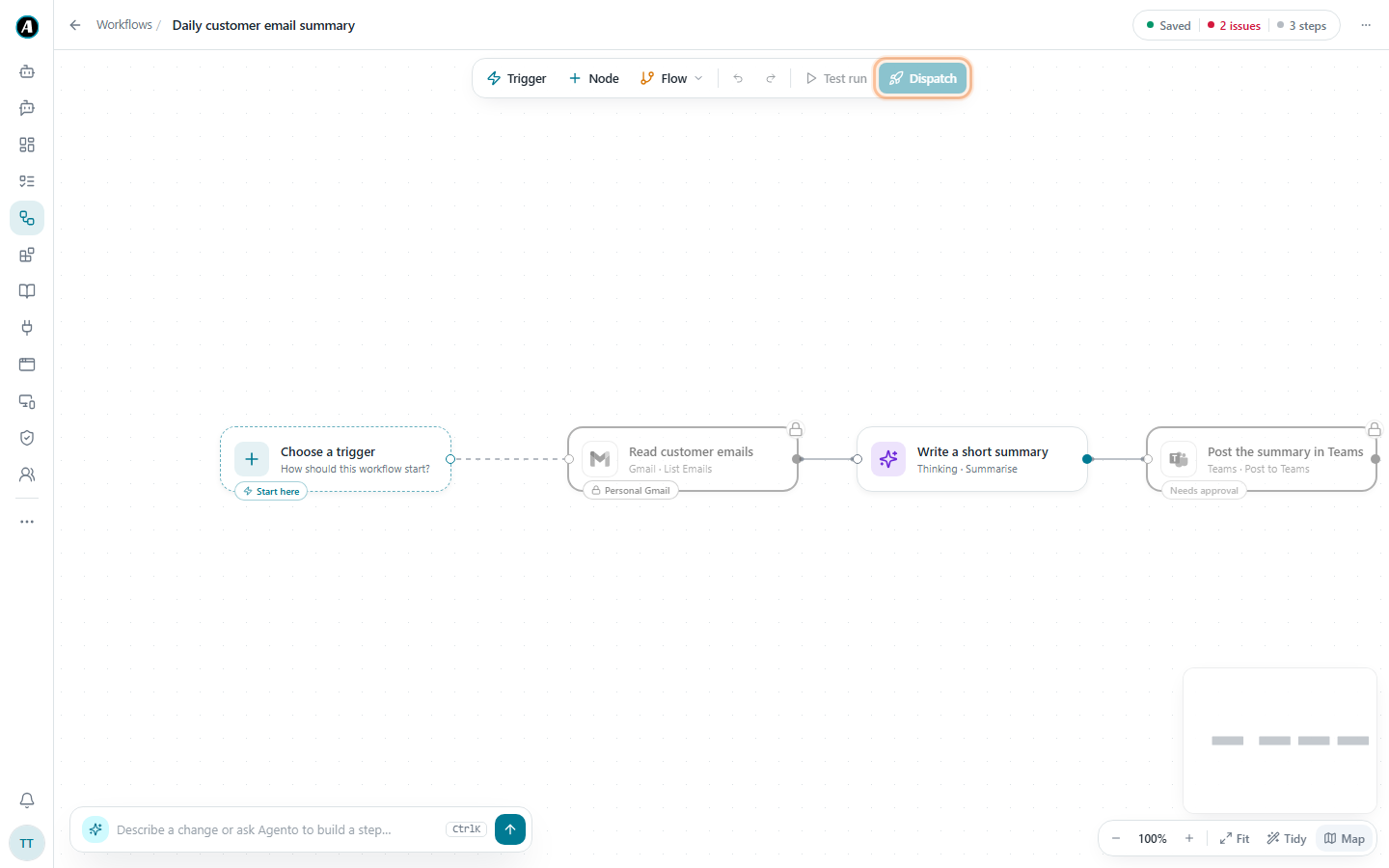
Click Dispatch to save and run, or Test run to try it without saving.
If the workflow needs some details from you, like a customer name, a short form asks for them before it starts.
What the statuses mean
- Running means a step is working right now. Steps light up one by one.
- Paused means it's waiting for you, usually for an approval. It waits as long as it needs to, even days. Nothing is stuck.
- Completed means every step finished. The final result is shown at the end.
- Failed means a step couldn't finish, even after trying again. Open the run to see which step and why, in plain words.
You can close the page
A running workflow doesn't need your browser. Close your laptop, lose your internet, it keeps going. Come back any time and find it under Tasks.
Examples
Running a report before a meeting
Your weekly sales summary normally runs on Mondays, but your manager wants it now. Open Workflows, click Run on the card, and the summary arrives in a minute or two. The Monday schedule still runs as usual.
A workflow that asks you something
Your "welcome a new customer" workflow needs the customer's name and email each time. You click Run, a small form pops up, you type "Northwind Traders" and their email, and it starts.
The statuses in real life
- At 9:00 your summary workflow shows Running.
- At 9:01 it shows Paused. It wants to post in Teams and is waiting for your approval.
- You approve at 9:30, and it shows Completed.
Good to know
- If something fails for a small reason, like a slow connection, Agento quietly tries again a few times before giving up.
- You can stop a run that's in progress. Steps that already finished stay finished.
- Runs started by a trigger look exactly like runs you started yourself.