
Making your own skill
Turn the way your team does a job into a skill everyone can reuse.
If your team does a job the same careful way every time, that's a skill waiting to be written down. There are three ways to make one. Open Skills and pick the button at the top right.
Create with AI (easiest)
Let Agento write the skill for you.
- Click Create with AI at the top right of the Skill Library.
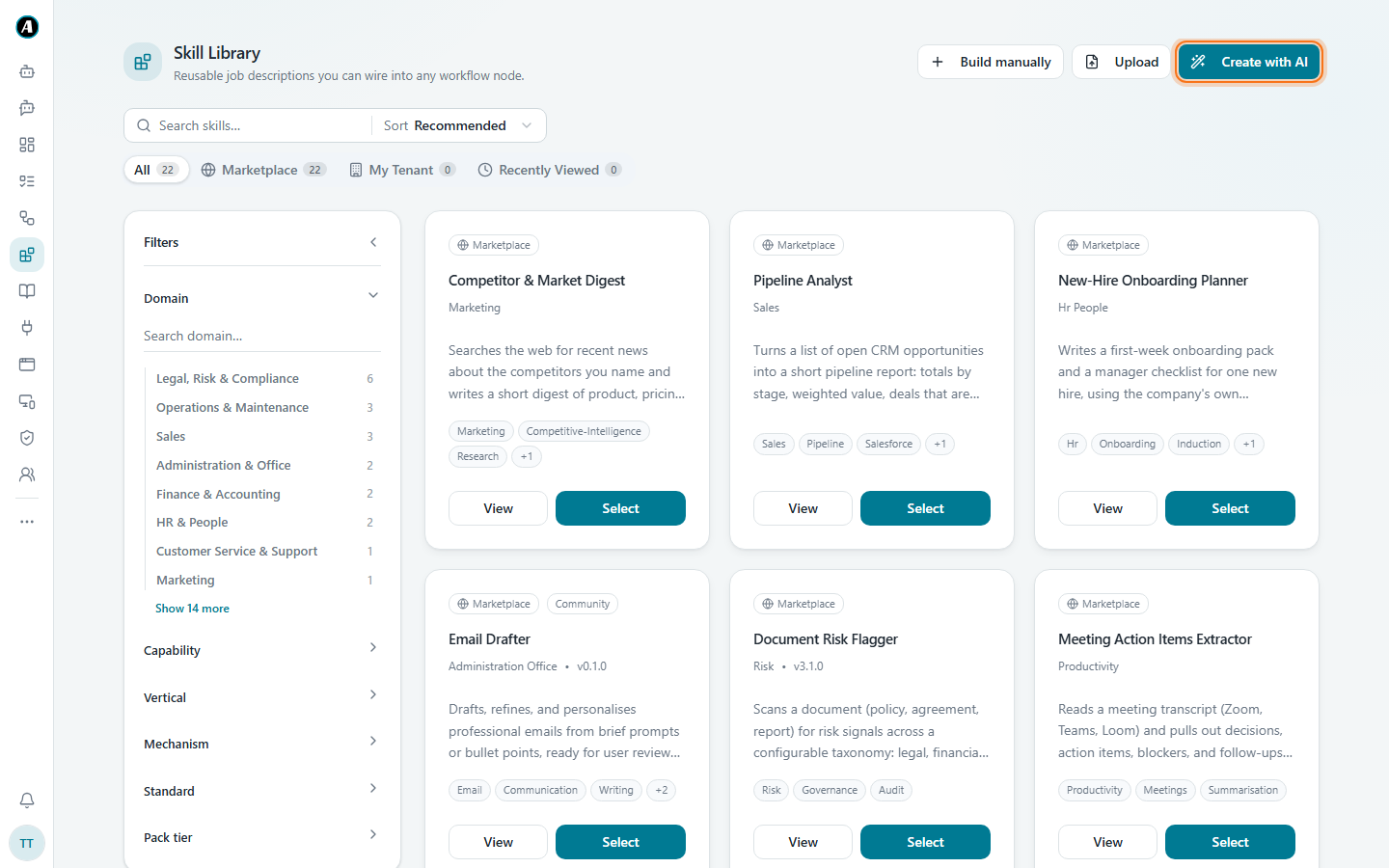
- Choose Generate from a spec (type a name and a short description, and Agento writes the whole skill in one go) or Draft by chatting (describe it in plain words, then improve it by chatting until it reads right).
- Fill in the Skill name and a Short description, then click Generate with AI.
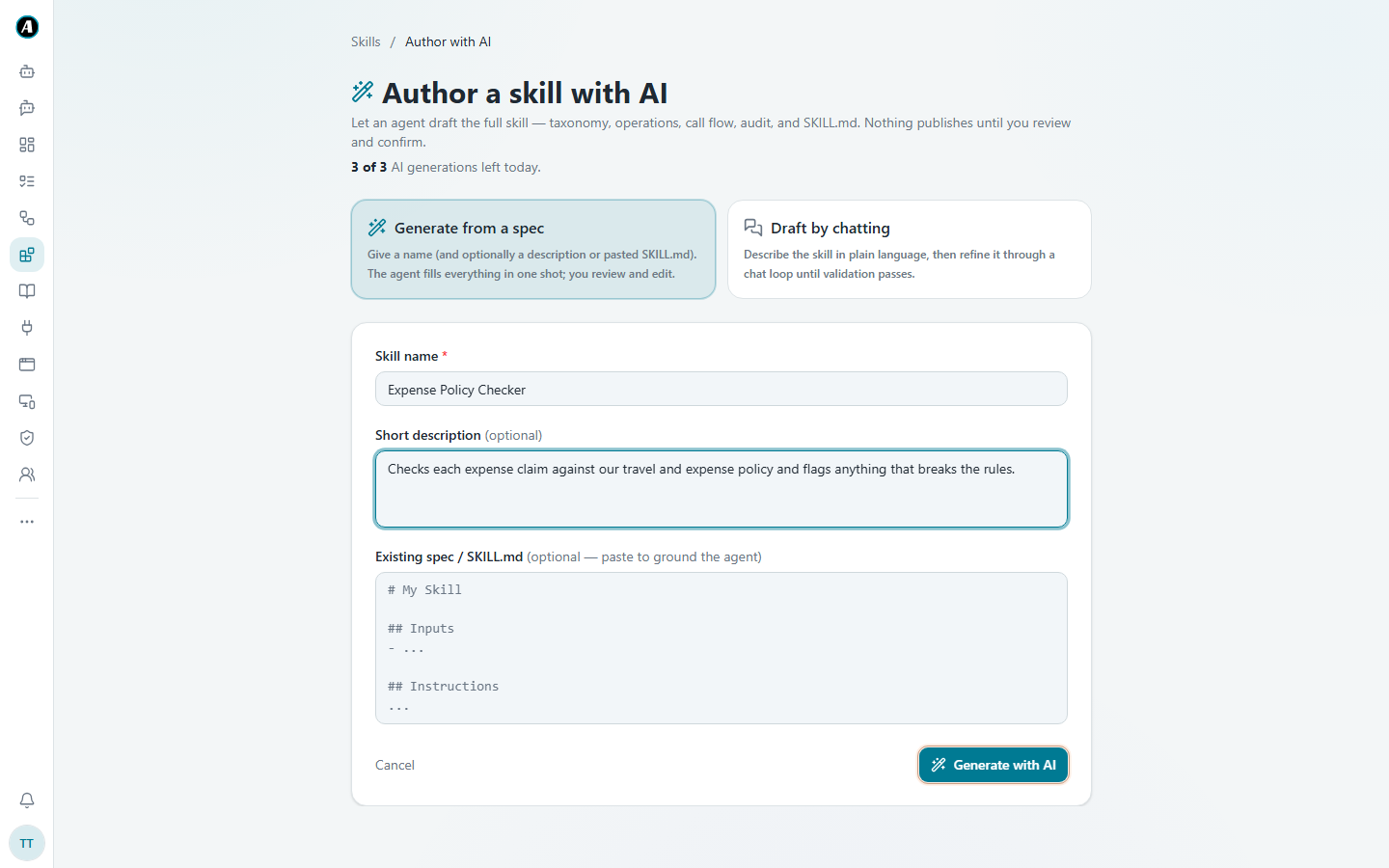
- Read the result and change anything you like. Nothing is shared until you confirm.
You can make a few skills with AI each day. The page shows how many you have left.
Build manually
Fill in a simple form yourself.
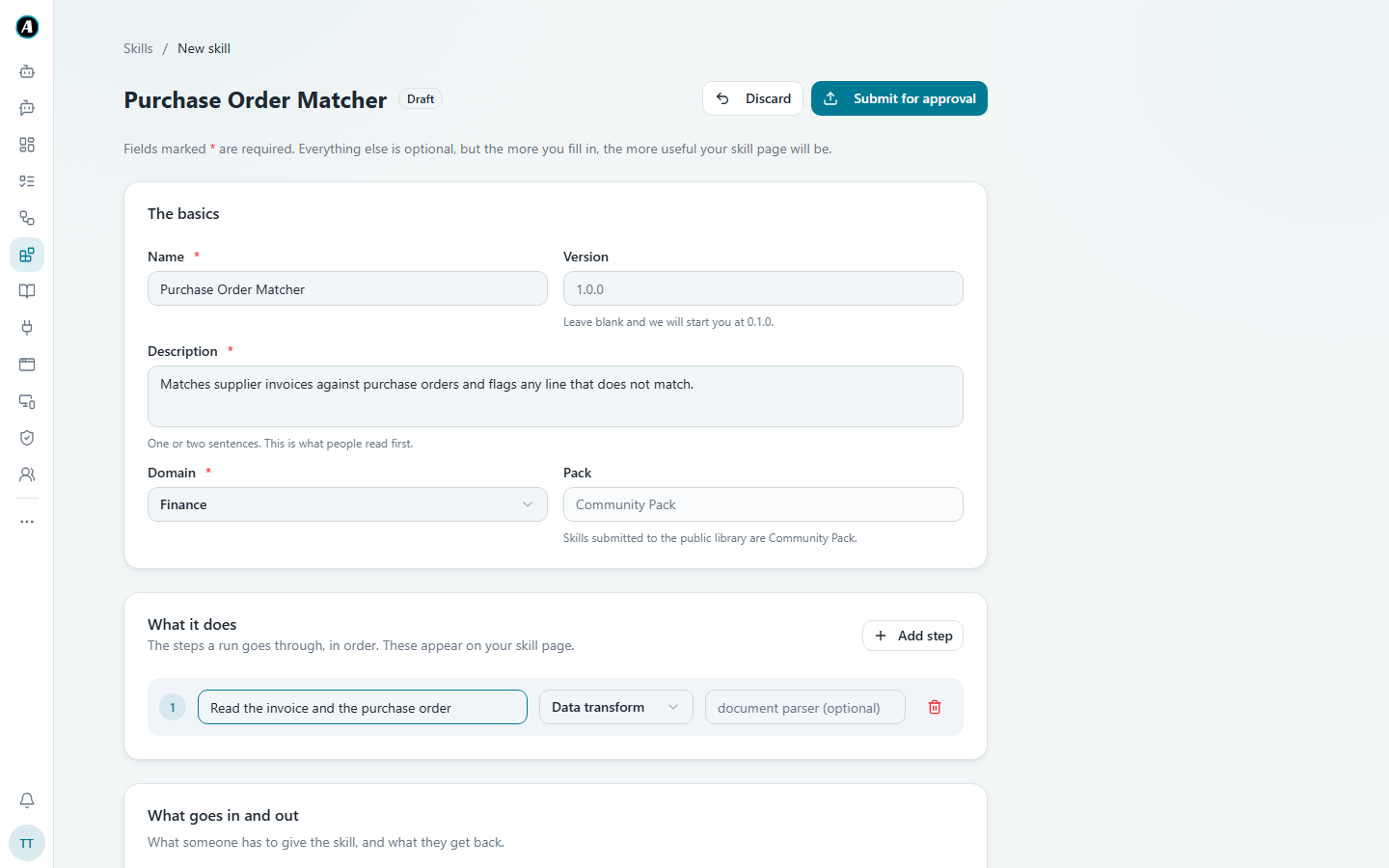
- Click Build manually.
- Fill in The basics: a name, a short description and the area it belongs to, like Finance.
- Under What it does, list the steps in order, one per line.
- Under What goes in and out, say what the skill needs (for example an invoice file) and what it gives back (for example a match report).
- Save it.
Upload
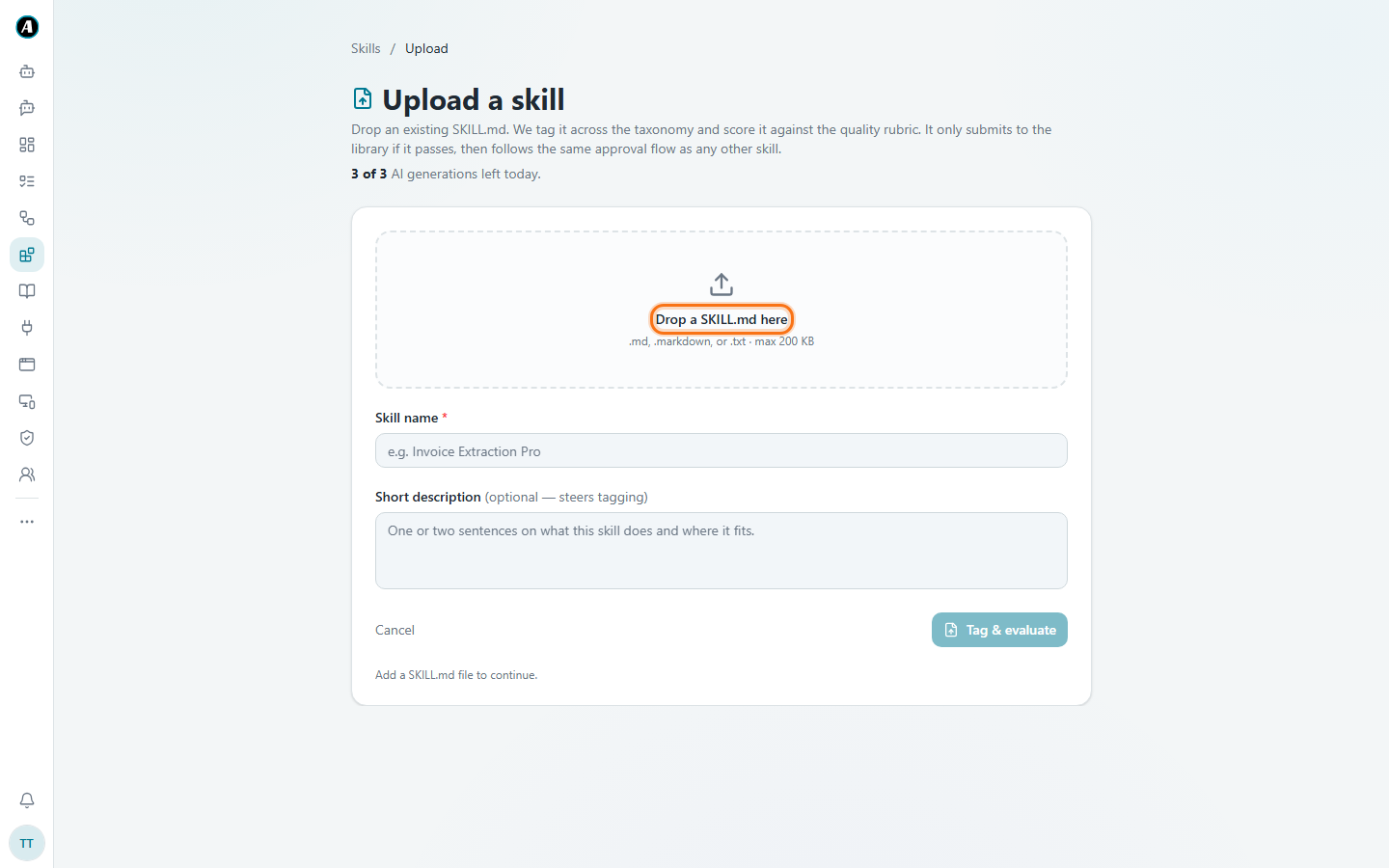
Already have a skill written down as a file? Click Upload, drop the file in (a .md or .txt file), give it a name, and click Tag & evaluate. Agento checks its quality before adding it.
What makes a good skill
- One job, done well. "Extract invoice details" is a skill. "Handle finance" is a whole department.
- Clear inputs and outputs. Say exactly what goes in and what comes out.
- Honest limits. If it only works for English invoices, say so.
Example: a skill written in plain words
Here's what you might type for a skill made with Build manually.
Name: Supplier invoice check
Description: Checks a supplier invoice against the purchase order and says whether it can be paid.
What it does:
- Read the invoice and find the supplier, invoice number, total and due date.
- Find the matching purchase order number on the invoice.
- Compare the amounts. A difference of more than $10 is a problem.
- Write "OK to pay" or "Check before paying", with the reason.
What goes in: the invoice file and the purchase order file.
What comes out: a short note with the result and the reason.
Good to know
- Skills may be reviewed before they appear for others, so the library stays trustworthy.
- Changing a skill later doesn't silently change workflows that already use it.