
The Tasks page
See every run in your workspace, live and from the past, in one list.
Tasks is where you watch everything happen. Every time a workflow runs, it appears here straight away, updates live while it works, and stays here afterwards so you can look back at it.
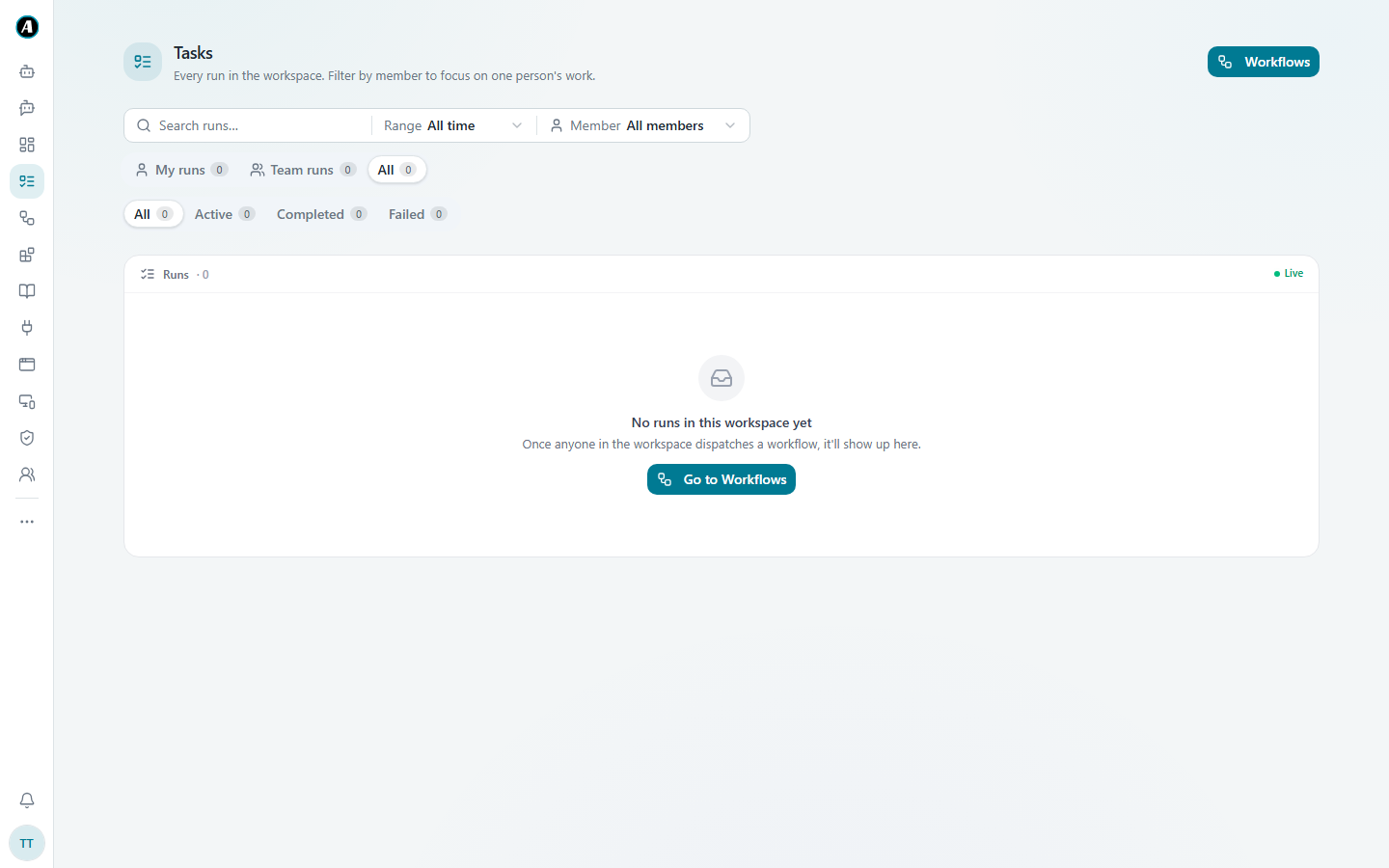
Finding a run
- Search by the workflow's name.
- Range shows runs from today, this week, or all time.
- Member shows runs by one person. Handy for team leads.
- My runs, Team runs and All switch between your runs and your team's.
- Active, Completed and Failed narrow it down by status.
The green Live dot means the list updates by itself. You never need to refresh.
Opening a run
Click any run to see it step by step. For each step you can see:
- whether it worked, and how long it took
- what it received, like the file it was given
- what it produced, like the summary it wrote (files can be downloaded)
- what went wrong, in plain words, if it failed
When a result looks odd, open the run and read the step that made it. The answer is almost always right there.
Examples
"Did my 9am report run today?"
Open Tasks, set Range to today and search for the workflow's name. If it says Completed, it ran. Click it to read what it sent.
A team lead checking the team's week
Set Range to this week, click Team runs, then Failed. You see only the runs that need attention, and who started each one.
Finding out why a summary looked odd
The Teams summary said "no emails today", but you know there were some. Open that run and click the first step, Read customer emails. What came out: zero emails. What went in: it searched the wrong folder. Now you know which step to fix.
Good to know
- Runs started by triggers show up here too, named after their workflow.
- Long results are folded up. Click a step to see everything.
- Nothing is ever deleted from here, so you can look back as far as you need.