
Your first workflow in 5 minutes
Describe a job in your own words, let Agento build it, then run it.
Let's build something real: "summarise my customer emails and post the summary in Teams". You describe it, Agento builds it, and you watch it work. It takes about five minutes.
1. Start a new workflow
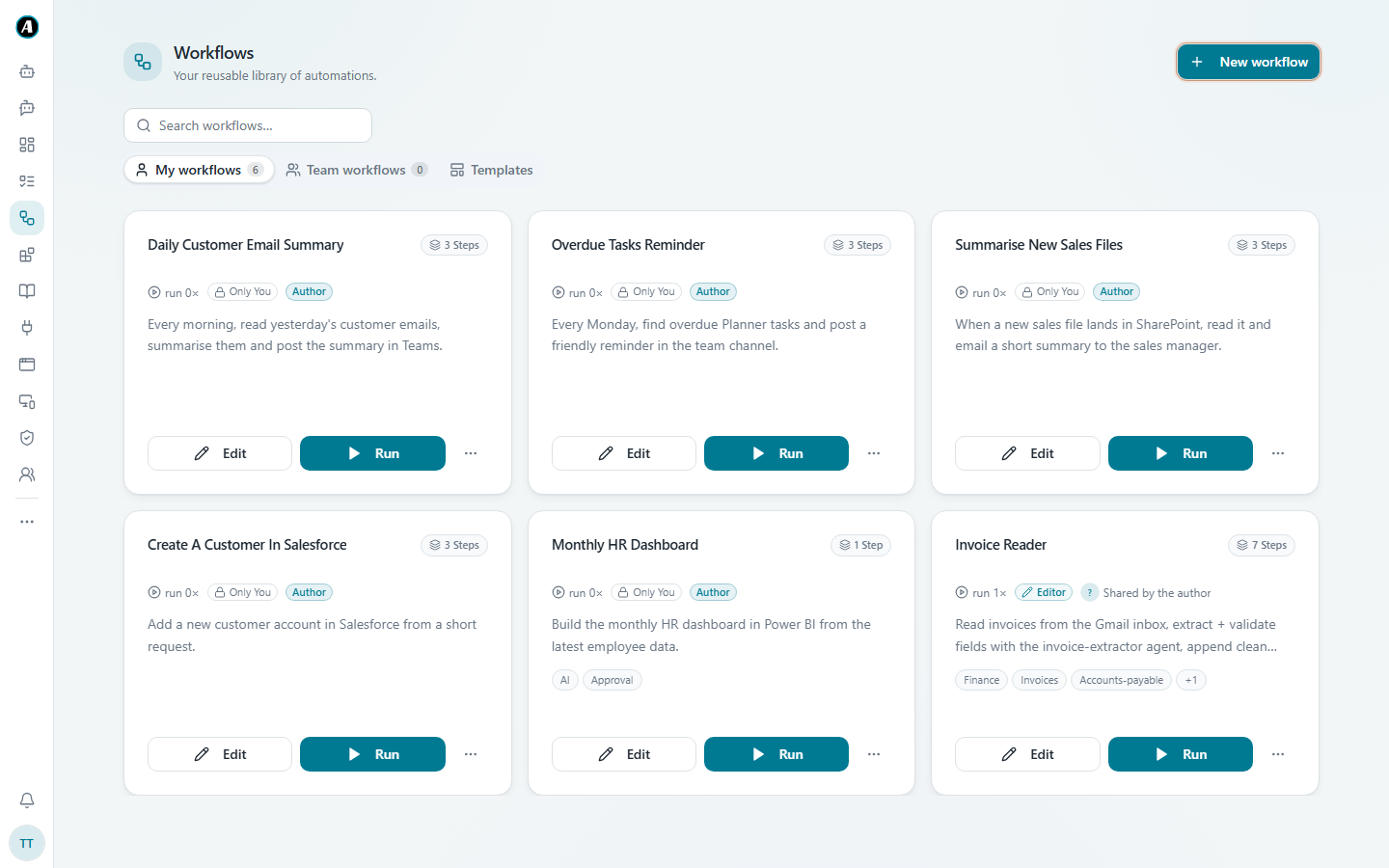
Click Workflows in the menu on the left, then New workflow at the top right.
2. Describe the job
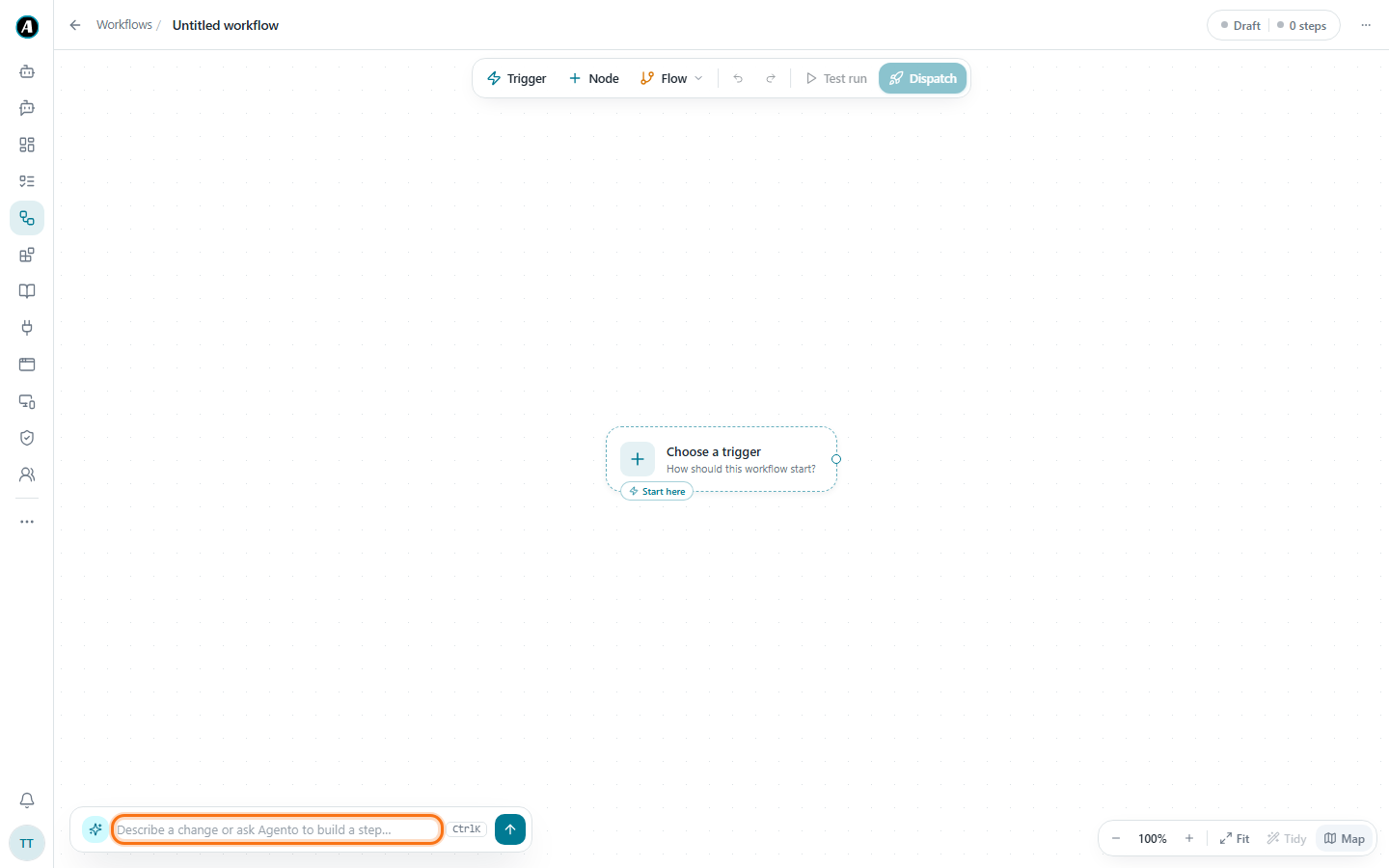
- You now see an empty page with a box at the bottom left that says Describe a change or ask Agento to build a step. Click it.
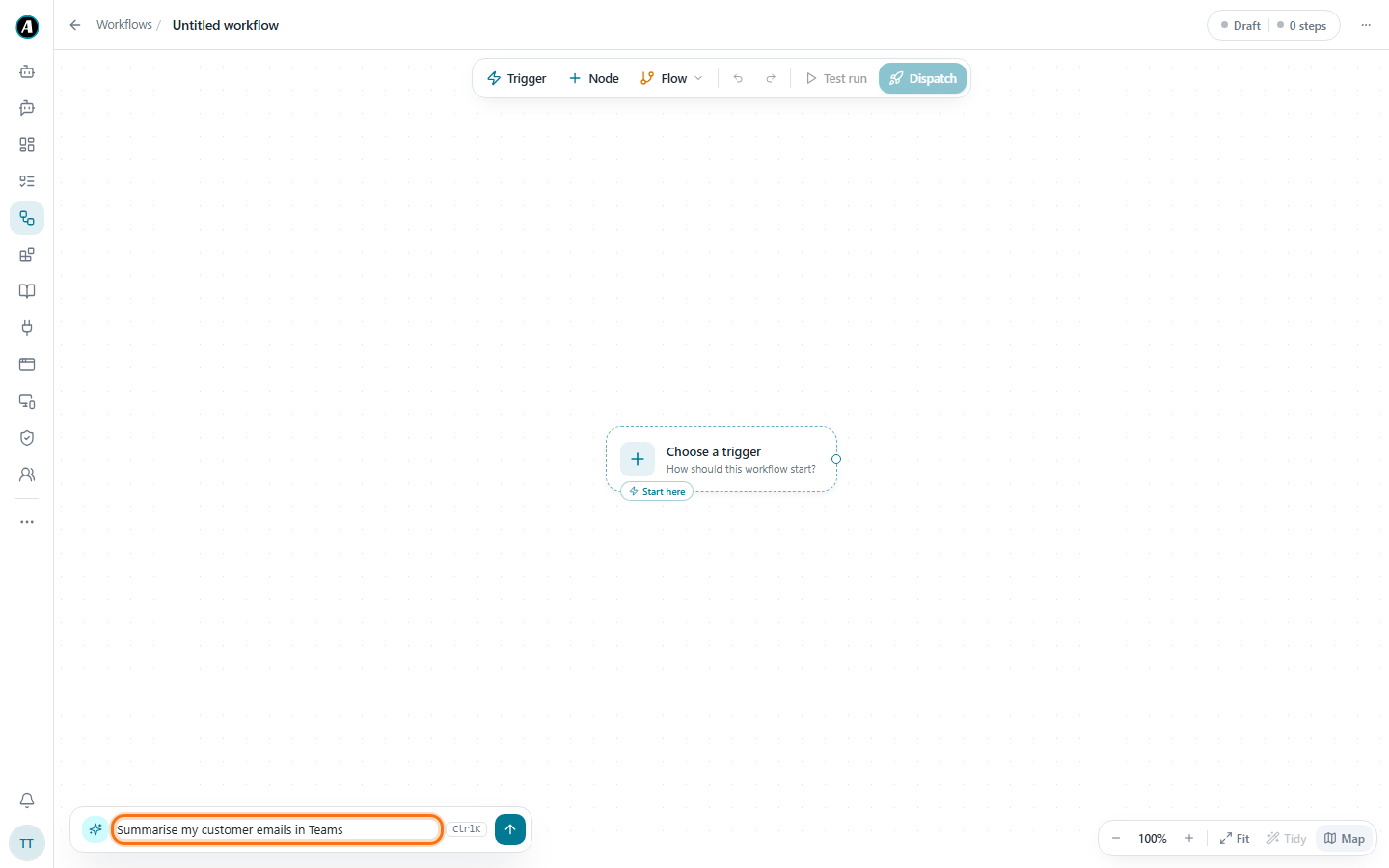
- Type what you want, the way you'd tell a colleague, then press Enter.
If something is unclear, Agento asks you a quick question first, like "Which Teams channel?". Just answer in the same box.
3. Check what it built
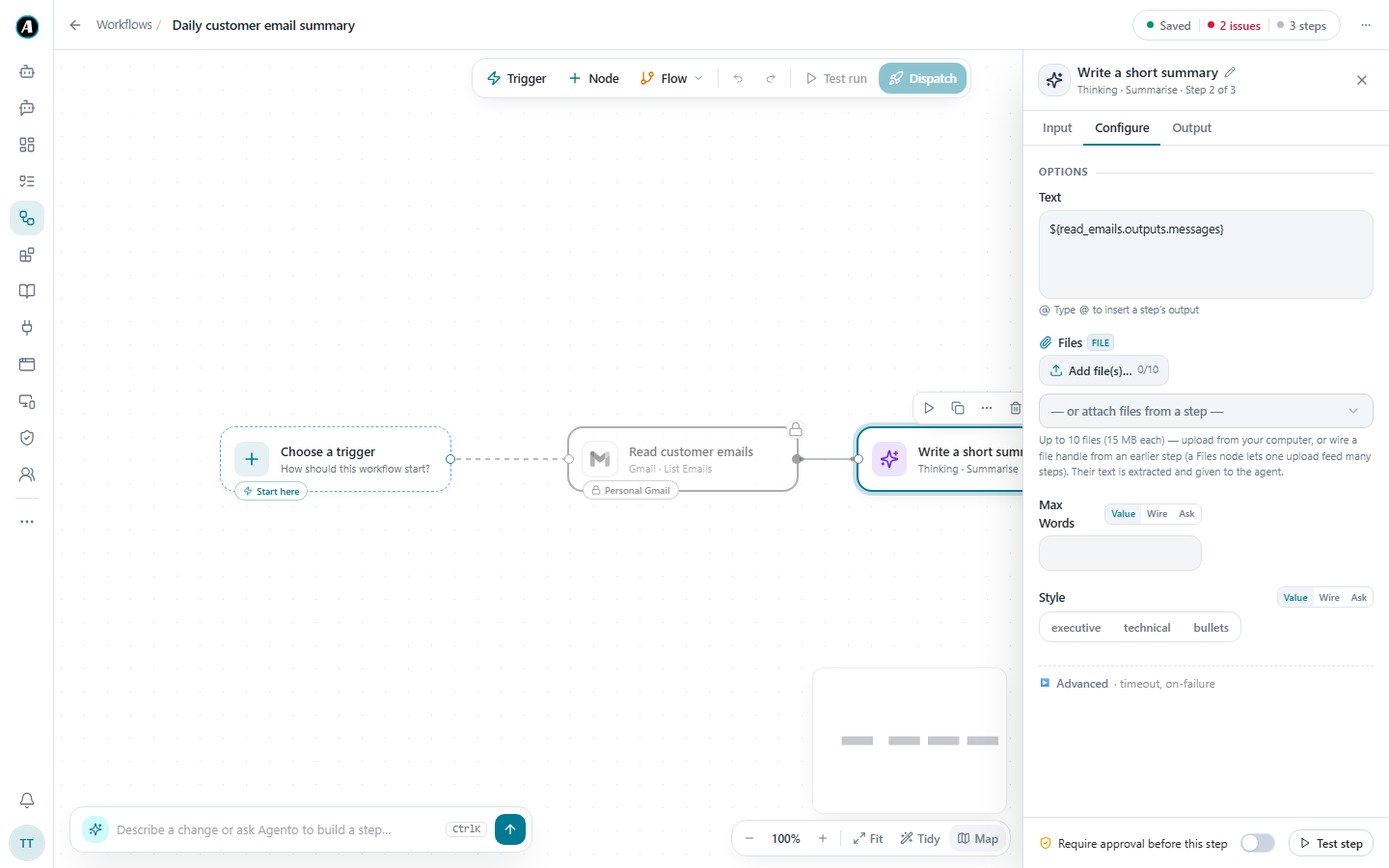
In a few seconds the steps appear on the screen as boxes joined by lines. Each box is one step, like "Read customer emails" or "Post the summary in Teams".
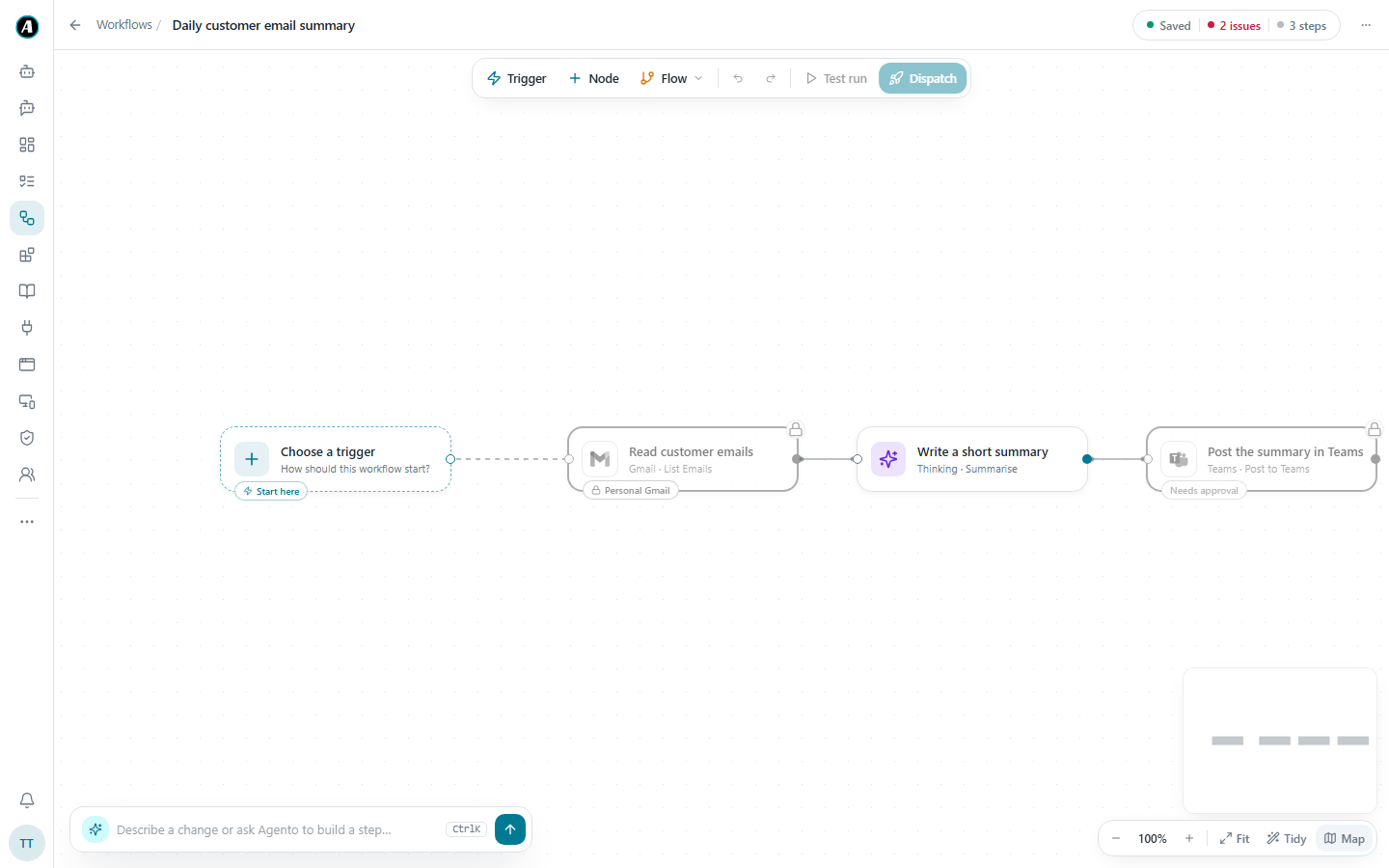
Click any box to see exactly what it will do. A panel opens on the right. If you want a change, you can edit it there, or just type it in the box at the bottom: "post it in the Sales channel instead".
4. Run it
- Click Dispatch at the top. This saves the workflow and runs it.
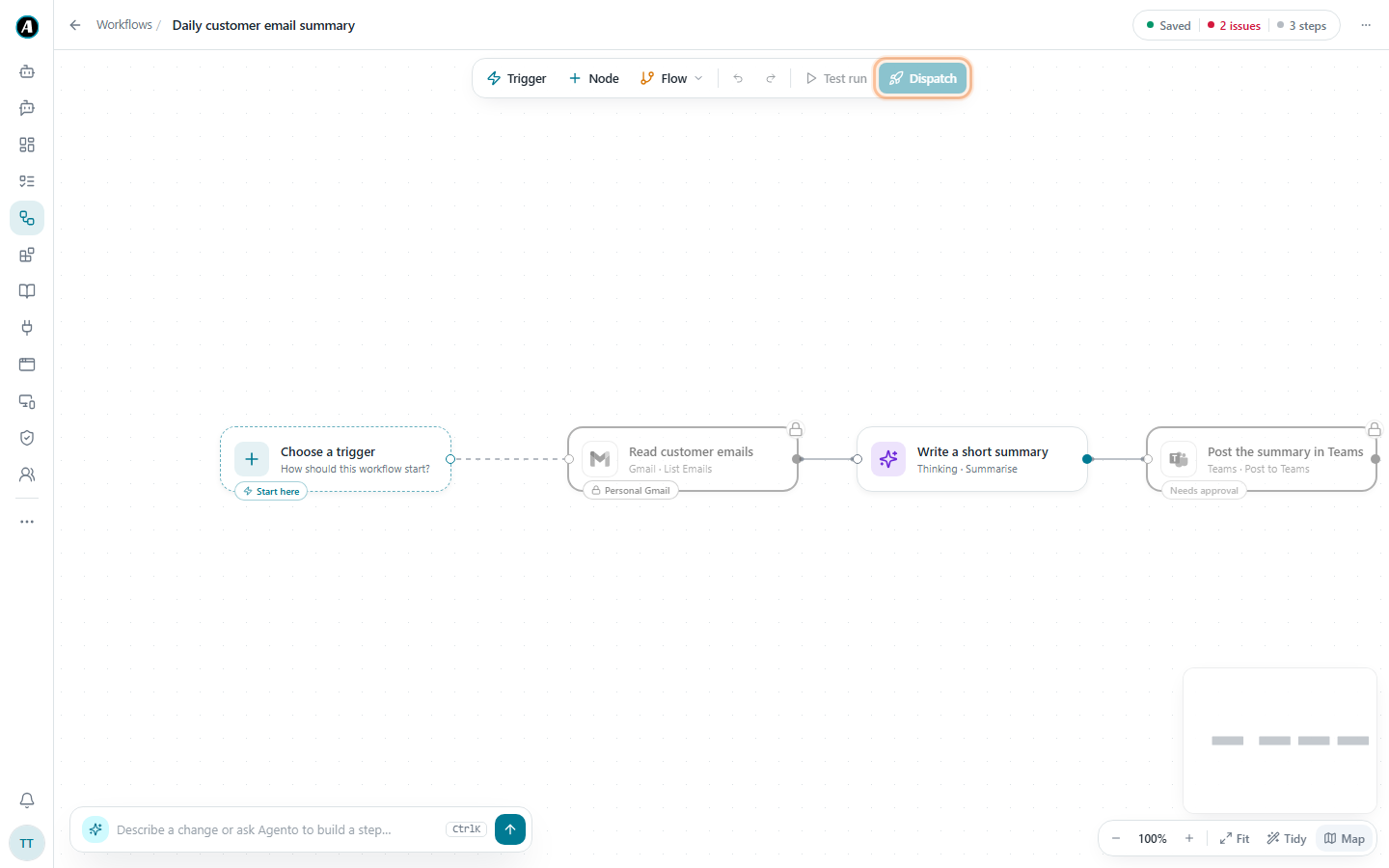
- Watch each step light up as it finishes.
- The Teams step pauses and shows you the exact message it's about to post. Read it and click Approve.
- Check Teams. Your first automation just worked.
More things to try for your first workflow
Pick whichever sounds most like your week. Type it in the box exactly like this, or in your own words:
- "Every morning, list my unread Gmail emails from customers and post a short summary in the Support channel in Teams."
- "Find the newest file in my Sales folder in Google Drive and email me three bullet points about it."
- "Every Monday, find overdue tasks in Planner and post a friendly reminder in the General channel."
- "Search the web for news about our two biggest competitors and email me a short summary."
Each of these becomes three or four steps. Look at them, click a step if you're curious, and press Dispatch.
Good to know
- Dispatch is greyed out? Usually an app isn't connected yet. Click the red issues count at the top right to see what's missing. Each issue has a Fix button.
- Test run runs it without saving, if you just want to try it.
- Your workflow is now saved under Workflows. You can run it again any time, or add a trigger so it runs by itself.